

Human-in-the-Loop: HITL
The HITL action allows you to include a human decision step in your automation. Each decision option is represented as a branch. You can configure up to five branches, and each branch can run automatically or require the user to choose during execution.
By using the HITL action, you can combine automated processing with human judgment. Each branch defines a clear path and can contain any actions or functions already available in HuLoop. This gives you flexibility while maintaining control in scenarios that require human review.
Important: The HITL action is fully supported only in Grid View.
Before adding or configuring HITL, switch to Grid View to ensure all branches and configuration options appear correctly. See more: How to switch between Views.
Steps to Configure:
- Add the HITL Action
- Switch to Grid View.
- Drag and drop the HITL action into your automation.
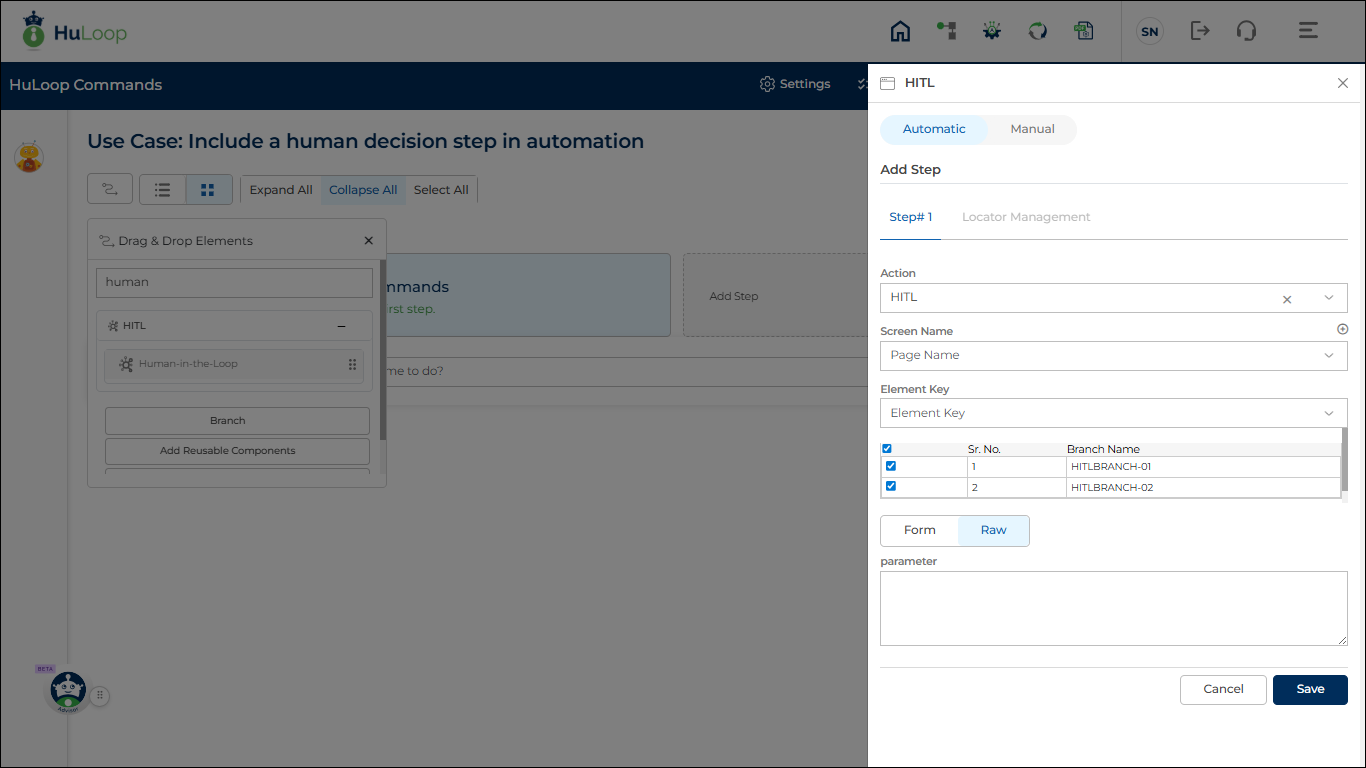
- In the configuration pane, two default HITL branches appear below the Element Key
- Select both branches before saving the step. If the branches are not selected, an error may occur.
- Click Save.
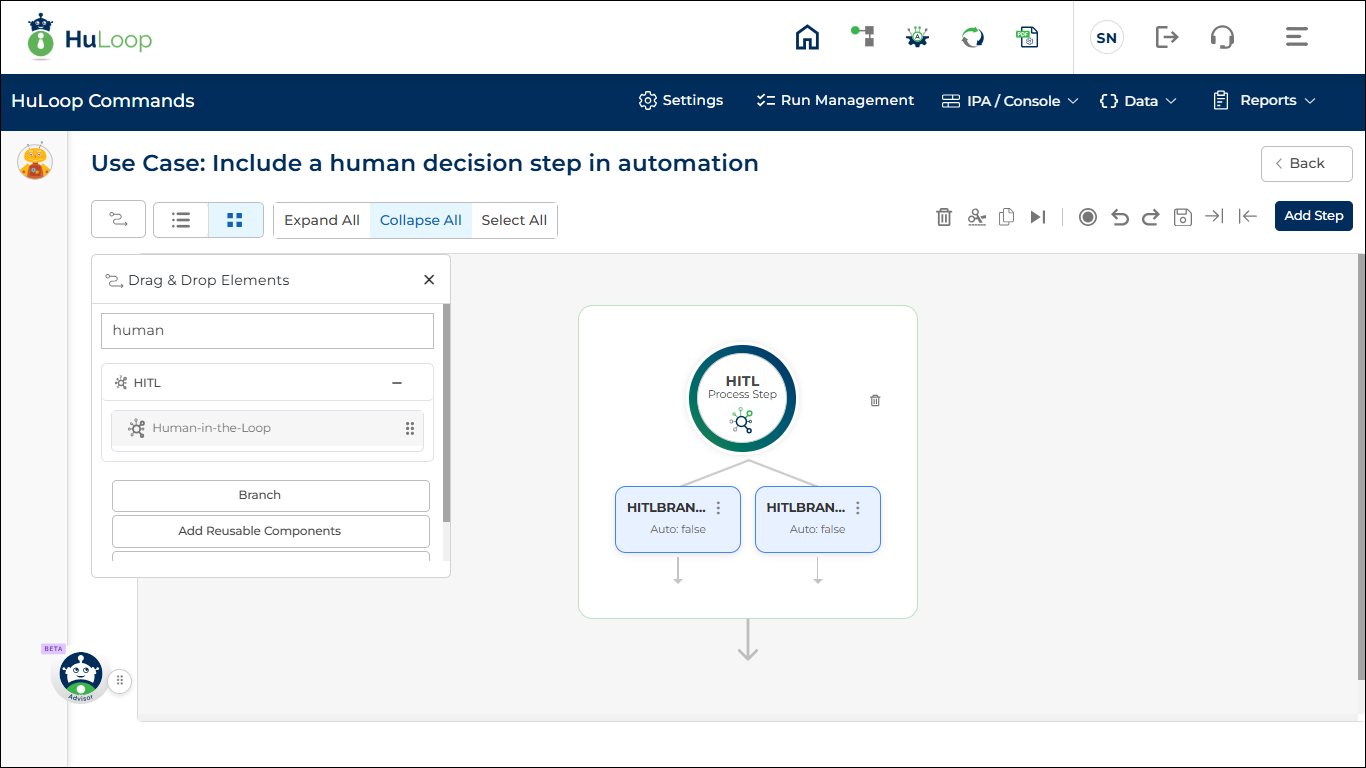
After saving, the HITL step appears as shown:
- Configure the HITL Branches
You can rename and update each branch as needed.
To edit a branch:
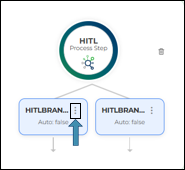
- Select the three-dots menu on the branch.
- Click Edit
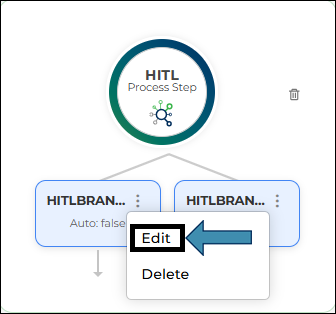
- The Edit HITL Branch dialog opens:
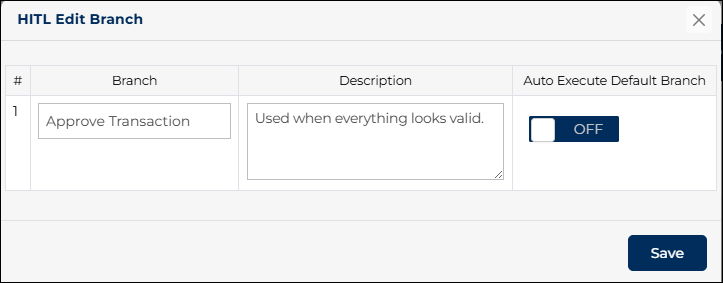
You can update:
- Branch Name
- Description
- Auto-Execute Default Branch (On/Off): Let’s you decide whether the reviewer must choose a branch or whether the system should auto-run a branch during execution.
- Auto-Execute Default Branch OFF:
- A pop-up appears during execution
- The reviewer selects the branch from a dropdown
- The use case inside the selected branch runs automatically
- Auto-Execute Default Branch ON:
- The branch runs automatically
- No pop-up appears
- If multiple branches have Auto-Execute ON, those branches run in order
- Auto-Execute Default Branch OFF:
- Click Save to apply changes.
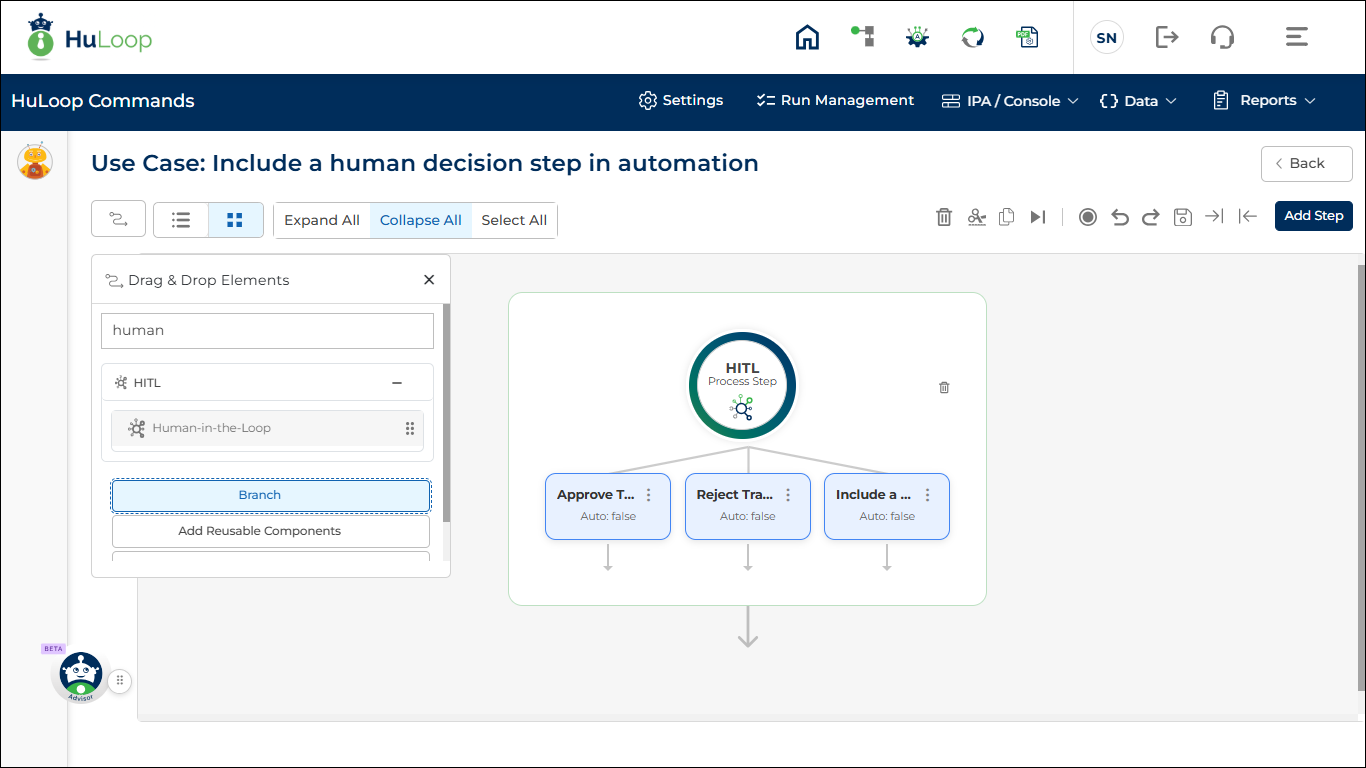
- Add More Branches (Optional)
You can add a maximum of five branches.
To add a branch:
- Drag and drop the Branch placeholder into the HITL step.
- A new branch appears and is ready to configure.
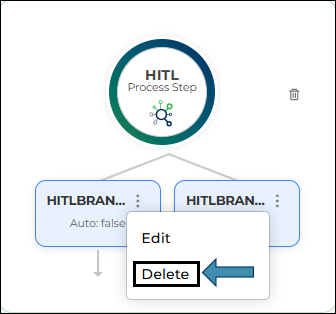
- Delete a Branch
- Select the three-dots menu on the branch.
- Use the delete option to remove the branch if needed.
- Add Actions or Functions Inside Each Branch
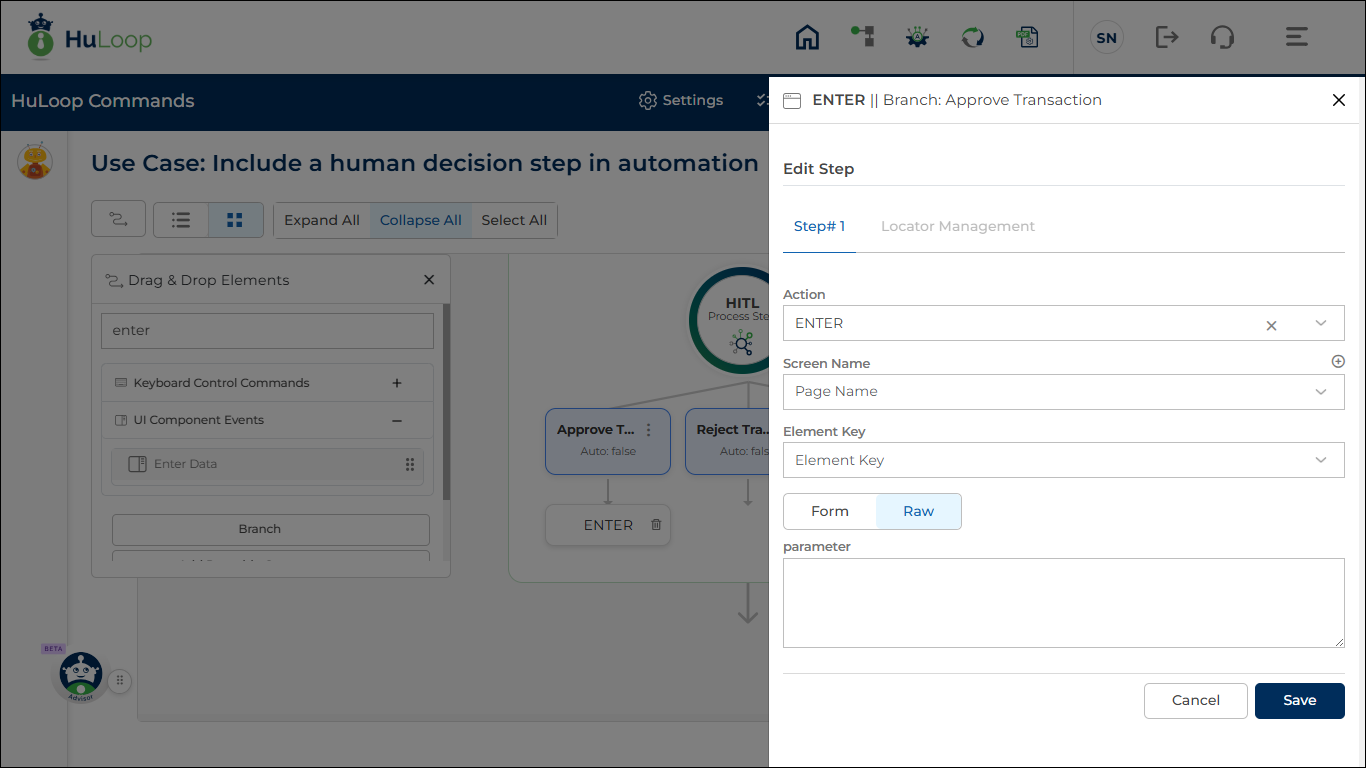
Each branch represents a complete use case. To define what happens within that use case, you can add HuLoop actions or functions under the branch.
To Add Actions/Functions under HITL Branch:
- drag and drop the required action or function under the desired HITL branch.
- The configuration pane opens automatically. Configure the action/function as needed.
- Repeat as required to build your complete use case inside that branch.
This allows each HITL branch to run its own sequence of steps during automation.
 Expected output on Execution
When the automation reaches the HITL step:
- If Auto-Execute is OFF, a pop-up appears on the agent window.
- The reviewer chooses the appropriate branch from the dropdown.
- The automation executes the actions or functions contained within the selected branch.
- If Auto-Execute is ON, the branches runs sequentially without any pop-up.
