

Execute cmd Commands
The Execute cmd Commands function lets you run any valid Windows Command Prompt (CMD) command as part of your automation workflow in HuLoop.
You can use this function to perform a wide range of system or application tasks, such as running batch files, executing PowerShell scripts, managing files, or calling command-line utilities, all directly within your automation case.
Before You Start:
- Make sure the HuLoop Agent is running on a system that supports CMD commands (Windows environment).
- Verify that the command or script you want to run works when executed manually in a Command Prompt window.
- If you are running a saved script (for example, .bat or .ps1), ensure the file exists in the specified folder and contains valid commands.
Steps to Configure:
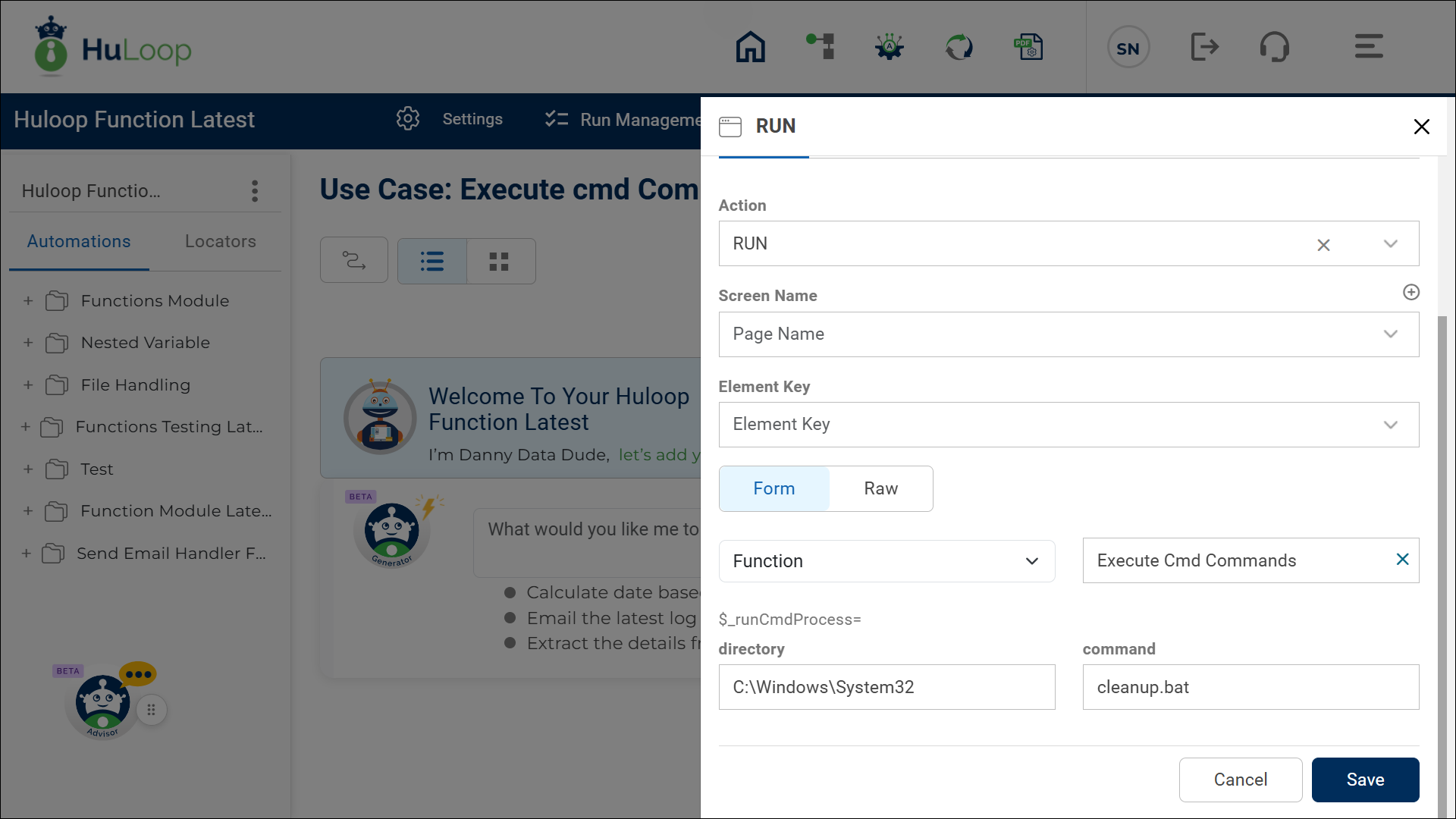
- In your automation case, add a new step.
- From the Action drop-down, select RUN.
- Leave the Screen Name and Element Key fields blank.
- Click Form, then select Functions.
- From the Functions drop-down, choose Execute cmd Commands.
- Fill in the following fields:
- directory: Enter the full path of the folder where the executable or script resides.
Example: C:\Windows\System32 - command: Enter the CMD command you want to run.
- You can enter an inline command (for example, ipconfig /all).
- Or, you can call a script or program file (for example, cleanup.bat or powershell.exe -File “C:\Scripts\CleanUp.ps1”).
- directory: Enter the full path of the folder where the executable or script resides.
- Click Save.
Generate Script Files Dynamically at Runtime
If your command requires a script file (such as a PowerShell .ps1 or batch .bat file), you can create it automatically using the Write File (WRITE_FILE) action.
With this method, you do not need to store or upload script files manually.
Simply use the WRITE_FILE action to write your script content into a file during execution, and then reference that file path in the command field of Execute CMD Commands.
For details, see the Write File (WRITE_FILE) action documentation.
Example Scenarios
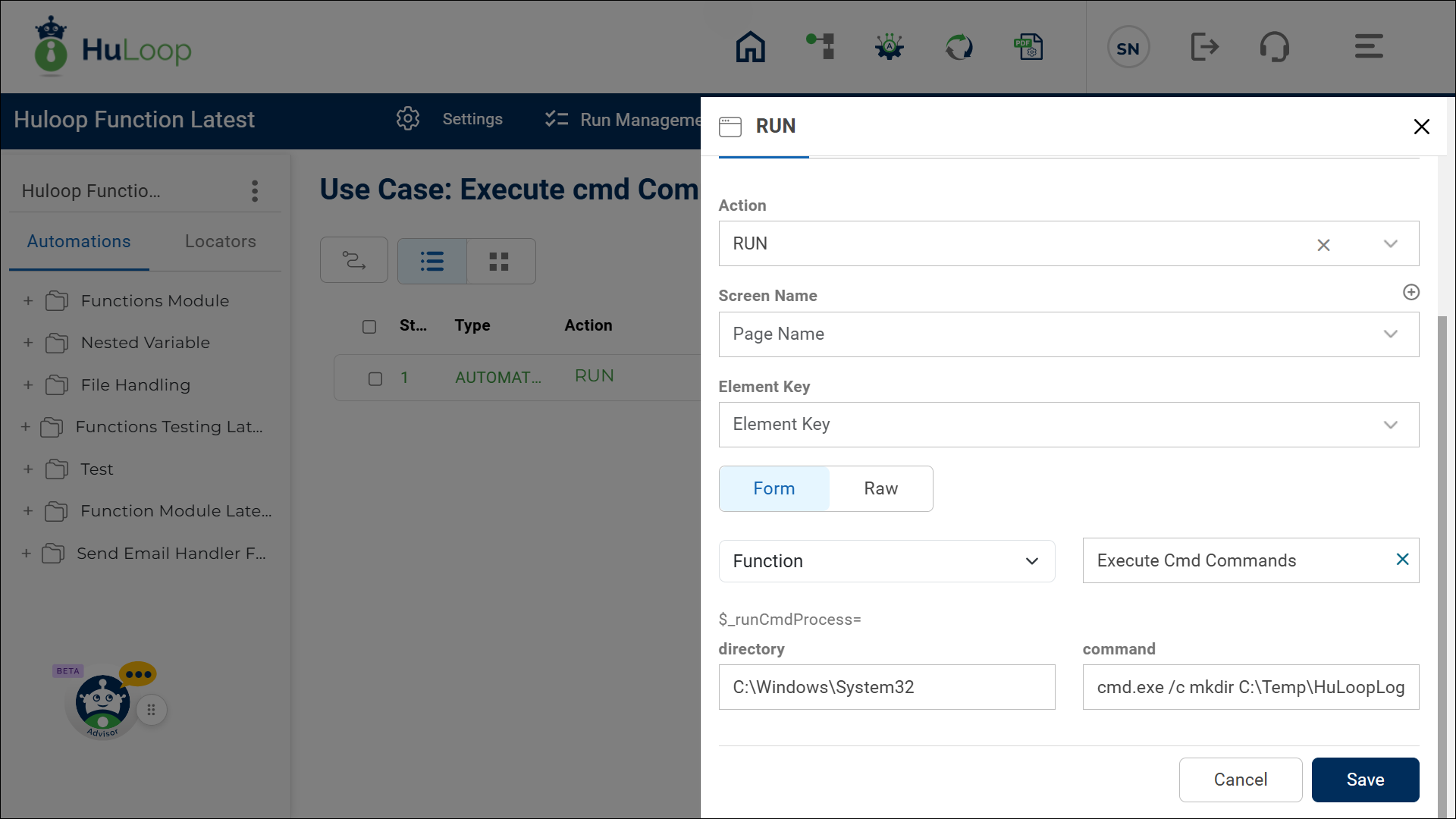
Example 1: Run a Basic CMD Command
Scenario: You want to create a new folder on your system using CMD.
Configuration:
- Action: RUN
- Function: Execute Cmd Commands
- directory: C:\Windows\System32
- command: cmd.exe /c mkdir C:\Temp\HuLoopLogs
Expected Outcome on execution:
HuLoop creates a new folder named HuLoopLogs in the C:\Temp directory.
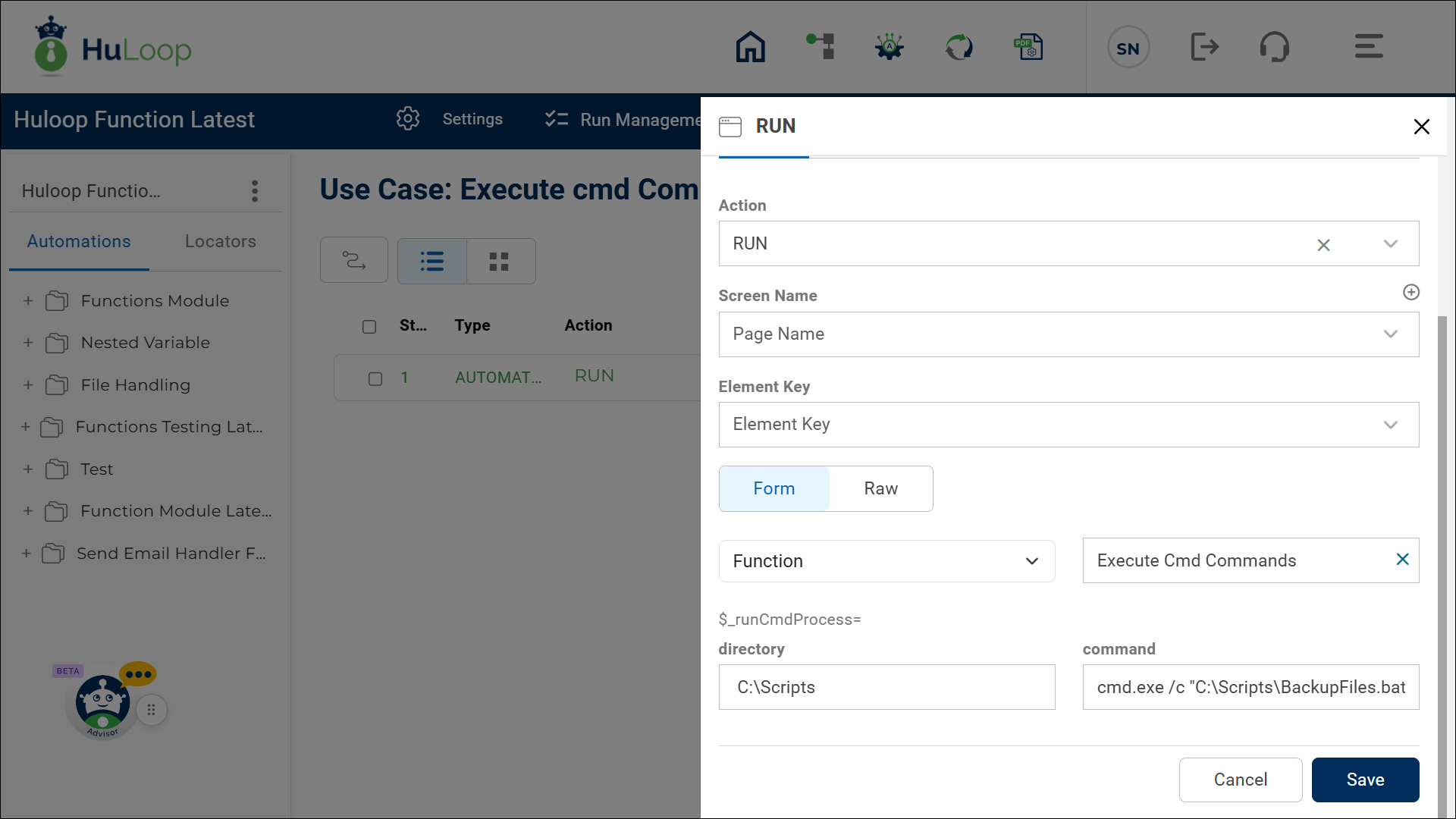
Example 2: Run a Batch File
Scenario: You have a batch file that backs up files from one folder to another.
Configuration:
- Action: RUN
- Function: Execute Cmd Commands
- directory: C:\Scripts
- command: cmd.exe /c “C:\Scripts\BackupFiles.bat”
Expected Outcome:
HuLoop runs the BackupFiles.bat file, which copies files to the backup folder defined in the script.
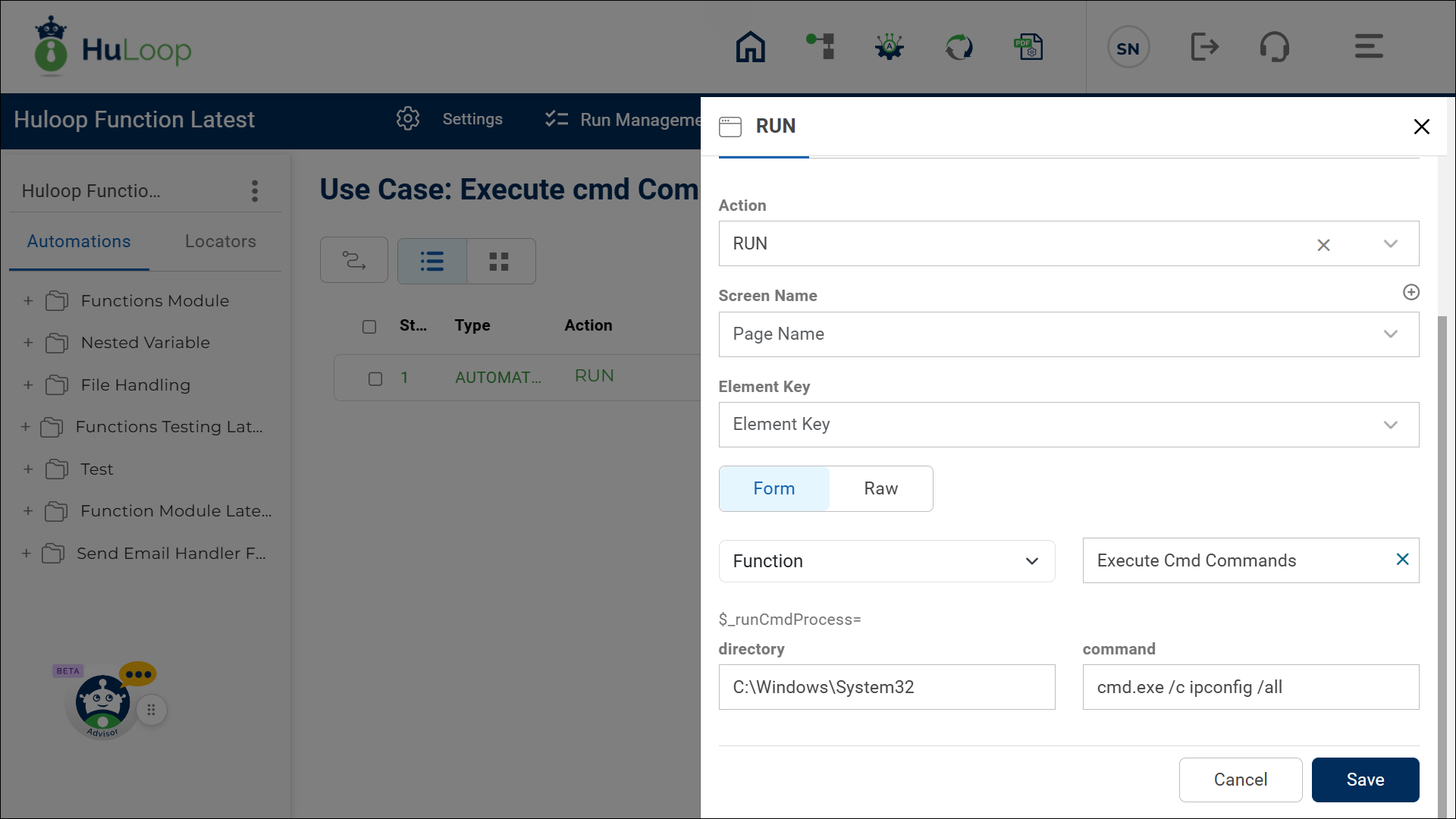
Example 3: Run a Command-Line Utility
Scenario: You want to check your system’s network configuration during an automation test.
Configuration:
- Action: RUN
- Function: Execute Cmd Commands
- directory: C:\Windows\System32
- command: cmd.exe /c ipconfig /all
Expected Outcome:
HuLoop executes the ipconfig /all command and displays the full network configuration details in the command output.
Example 4: Run an Inline PowerShell Command
Scenario: You want to add text to a file during your automation.
Configuration:
- Action: RUN
- Function: Execute Cmd Commands
- directory: C:\Windows\System32\WindowsPowerShell\v1.0
- command: powershell.exe -Command “Add-Content -Path ‘C:\Temp\sample.txt’ -Value ‘Hello from HuLoop!'”
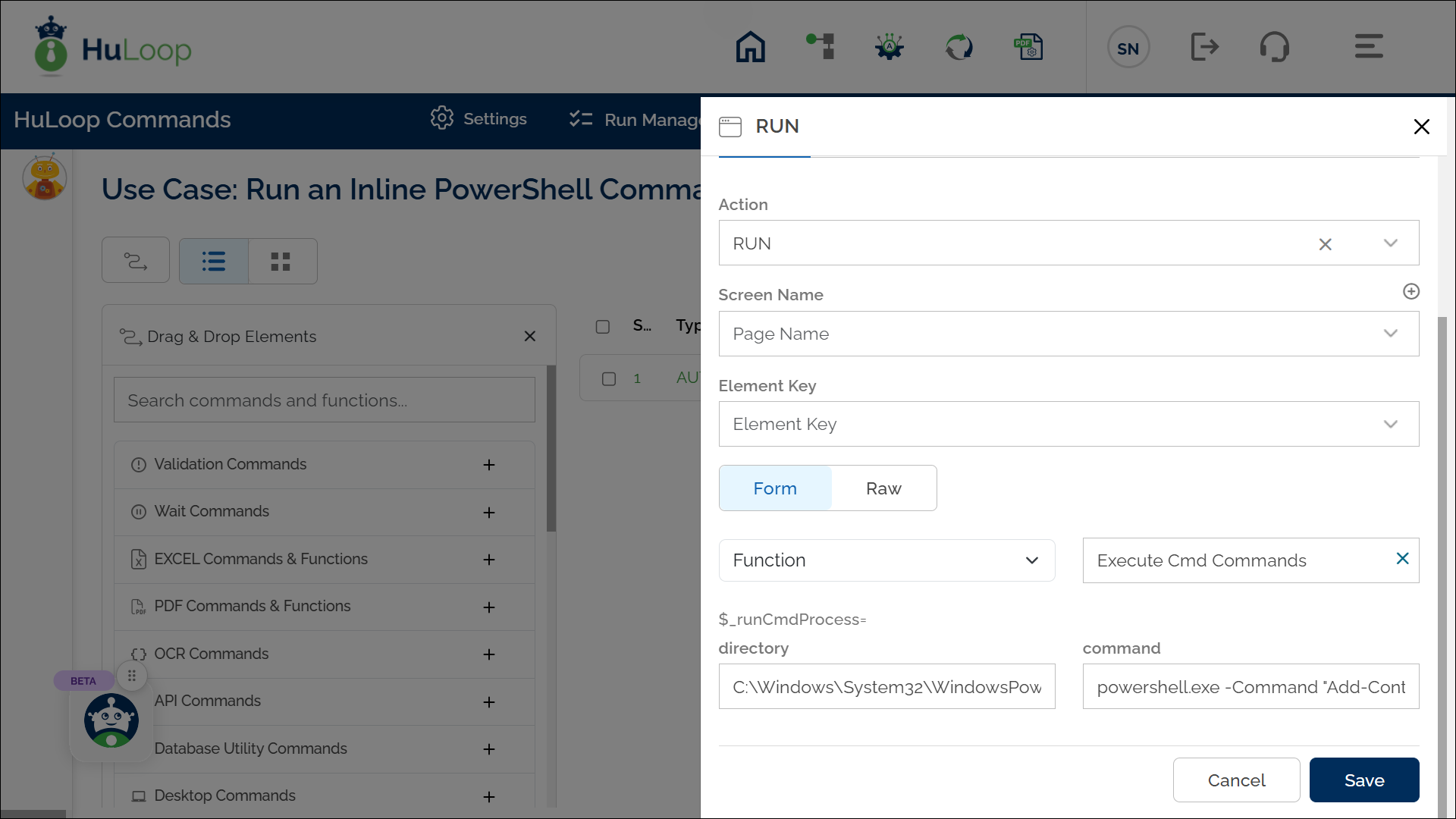
Expected Outcome on Execution:
When this step runs, a file named sample.txt is created (if it doesn’t exist) in the C:\Temp folder, and the text “Hello from HuLoop!” is added to it.
Example 5: Run a PowerShell Script
Scenario: You want to execute a PowerShell script that cleans up temporary files.
Configuration:
- Action: RUN
- Function: Execute Cmd Commands
- directory: C:\Windows\System32\WindowsPowerShell\v1.0
- command: powershell.exe -ExecutionPolicy Bypass -File “C:\Scripts\CleanUp.ps1”
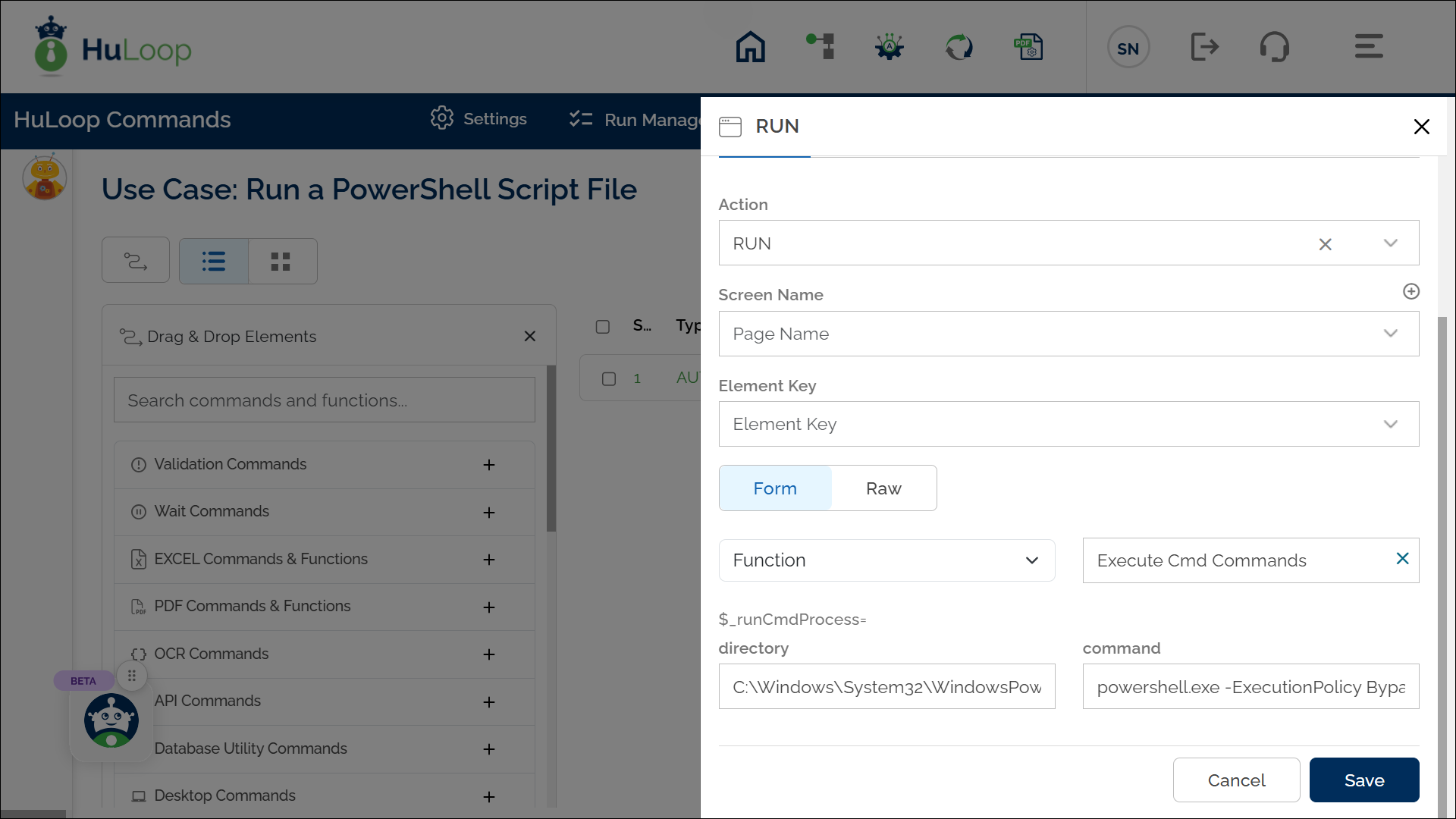
Expected Outcome:
HuLoop runs the CleanUp.ps1 PowerShell script, which deletes temporary files or performs other cleanup actions as defined in the script.
Example 6: Run a PowerShell Script with Parameters
Scenario: You have a PowerShell script that needs input values, such as a file path and a message, and you want to pass them through HuLoop.
Configuration:
- Action: RUN
- Function: Execute Cmd Commands
- directory: C:\Windows\System32\WindowsPowerShell\v1.0
- command: powershell.exe -ExecutionPolicy Bypass -File “C:\Scripts\WriteMessage.ps1” “C:\Temp\Message.txt” “HuLoop Automation Started”
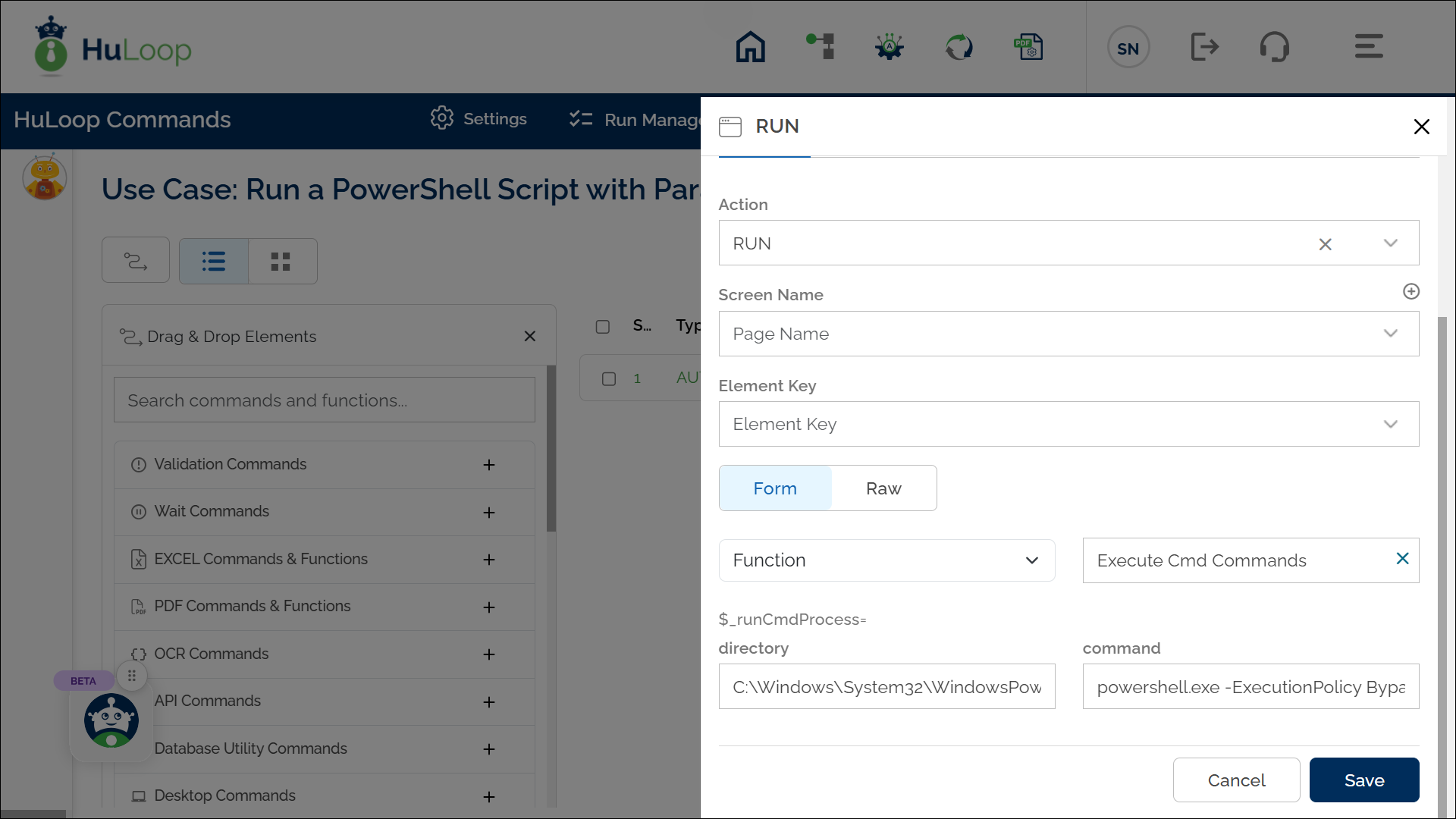
Expected Outcome on Execution: When this step runs, HuLoop triggers the WriteMessage.ps1 script and passes the two parameters:
- The file path (C:\Temp\Message.txt)
- The message text (“HuLoop Automation Started”)
The script then writes the message into the specified text file.
- Use the /c parameter with cmd.exe to ensure the command runs and closes automatically after completion.
- For PowerShell scripts, include -ExecutionPolicy Bypass to prevent execution restrictions.
- For PowerShell scripts, include -ExecutionPolicy Bypass to prevent execution restrictions.
Example 7: Create and Execute a Dynamic PowerShell Script
Scenario: You want to run a PowerShell script but do not want to maintain the script as a separate file.
Step 1:
Use WRITE_FILE action to create the script dynamically:
Action: WRITE_FILE
Element Key: C:\Temp\DynamicScript.ps1
Parameter: ‘Hello from a dynamic script!’,append=false,newLine=false
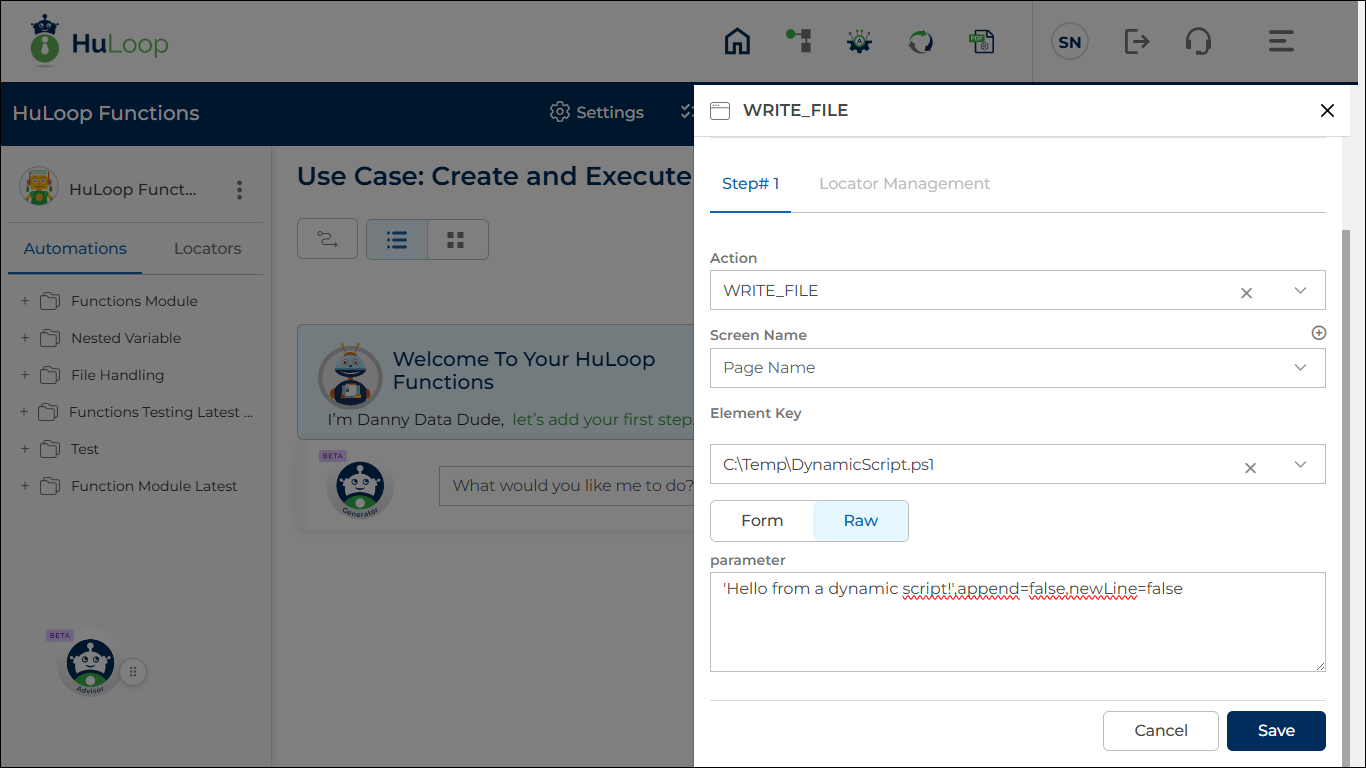
What happens at runtime:
- HuLoop creates a file named DynamicScript.ps1 in the C:\Temp folder.
- The PowerShell script content is written into the file.
For more details, see WRITE_FILE action.
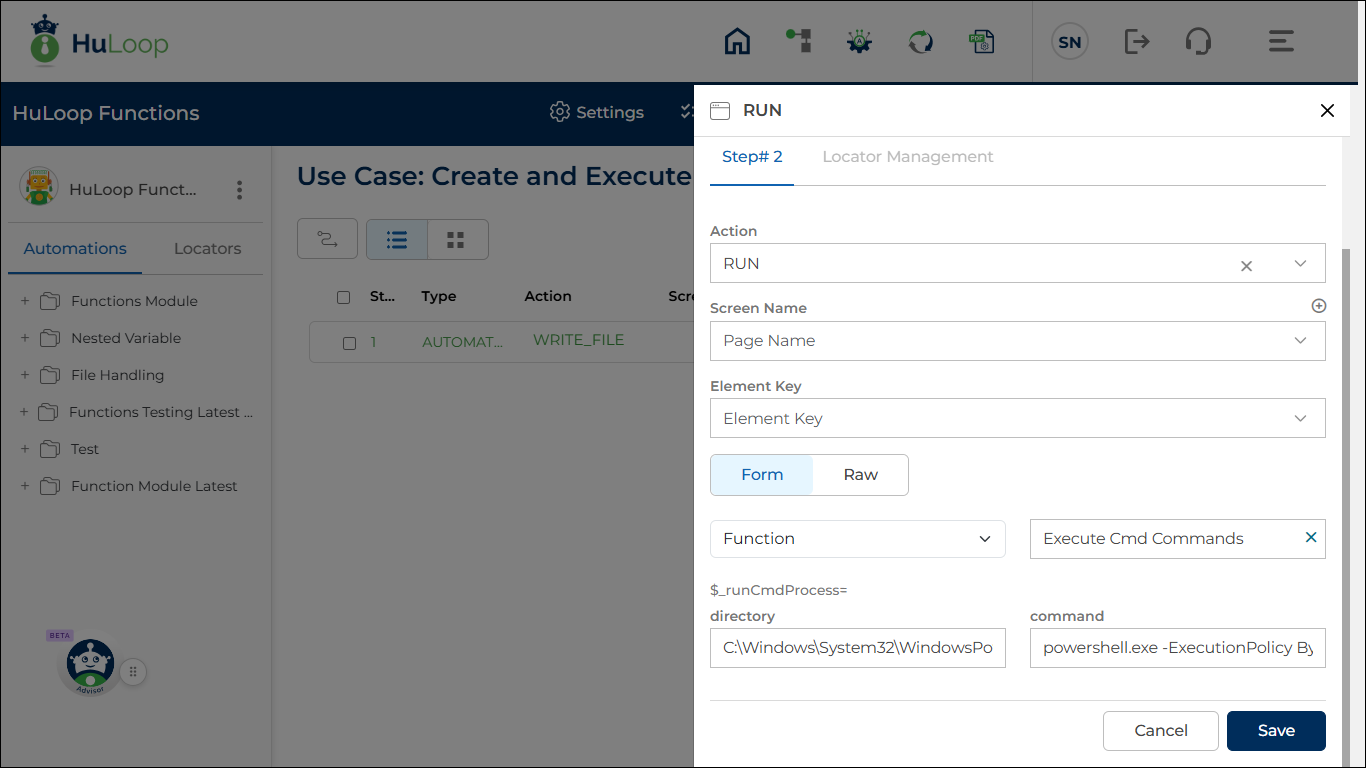
Step 2:
Use Execute CMD Commands to run it:
Action: RUN
Function: Execute CMD Commands
directory: C:\Windows\System32\WindowsPowerShell\v1.0
command: powershell.exe -ExecutionPolicy Bypass -File “C:\Temp\DynamicScript.ps1”
What happens at runtime:
- HuLoop navigates to the specified directory.
- The PowerShell engine executes the script file created in Step 1.
- The script runs exactly as defined in the WRITE_FILE action.
Expected Outcome:
- The script file is created dynamically during execution.
- The PowerShell command runs successfully without requiring any pre-existing script file.
- The automation uses both actions together to achieve script execution in a single flow.
