



Reusable Components
Overview
Reusable Components in HuLoop help you avoid rework by allowing you to create a set of automation steps once and reuse them across multiple use cases. This ensures consistency, reduces maintenance effort, and speeds up automation design, especially for common or repetitive flows.
A reusable component can be used just like regular use case steps. Once added to a use case, you can configure its inputs as needed for that specific scenario.
Key Benefits
- Faster automation design
- Consistent execution across use cases
- Easier maintenance and updates
- Cleaner and more organized automation projects
When to Use Reusable Components
Use reusable components when:
- The same set of steps is required in multiple automations
- You want to standardize common business or technical flows
- You want to reduce duplication and simplify updates
Example scenarios:
- Login steps used across multiple automations
- Common validation or data-entry sequences
- Reusable document upload or download steps
Accessing Reusable Components
- Log in to your HuLoop account.
- Click your Profile icon.
- Select Reusable Components.
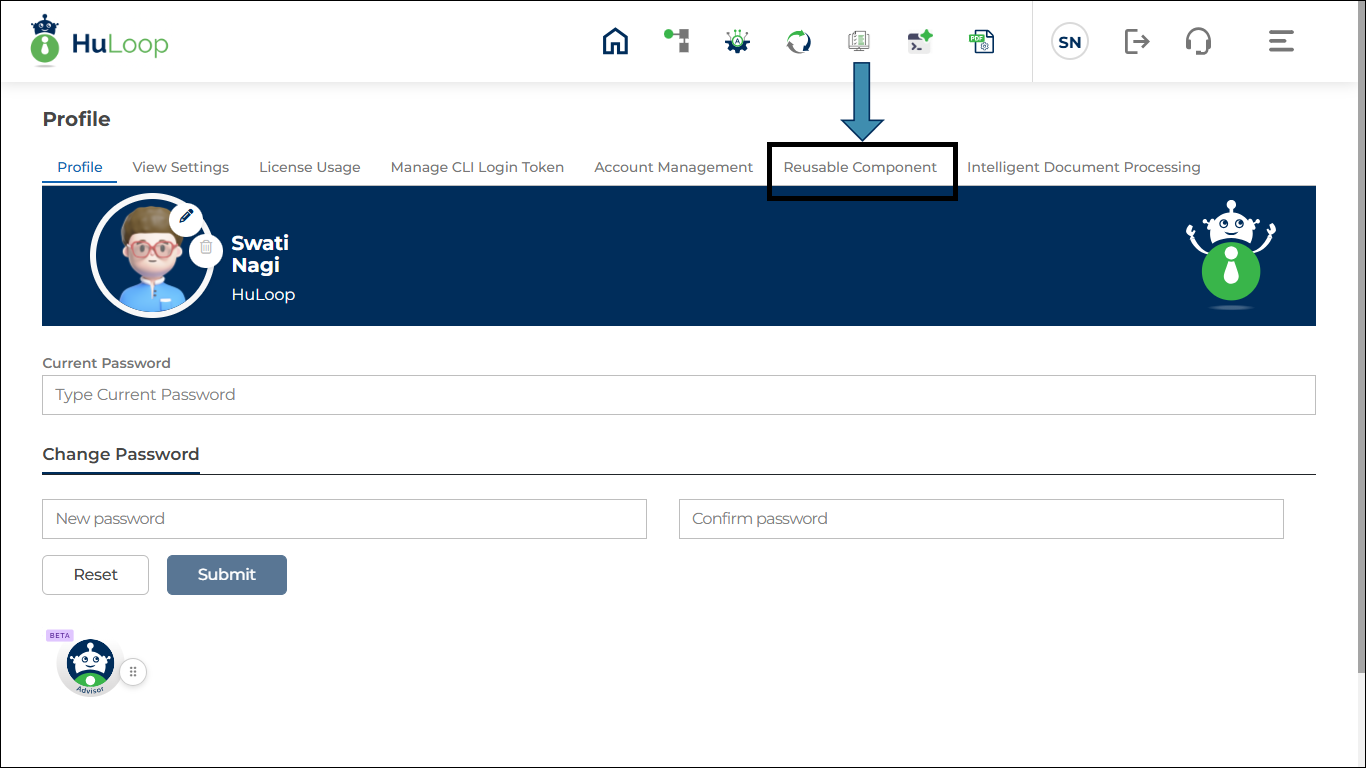
The Reusable Components page displays:
- A search box to find existing components
- A list of categories and reusable components (if already created)
- A Create RC button to create a new reusable component
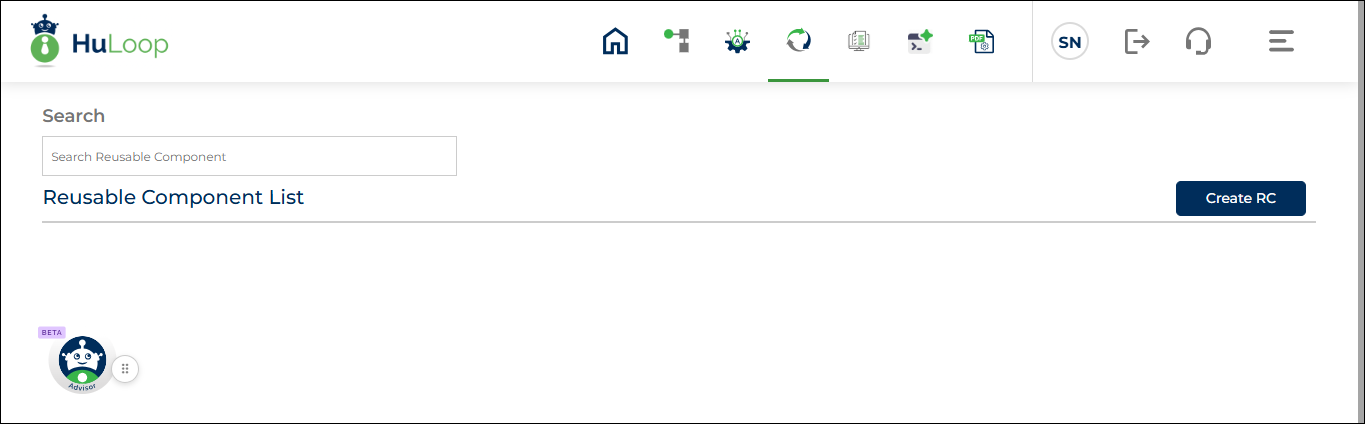
Creating a Reusable Component
- On the Reusable Components page, click Create RC.
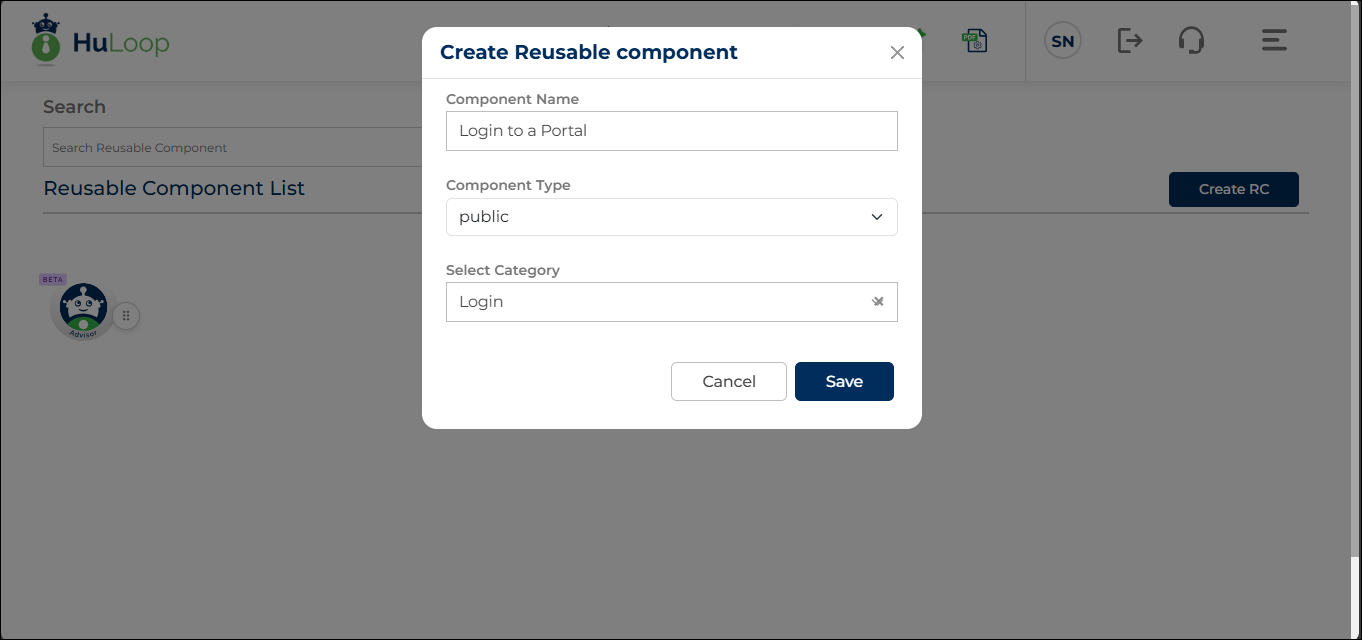
- In the Create Reusable Component dialog, provide the following details:
Fields Description
- Component Name: Enter a clear and meaningful name (for example, Login to a Portal).
- Component Type: Select one of the following:
- Public: Available to other users
- Private: Available only to you
- Category
Select an existing category from the dropdown or create a new one. Multiple reusable components can be grouped under the same category.
- Click Save.
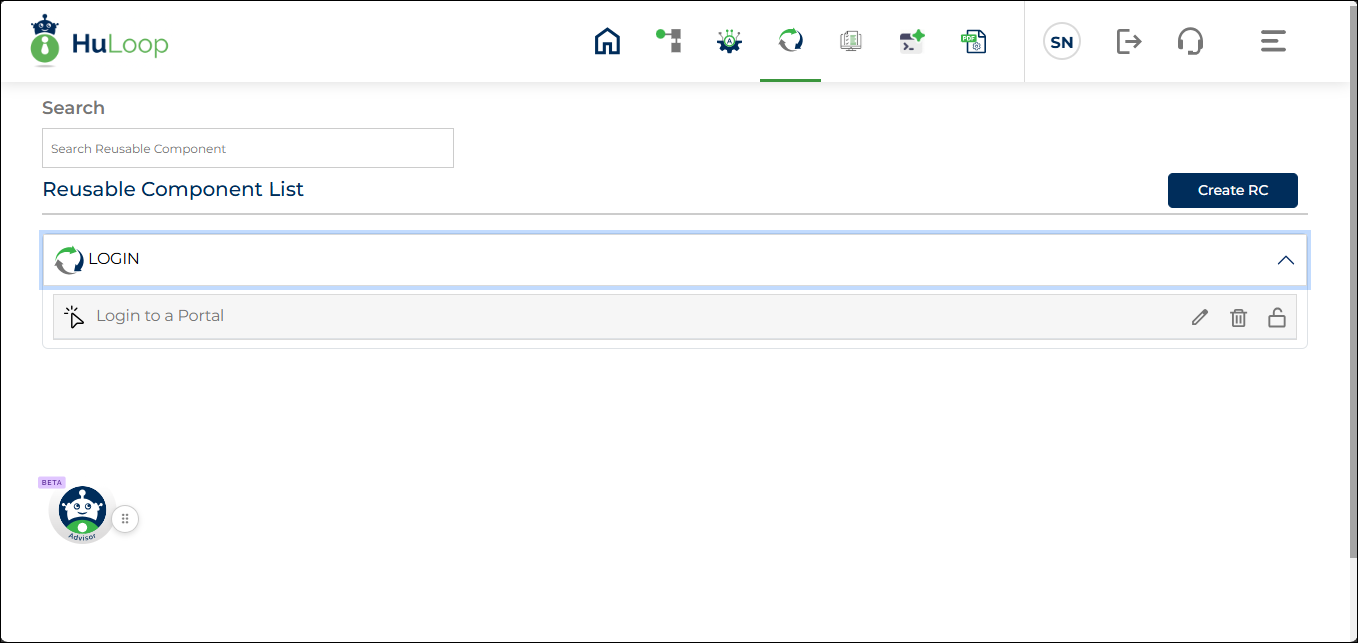
Once saved, the reusable component appears under the selected category. Categories can be expanded or collapsed to view or hide the components within them.
Configuring a Reusable Component
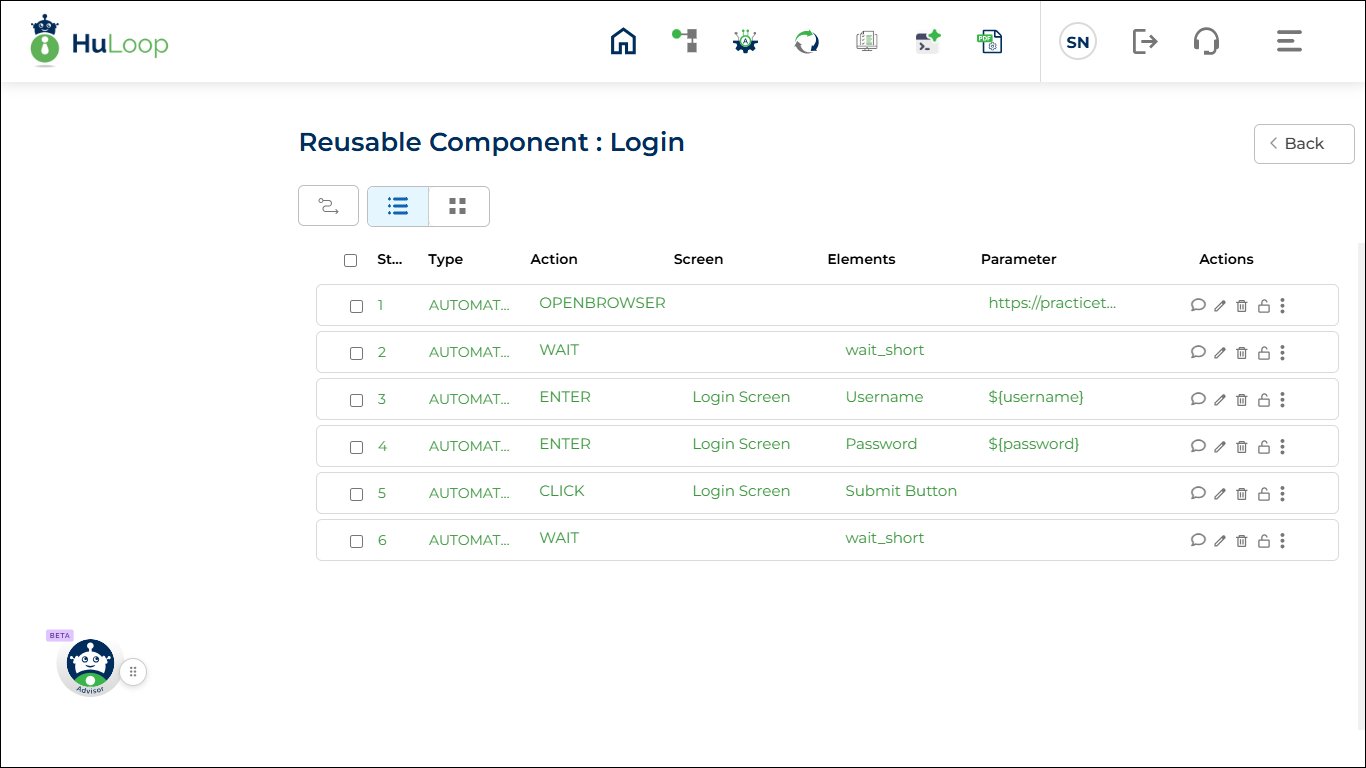
After creating a reusable component, you can configure it by adding or modifying steps just like you would in a regular use case.
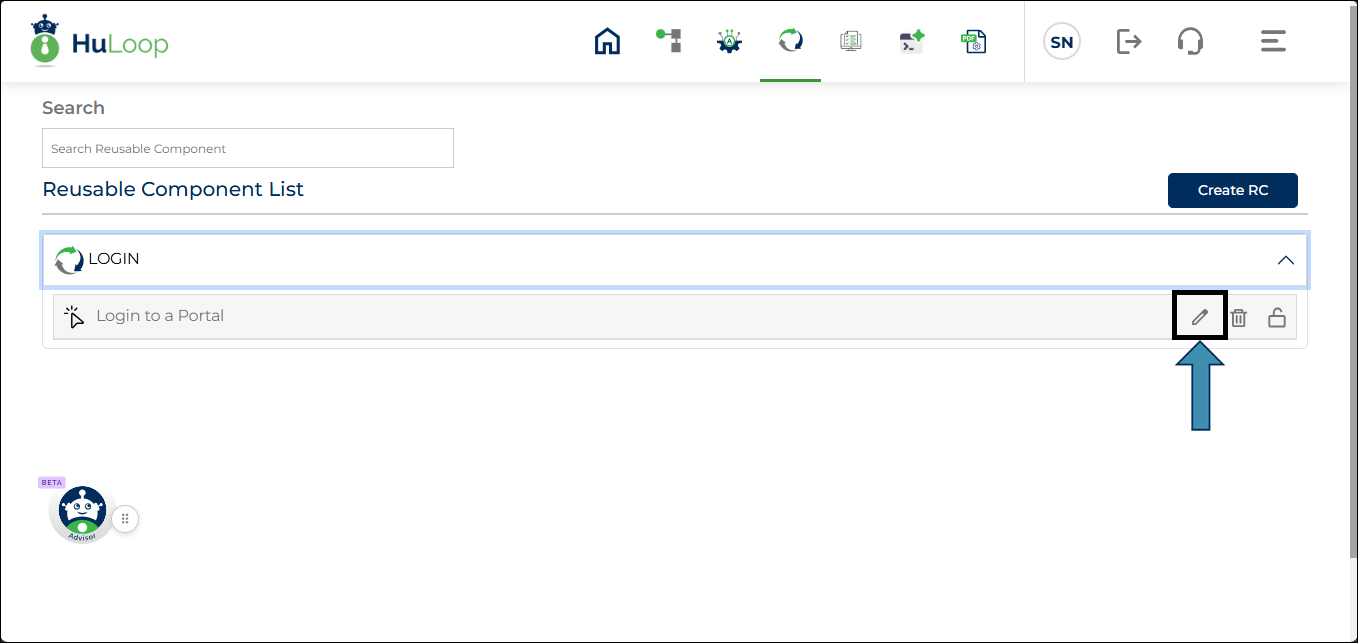
- Locate the reusable component you want to configure.
- Click the Edit icon next to the reusable component.
- Add the required steps as you normally do for any use case.
Using a Reusable Component in a Use Case
- Open your Automation Project.
- Navigate to the Use Case where you want to add the reusable component.
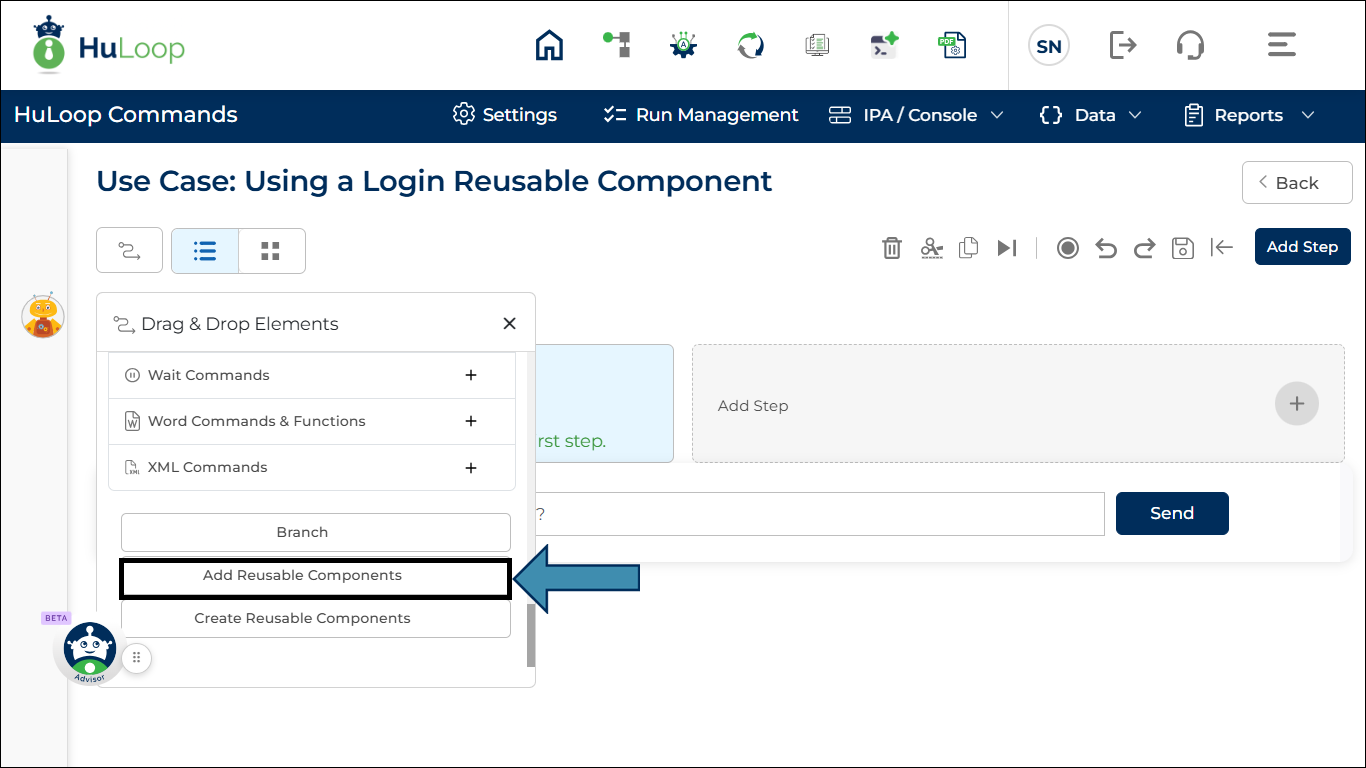
- Click the Drag and Drop icon.
- Scroll down and select Add Reusable Components.
- Expand the required category by clicking the
 icon.
icon.
 icon.
icon.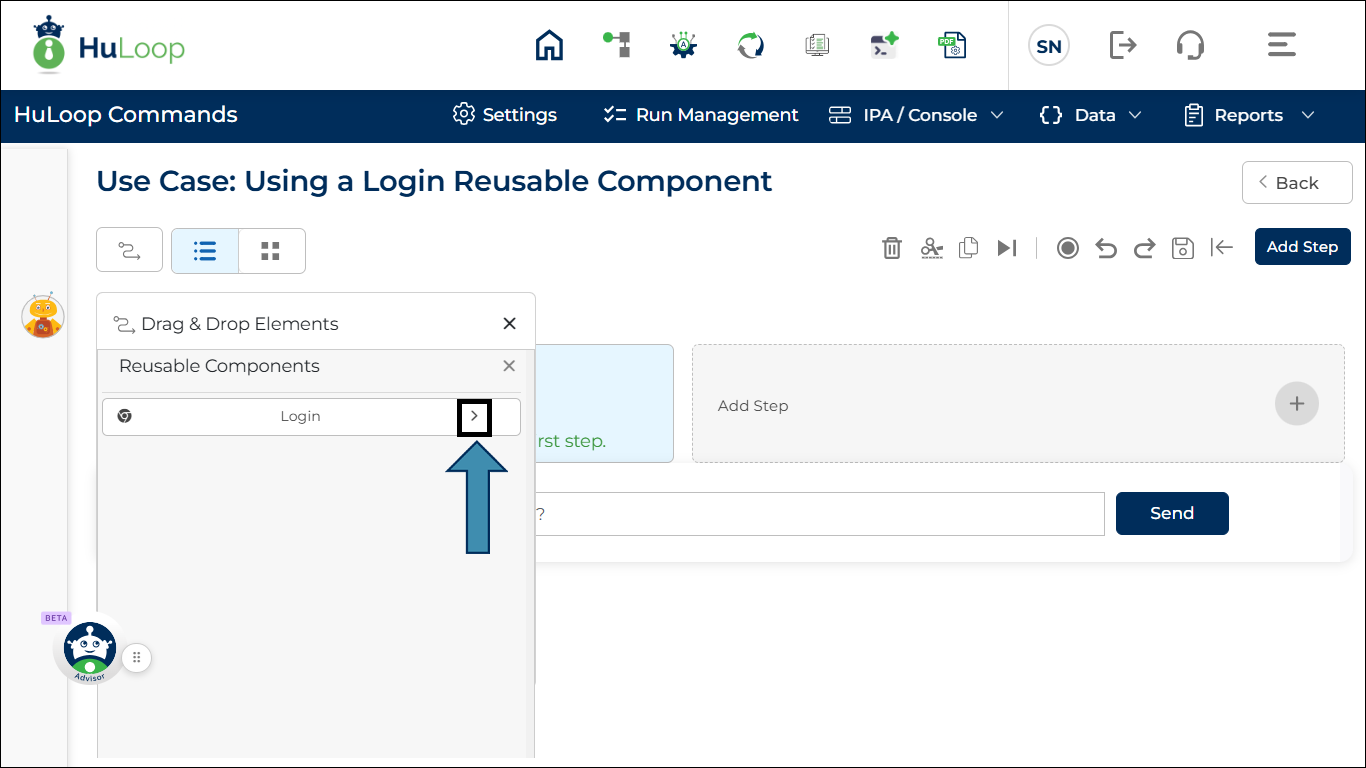
- The Reusable Components under that category appears.
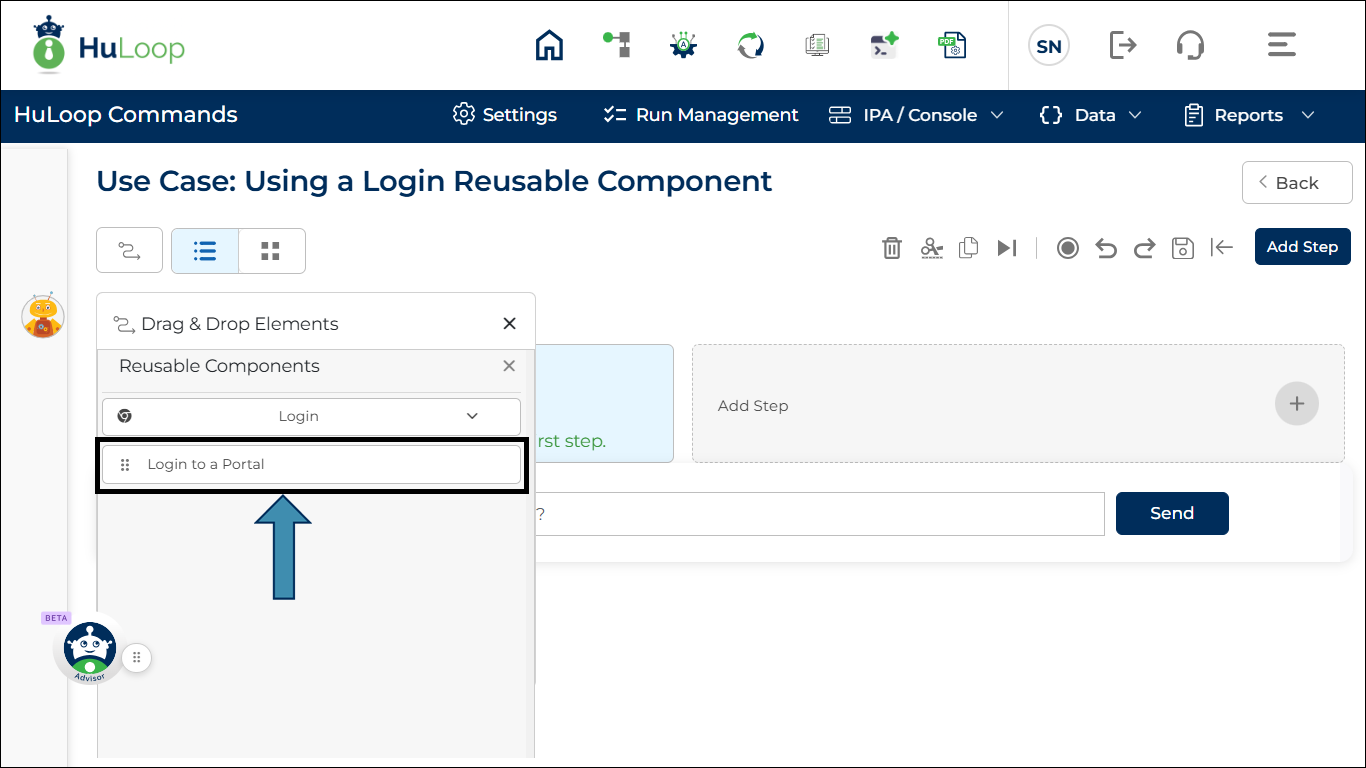
- Drag and drop the reusable component you want to use into the use case at the desired position.
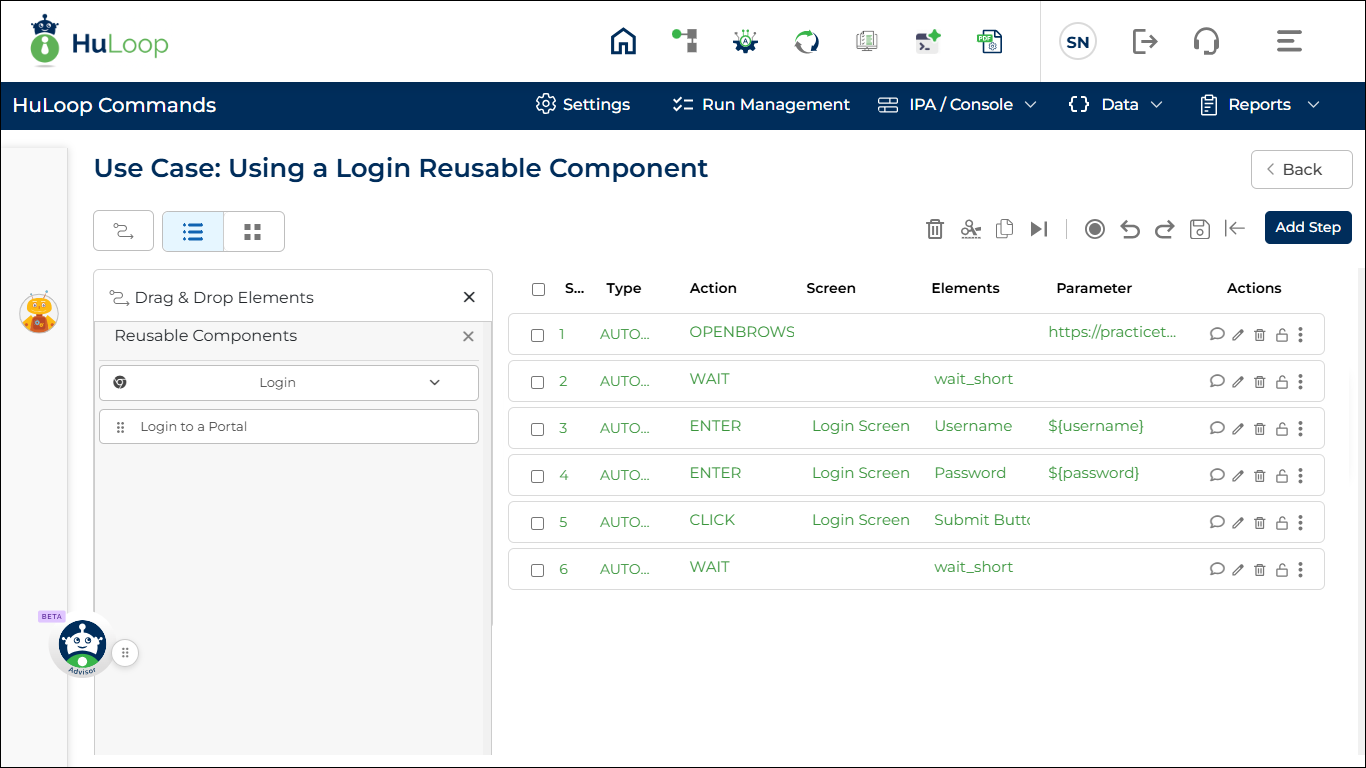
Once added:
- The reusable component behaves like standard use case steps
- You can configure or update field values based on your use case needs
Notes and Best Practices
- Use clear, descriptive names for reusable components
- Group related components into meaningful categories
- Use Public components only for flows meant to be shared
- Update reusable components carefully, as changes may impact multiple use cases
