

Invoice Extraction: InvoiceExtraction
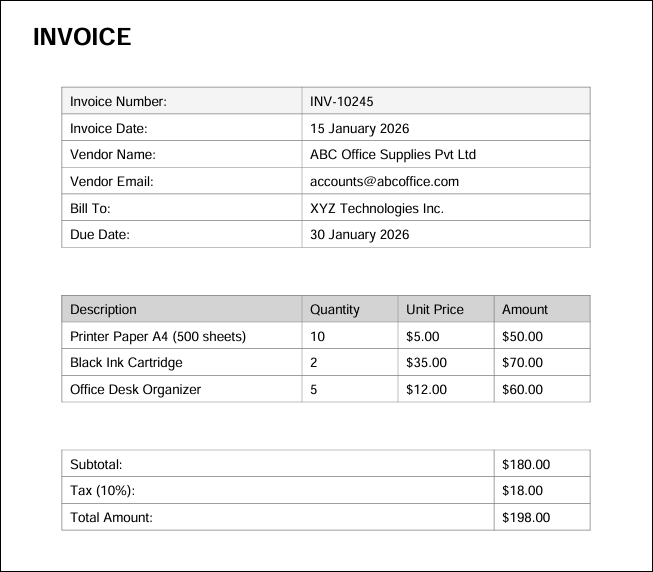
The Invoice Extraction function allows you to extract structured data from invoice PDF files.
You can:
- Extract specific key fields such as Invoice Number, Invoice Date, Total Amount, and more
- Process a single invoice or multiple invoices in batch mode
- Export results in csv, xlsx, or json format
- Retrieve individual field values, confidence scores, and reasoning details
This function is part of Content Processing and is designed to simplify invoice data handling in your automation workflows.
Supported File Format: PDF only
Steps to Configure:
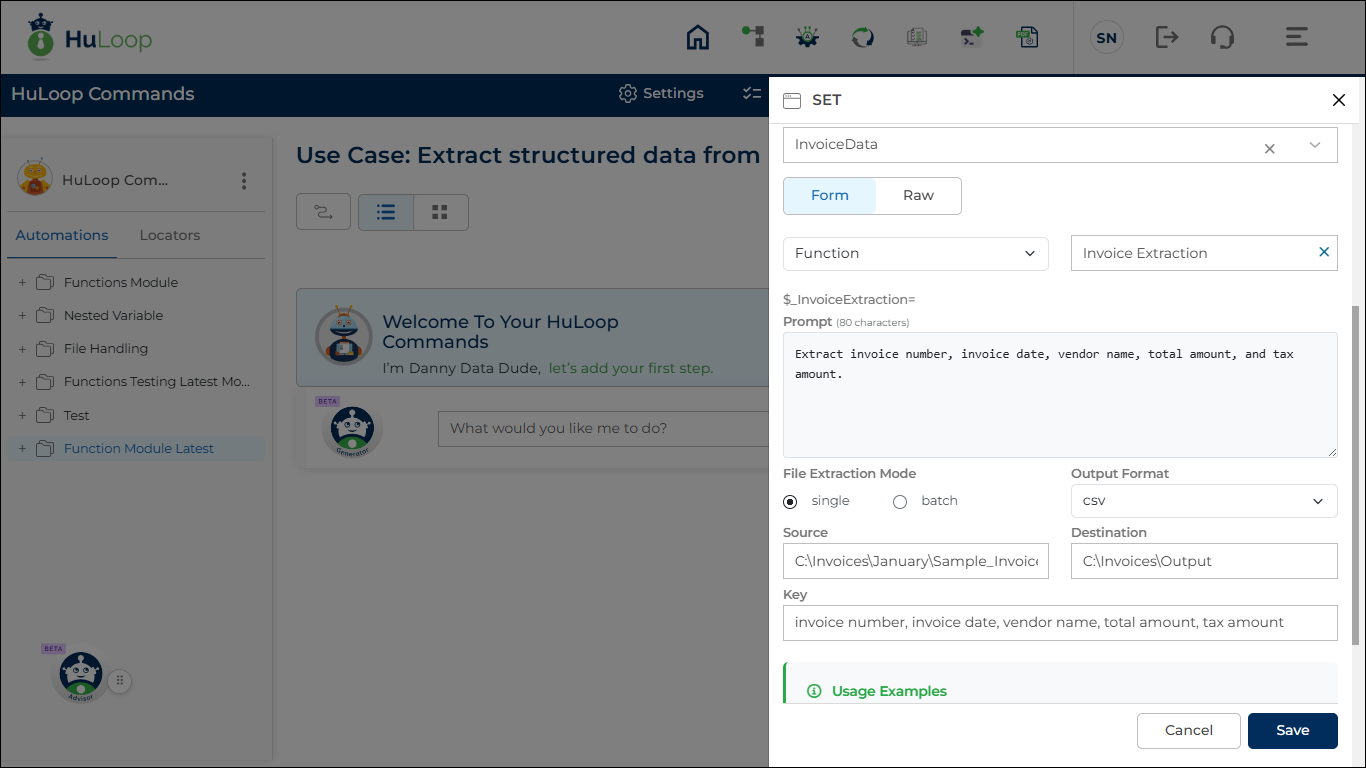
- Add a new step in your automation.
- Select SET from the Action dropdown.
- Click Form, select Functions, and choose Invoice Extraction.
- In the Element Key field, verify the auto-populated variable name (InvoiceData).
- You can rename this variable if required.
- This variable stores the complete extraction result.
- In the Prompt (Optional) field, enter document-specific extraction instructions if needed.
Example: Extract invoice number, invoice date, vendor name, total amount, and tax amount.- If left blank, the extraction runs normally and extracts the values specified in the Key field.
- Select the File Extraction Mode:
- Single: Extract data from one invoice file.
- Batch: Extract data from multiple invoice files in a folder.
- Select the Output Format:
- csv
- xlsx
- json
- In the Source field:
- If using Single mode, enter the full file path of the invoice PDF.
Example: C:\Invoices\January\Sample_Invoice_INV-10245.pdf - If using Batch mode, enter the folder path containing the invoice PDF files.
Example: C:\Invoices\January
- If using Single mode, enter the full file path of the invoice PDF.
- In the Destination field, enter the folder path where the output file should be saved.
Example: C:\Invoices\Output - In the Key field, enter the field names to extract.
- You can enter a single value or multiple comma-separated values.
Example: invoice number, invoice date, vendor name, total amount, tax amount
- You can enter a single value or multiple comma-separated values.
- Click Save.
Expected Outcome:
- A formatted output file (csv, xlsx, or json) is saved in the specified destination folder.
- The complete structured extraction result is stored in the variable defined in the Element Key field (default: InvoiceData).

Retrieving Specific Values in Subsequent Steps
To use extracted values in your automation:
- Add a new step.
- Enable the Manual toggle.
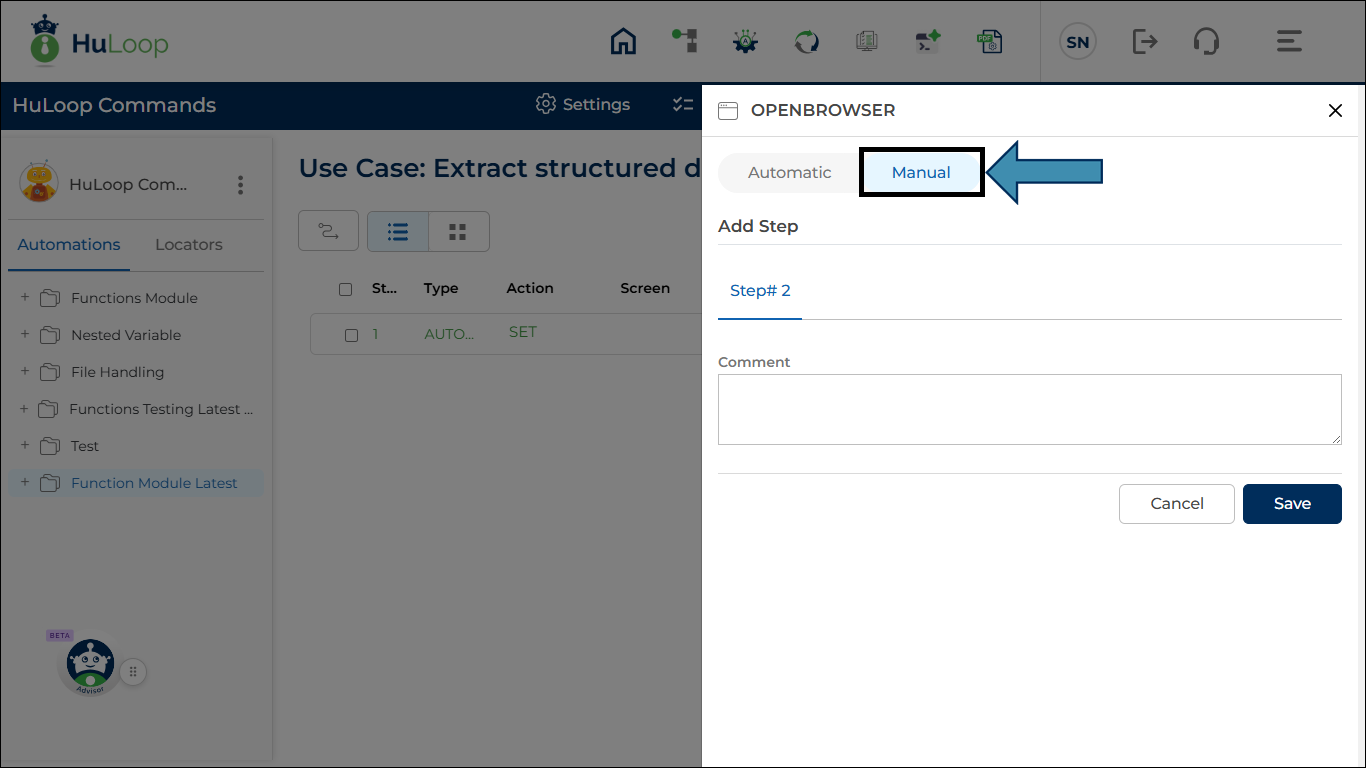
- In the Comment box, enter the required syntax to retrieve the specific key value.
Single File Mode Syntax
Use the following format:
- ${variablename.keyname}
Example:
- ${InvoiceData.invoice number}
- ${InvoiceData.invoice date}
- ${InvoiceData.total amount}
Multiple Occurrences (Index-Based)
If a key appears multiple times:
- ${variablename.keyname.index}
Example:
- ${InvoiceData.invoice date.1}
- ${InvoiceData.invoice date.2}
To get the total number of occurrences:
- ${variablename.keyname.count{}}
Example:
- ${invoicedata.invoice date.count{}}
Confidence Score
To retrieve the confidence score of a key:
- ${variablename.keyname.confidence}
Example:
- ${InvoiceData.invoice number.confidence}
The confidence score is returned in decimal format.
Reasoning Details
To retrieve reasoning details for a key:
- ${variablename.keyname.reasoning}
Example:
- ${invoicedata.invoice date.reasoning}
Batch Mode Syntax
When using Batch mode, you must reference the file name before the key.
Format:
- ${variablename.filename.keyname}
Example (for first file):
- ${InvoiceData.filename1.invoice number}
- ${InvoiceData.filename1.invoice date}
To retrieve all extracted fields for a specific file:
- ${InvoiceData.filename1}
If processing multiple files, replace filename1 with the respective file identifier.
Last updated: Mar 09, 2026
