Rule Configuration
Rule Configuration is used to control the behavior of App components at runtime.
Rules are mainly used when Visible is set to Dynamic while configuring a Section, Row, Column, or Control.
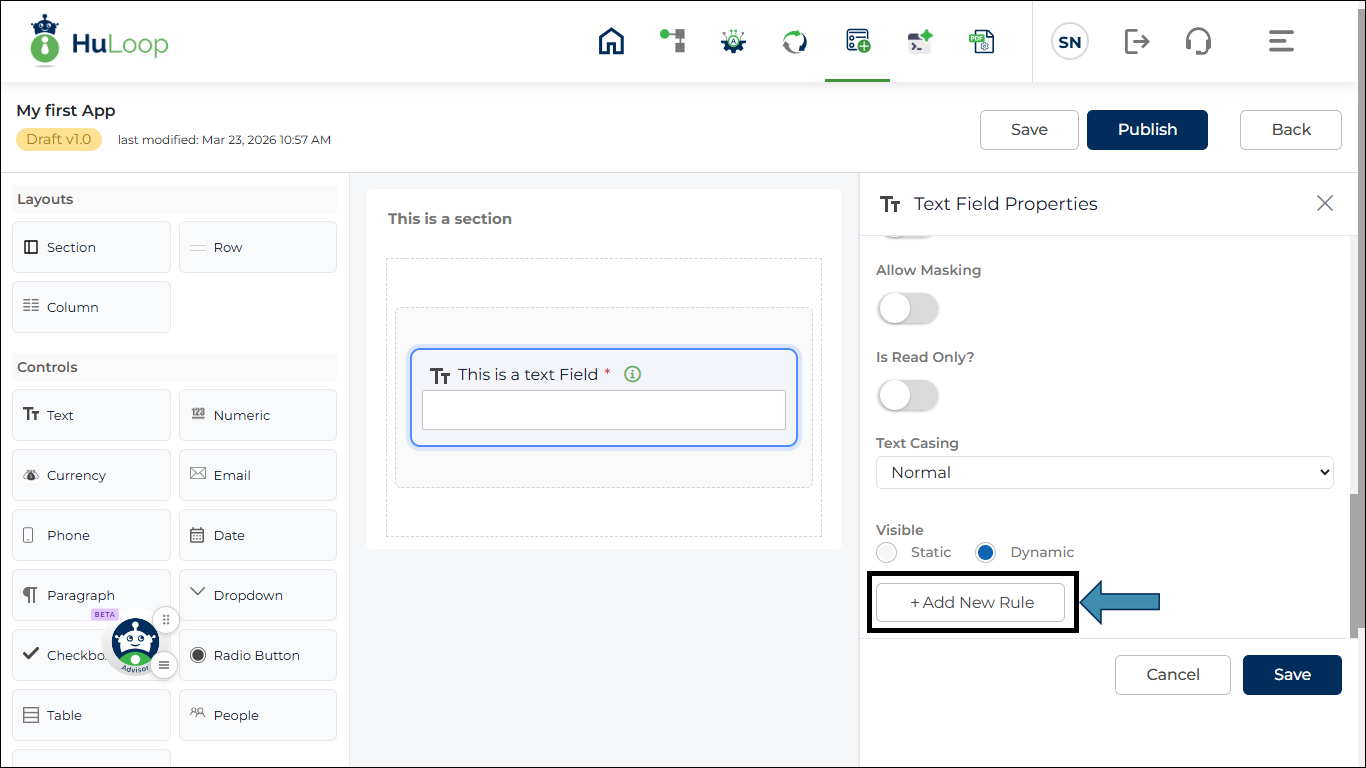
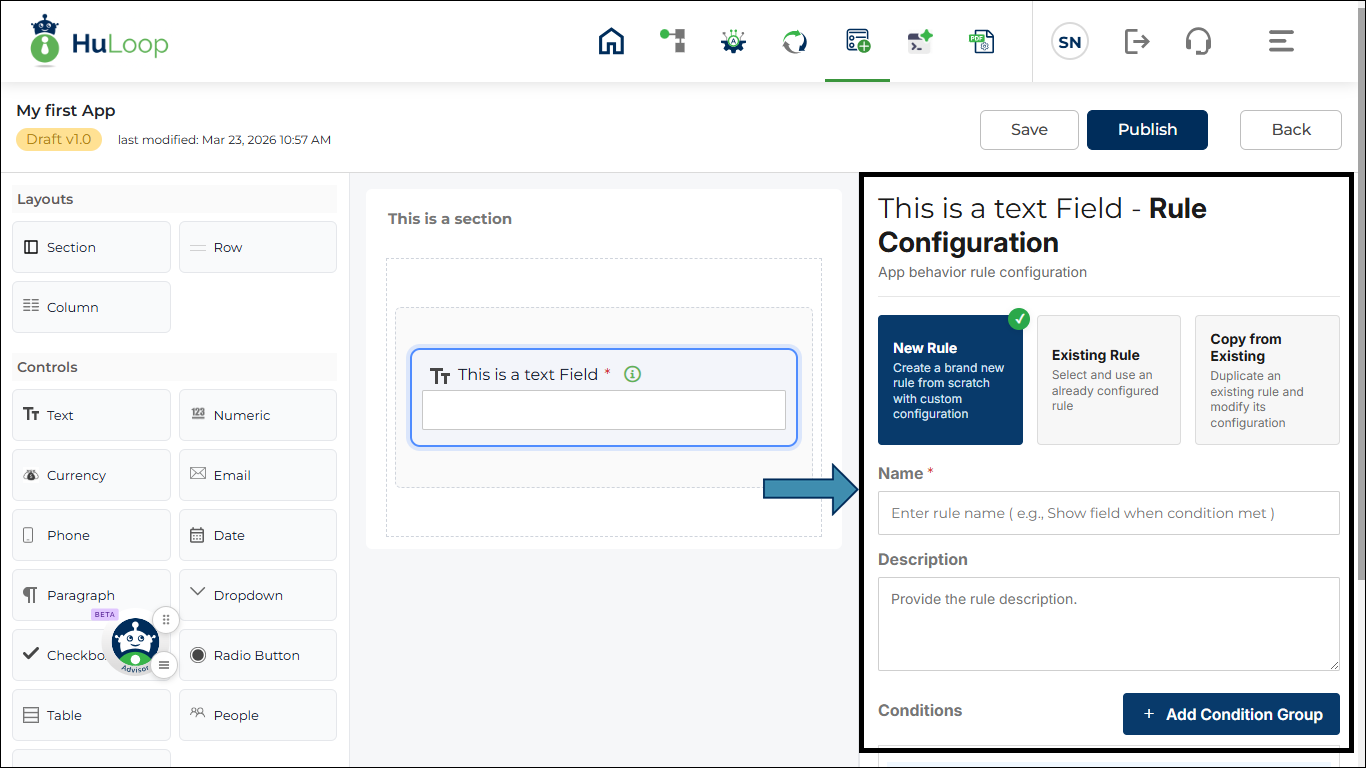
When Dynamic is selected and the user clicks +Add New Rule, the Rule Configuration panel opens on the right side of the screen.
From this panel, you can create or select a rule that defines how the component should behave during runtime.
When Rule Configuration is Used
Rule configuration appears when Dynamic is selected for Visibility.
Rules allow the system to decide the behavior of the component based on conditions, field values, or data returned from connectors.
Open Rule Configuration Panel
To open the Rule Configuration panel:
- Select a Section, Row, Column, or Control.
- Click Edit.
- Select Dynamic for Visibility.
- Click +Add New Rule.
The Configuration panel opens on the right side.
Rule Configuration Options
When the Rule Configuration panel opens, the following options are available.
New Rule
Select New Rule to create a new rule. The rule configuration panel opens. Use this option when you want to create a rule from the beginning.
You must enter the rule details and define the condition that controls the visibility of the selected component.
- Rule Name: Enter a name for the rule. This field is mandatory.
Use a meaningful name so that the rule can be identified easily.
- Description: Enter a description for the rule. This field is optional.
You can use the description to explain the purpose of the rule.
- Conditions: In the Condition section, you define when the rule should run.
Rules are created using condition groups.
Each group can contain one or more conditions.
- To add a condition, click Select Field and choose a field from the list. The rule uses values from other fields to decide when the current field should be shown.
- When you select a field in the condition, the list shows the fields that are already created in the app.
The current field is not shown because the rule is used to control the visibility of the current field based on other fields. - After selecting the field, choose the operator.
- Available operators include equals, not equals, greater than, greater than equals, less than, less than equals, contains, starts with, and ends with.
- After selecting the operator, enter the value that should be checked.
- The rule will compare the selected field value with this value.
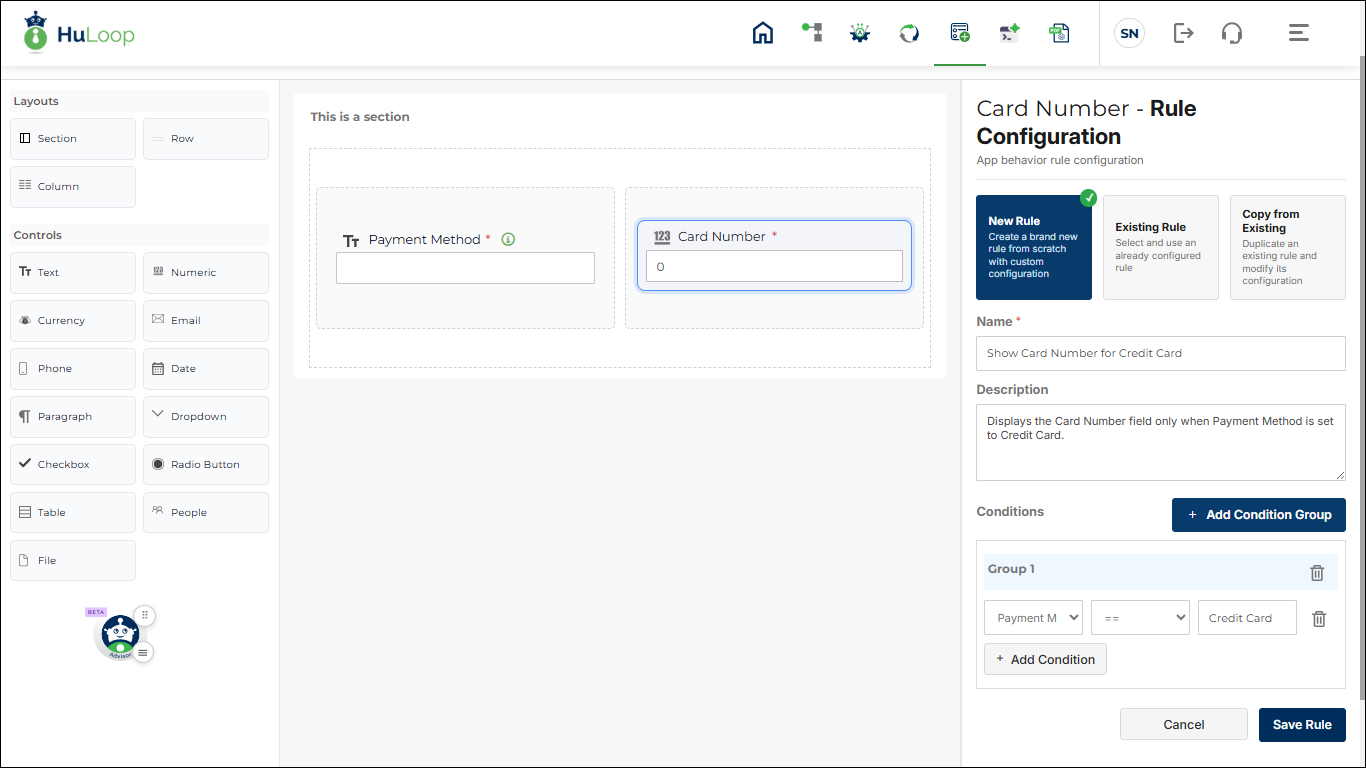
Example: Suppose the app has a text field called Payment Method and another numeric field called Card Number.
You want the Card Number field to appear only when the user selects Credit Card as the payment method.
To do this, create a rule for the Card Number field.
In the condition section:
- Select field = Payment Method
- Operator = equals
- Value = Credit Card
Save the rule.
Now, when the user enters Credit Card, the Card Number field will appear.
If any other value is selected, the Card Number field will remain hidden.
This is how rules are used to show or hide fields based on user input.
Note: Rules are case sensitive.
When defining a rule for text values, the value entered in the condition must match exactly with the value entered by the user.
For example, if the rule value is set to Credit Card, the rule will work only when the user enters Credit Card with the same capitalization.
If the user enters credit card, CREDIT CARD, or any other variation, the rule condition will not match, and the field will not be shown.
Make sure the value used in the rule matches the expected input format.
Add More Conditions:
- To add another condition in the same group, click +Add Condition.
- When multiple conditions are added in the same group, you can select AND or OR.
- AND means all conditions must be true.
- OR means any one condition can be true.
Add Condition Group:
- You can create multiple condition groups.
- Click +Add Condition Group to create another group.
- Each group can have its own conditions.
- Groups are used when the rule needs more complex logic.
Save Rule
After defining all conditions, click Save Rule.
The rule is saved and applied to the selected component.
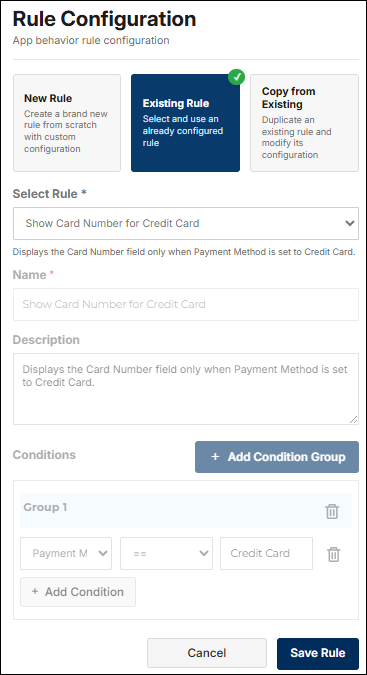
Existing Rule
- Select Existing Rule when you want to use a rule that is already created.
- This option allows you to apply an existing rule to the selected component without creating a new rule again.
- When you select Existing Rule, a list of available rules is shown.
- Click the Select Rule drop-down to open all the rules that are already created in the app.
- Select the rule that you want to apply.
- After selecting the rule, click Save Rule.
- The selected rule will be applied to the current field.
- The field visibility will now follow the conditions defined in that rule.
Note: You cannot modify the rule conditions when using Existing Rule.If you need to change the conditions, you must edit the rule where it was originally created or create a new rule.
Use Existing Rule when the same condition needs to be used for multiple fields.
This helps keep the rule configuration consistent and avoids creating duplicate rules.
Copy From Existing Rule
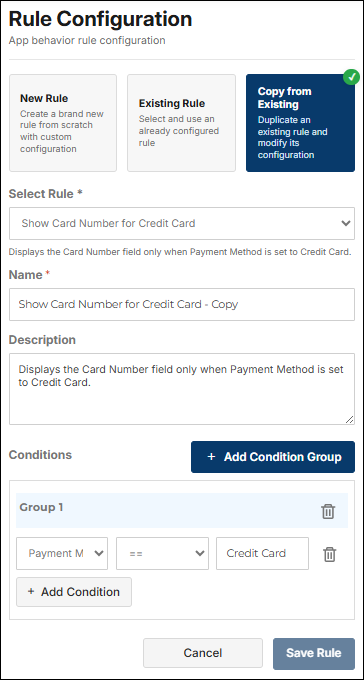
Select Copy from Existing Rule when you want to create a new rule using an existing rule as a base.
This option is useful when the new rule is similar to an existing rule and only small changes are required.
- When you select Copy from Existing Rule, a rule selection drop-down is displayed.
- Click the drop-down and select the rule that you want to copy.
- After selecting the rule, the rule details are loaded in the configuration panel.
- The Rule Name field is automatically filled with the selected rule name, and the word Copy is added at the end.
- You can change the rule name if needed.
- The Description field is also filled automatically based on the selected rule.
- You can edit the description or keep it as it is.
- The Condition section is copied from the selected rule.
- All condition groups, conditions, operators, and values will be shown.
- You can modify the existing conditions, add new conditions, or remove conditions as required.
To add another condition, click Add Condition.
- To create another condition group, click Add Condition Group.
- You can configure the rule in the same way as creating a new rule.
- After making the required changes, click Save Rule.
A new rule will be created, and the original rule will not be changed.
Notes:
- Copy from Existing Rule creates a new rule.
- Changes made after copying do not affect the original rule.
- Use this option when you want to reuse an existing rule but need different conditions.