

Edit an App
You can edit an existing app from the Apps page. An app can be edited only when it is in Draft mode.
Published apps cannot be edited unless they are moved to draft. To edit an App:
- On the Apps page, locate the app in the list.
- In the Actions column, click the Edit icon for the app that you want to edit.
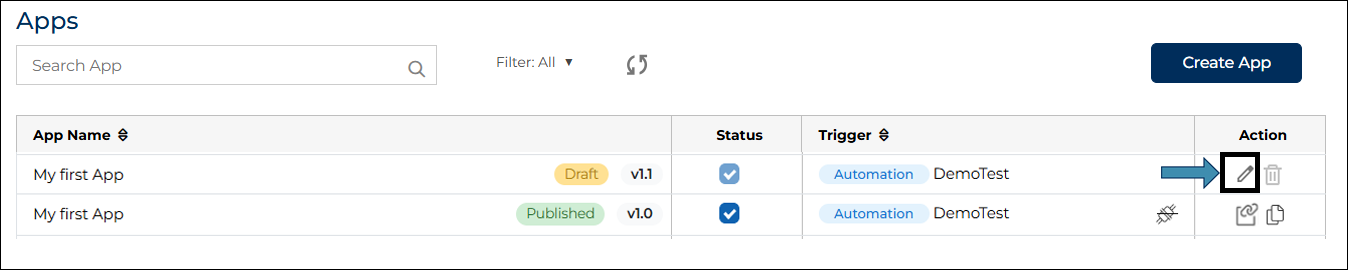
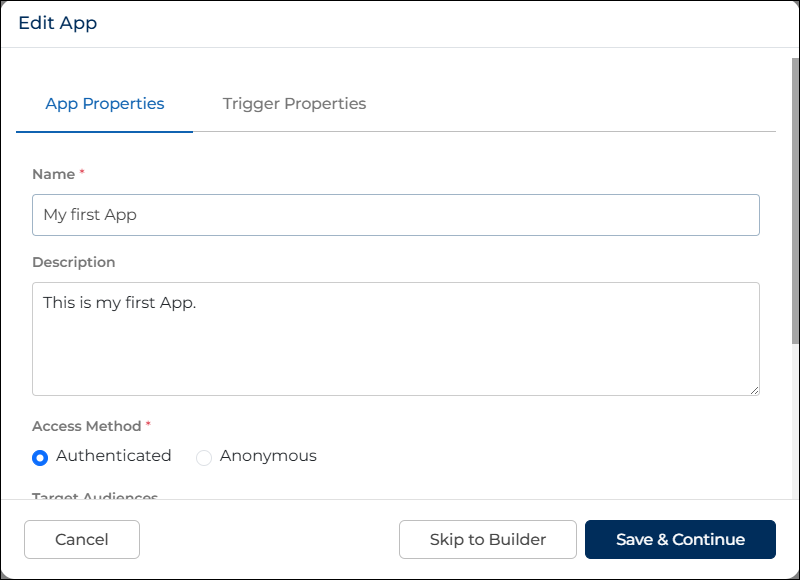
- When you click the Edit icon, the Edit App pop-up opens.
- In this pop-up, you can update the App Properties and Trigger Properties if required.
- After making the changes, click Save and Continue.
- If you do not want to change the app or trigger properties, click Skip to Builder.
- You will be redirected to the App Builder interface.
- In the App Builder, you can update the layout, sections, rows, columns, controls, and rules as required.
- After making the changes, save the app and publish it again to apply the updates.
- Each time the app is saved as draft or published after changes, the version number of the app is updated.
- A new version is created every time the app is modified and saved.
