

Activate or Deactivate an App
Only apps in the Published state can be activated or deactivated.
- On the Apps page, locate the published app.
- In the Status column, a checkbox is shown for the app.
- If the checkbox is selected, the app is active.

- To deactivate the app, clear the checkbox.
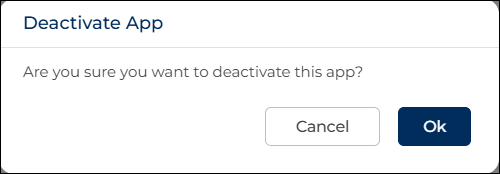
- A confirmation pop-up appears with the message asking if you want to deactivate the app.
- Click OK to confirm.
- After the app is deactivated, the app cannot be used and its trigger will not run.
- When an app is deactivated, no actions can be performed on it.
You cannot edit, delete, copy the app, or copy the app URL while the app is deactivated.
Activate the App Again
- To activate the app again, select the checkbox in the Status column.

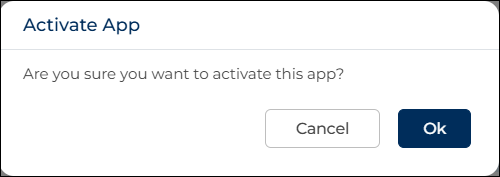
- An Activate App confirmation pop-up appears.
- Click OK to confirm.
- The app becomes active again and can be used normally.
- Deactivating an app is useful when you want to temporarily stop using the app without deleting it.
