

Create a New App
Click Create App. The Create New App popup appears.
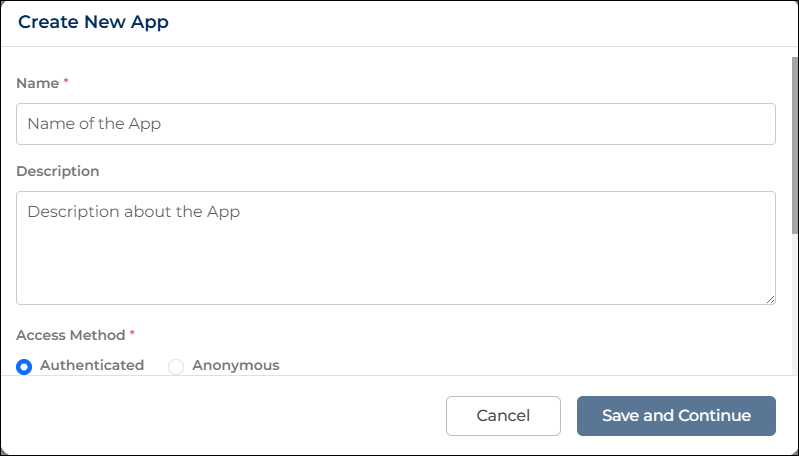
You must enter the required details before creating the app.
App Details
Provide the basic information required to define and access the App.
- Name: Use this field to give a name to your App. The name is required, must be unique, and can be up to 255 characters long. You can use letters and numbers, and include an underscore (_) if needed.
Note: Avoid using special characters or spaces to ensure the name is accepted.
- Description: Use this field to add a brief description of your App. This field is optional and allows you to enter up to 1000 characters.
- Access Mode: Use this field to define how users will access the App.
You can choose between:- Authenticated, where only logged-in users can access the App
- Anonymous, where users can access the App without logging in
By default, the App is set to Authenticated, and this selection is required.
Note: Select Anonymous only when you want to allow access without login.
- Target Audience: Use this field to control who can access the App.
This option is available only when the Access Mode is set to Authenticated. You can select specific users or groups if you want to restrict access. If you leave this field blank, the App will be available to all internal users. - Public Access Token (PAT): Use this option to enable secure access when the App is set to Anonymous. Click Generate New, select an expiry date, and then click Generate to create a token that allows users to access the App without logging in.
Note: Always set an appropriate expiry date to ensure secure and controlled access.
- Save App: After entering all details, click Save and Continue.
The system creates the App and opens the App Builder (Design Canvas), where you can start designing your application.
