
Desktop Inspector Tool Version 1.0 (Use when the XPath is easily found)
The new Desktop Inspector tool allows users to inspect desktop application elements and identify their locators, which are the unique properties or identifiers used to distinguish each UI element. These locators play a crucial role in automation by allowing scripts to accurately recognize and interact with buttons, text fields, menus, tables, and other controls within a desktop application. The identified locators can then be used to build reliable automation workflows and ensure consistent element recognition during execution.
HuLoopInspectorTool.zip is Version 1.0 and HuLoopUIInspector.zip is Version 2.0.
Use Version 2.0 if the XPath is not easily found.
Version 1.0
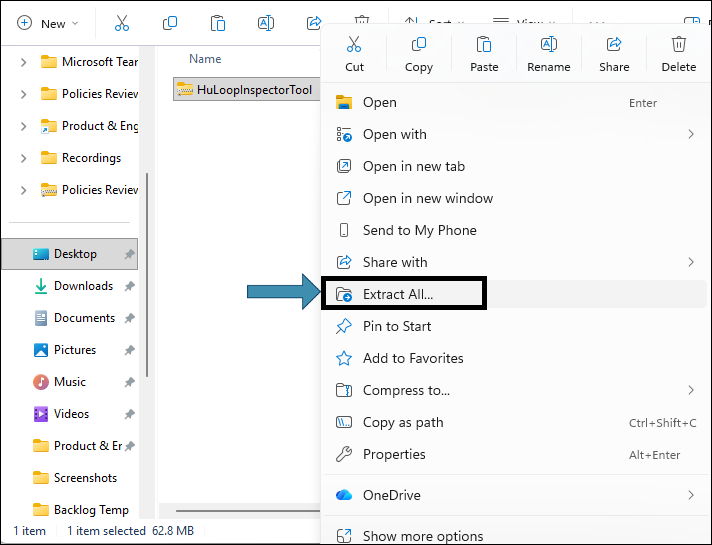
Step 1. Right click HuLoopInspectorTool.zip and select Extract All.
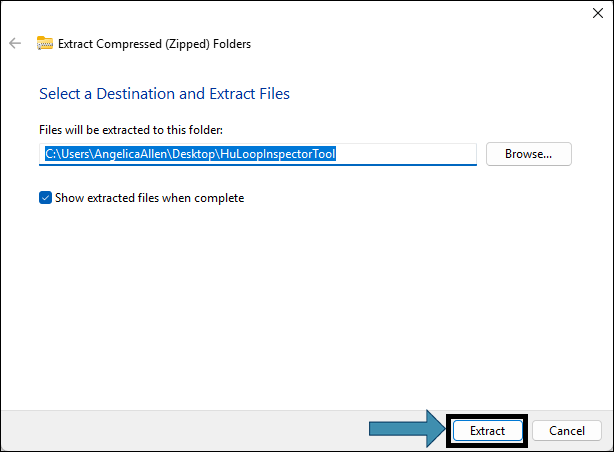
Step 2. Select Extract.
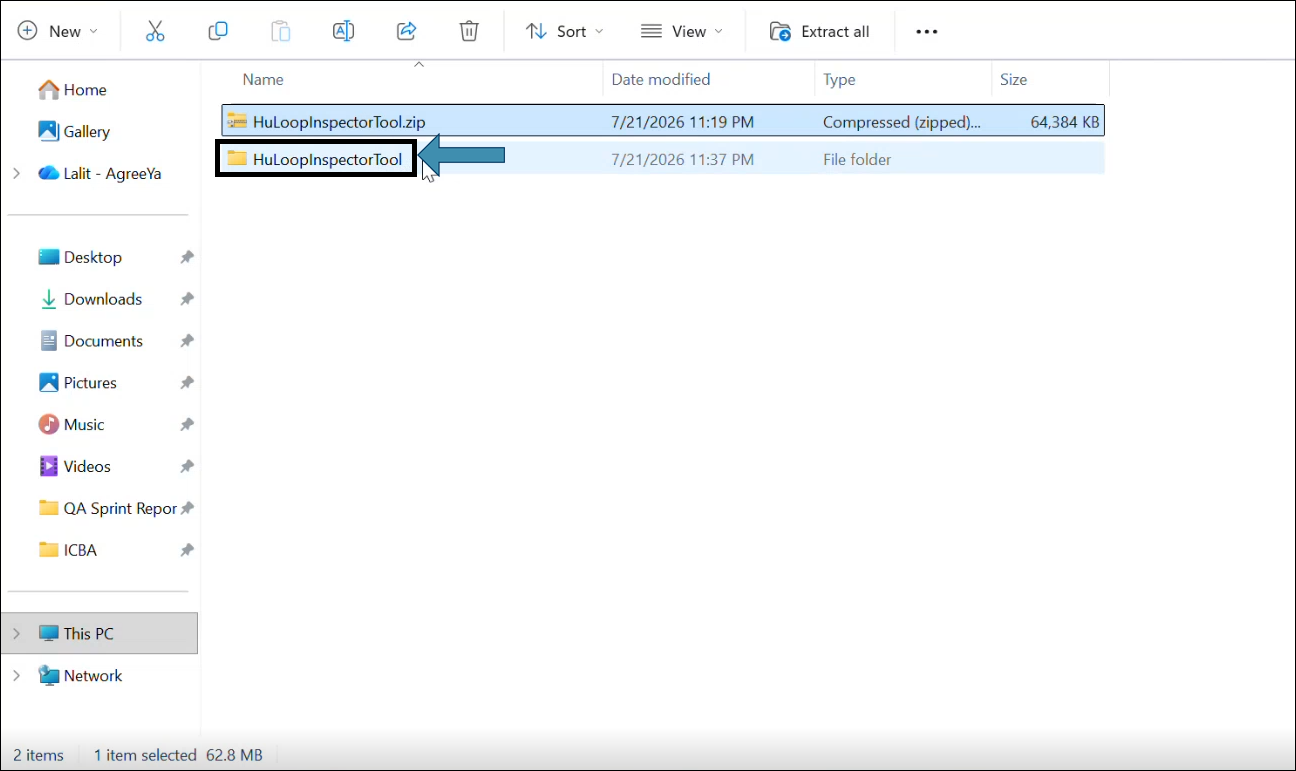
Step 3. Select the HuLoopInspectorTool File folder.
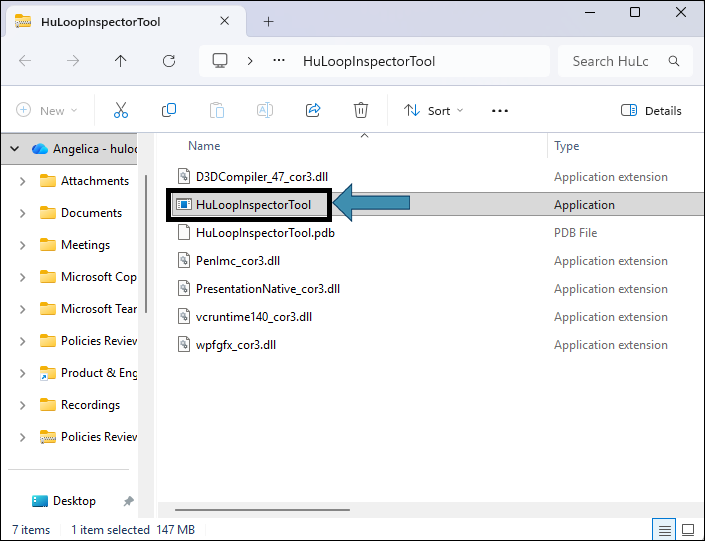
Step 4. Double click the HuLoopInspectorTool Application to launch the Inspector Tool.
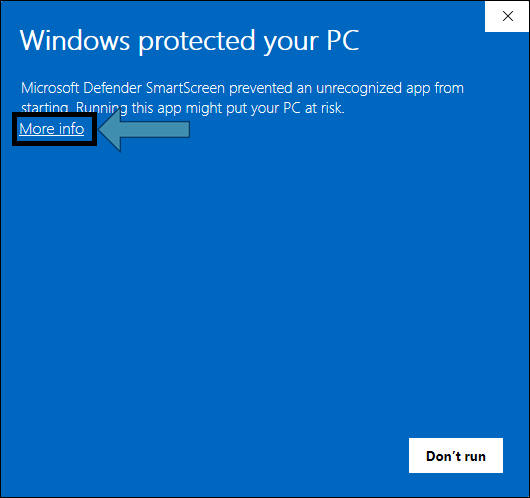
Step 5. Click More info.
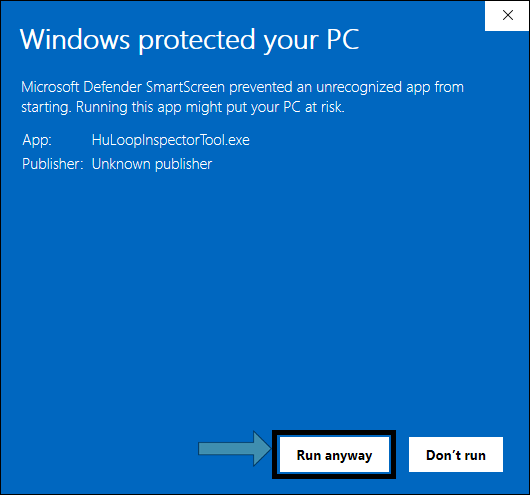
Step 6. Select Run anyway to launch the application.
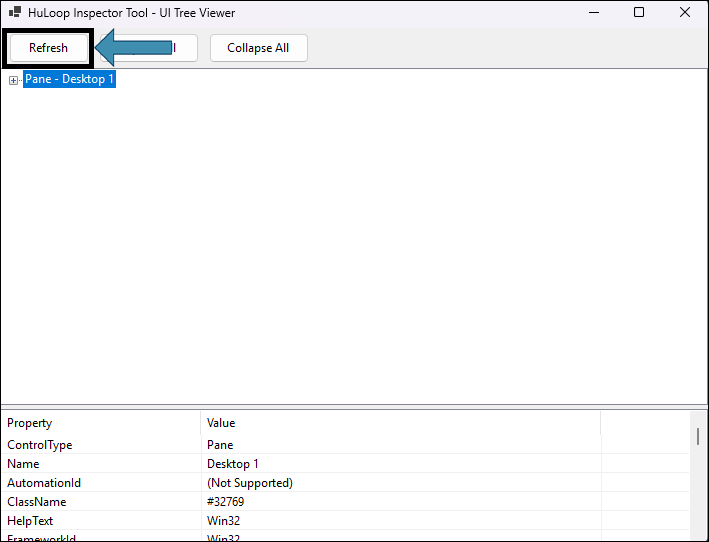
Step 7. Click Refresh then Select  to expand the elements you can choose from.
Step 8. When you select an element, for example, “Window – Untitled – Notepad – Pane…Document – Text editor,” Scroll down for the XPath under its Property and Value. This will highlight the XPath expression and give you the option to Copy or Test the XPath.
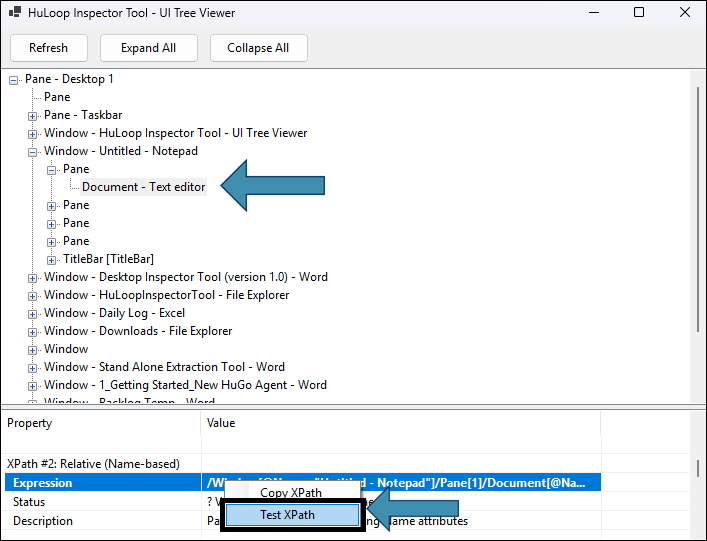
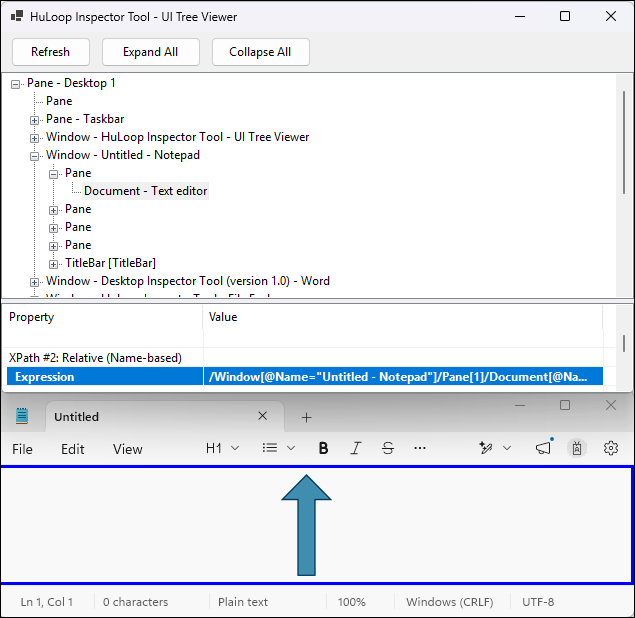
Step 9. When you Select Test XPath, a blue border will appear around your selection.
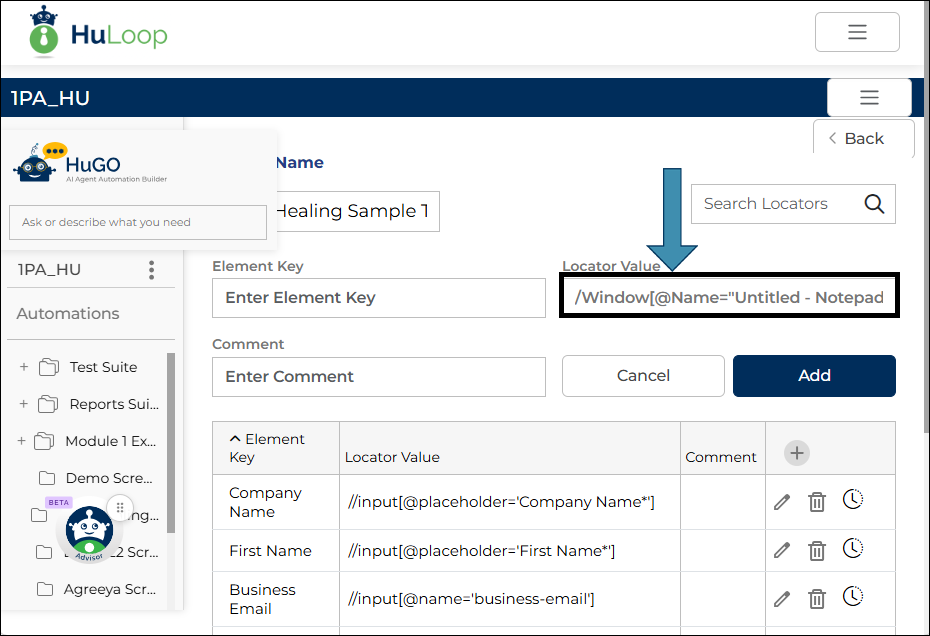
Step 10. When you Select Copy XPath, you can Paste this in your Locator Value of the Automation Builder using CTRL+V. Here is a sample:
/Window[@Name=”Untitled – Notepad”]/Pane[1]/Document[@Name=”Text editor”]