

Get EXCEL Cell Value Using Cell Reference: getCellReference
The Get EXCEL Cell Value Using Cell Reference function retrieves the value from a specific cell in an Excel file. This function is useful for extracting data from a known cell location for further processing in automation.
Example: Suppose you have an Excel file named EmployeeData.xlsx stored at C:\User\Documents\EmployeeData.xlsx. You need to fetch the employee name from cell B2 in the first sheet and store it in a variable.
Note: Ensure that the file being used is not open during the execution of the Case to avoid errors or conflicts.
Steps to Configure:
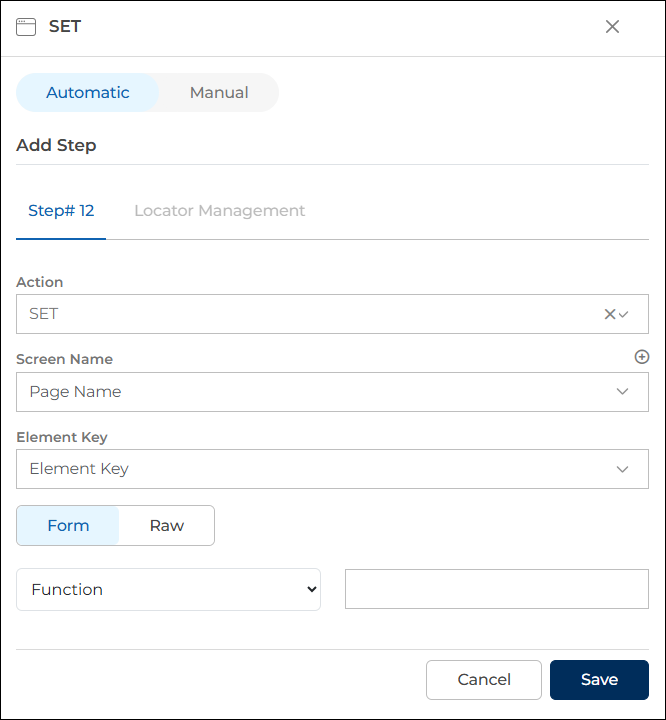
- Add a New Step.
- Select SET from the Action dropdown.
- Leave the Screen Name field blank.
- Enter a variable name in the Element Key field (e.g., CellValue). This variable will store the retrieved data.
- Click on Form, select Functions, and choose Get EXCEL Cell Value Using Cell Reference from the dropdown.
- Provide the required parameters:
- FPath: The location of the Excel file.
- CellReference: The specific cell to fetch data from (e.g., B2).
- Sheet: The sheet index in the Excel file (e.g., 1 for the first sheet).
- SheetName: The sheet name of the Excel file (e.g., EmplyeeData).
- Click Save.

Outcome on Execution:
- Retrieves the value from the specified cell in the given Excel file.
- Stores the extracted data in the variable defined in the Element Key field.
- The stored value can be used in subsequent automation steps using the syntax ${variable name} (e.g., ${Cell Value}).
