Write Data To Text Or CSV File: WRITE_FILE
Use the WRITE_FILE action when you want to put text into a file. You can either overwrite the existing content or add new content to the end of the file. This action works for .txt and .csv files. You can switch between these formats anytime using the platform settings. See How to change the file type.
Steps to configure:
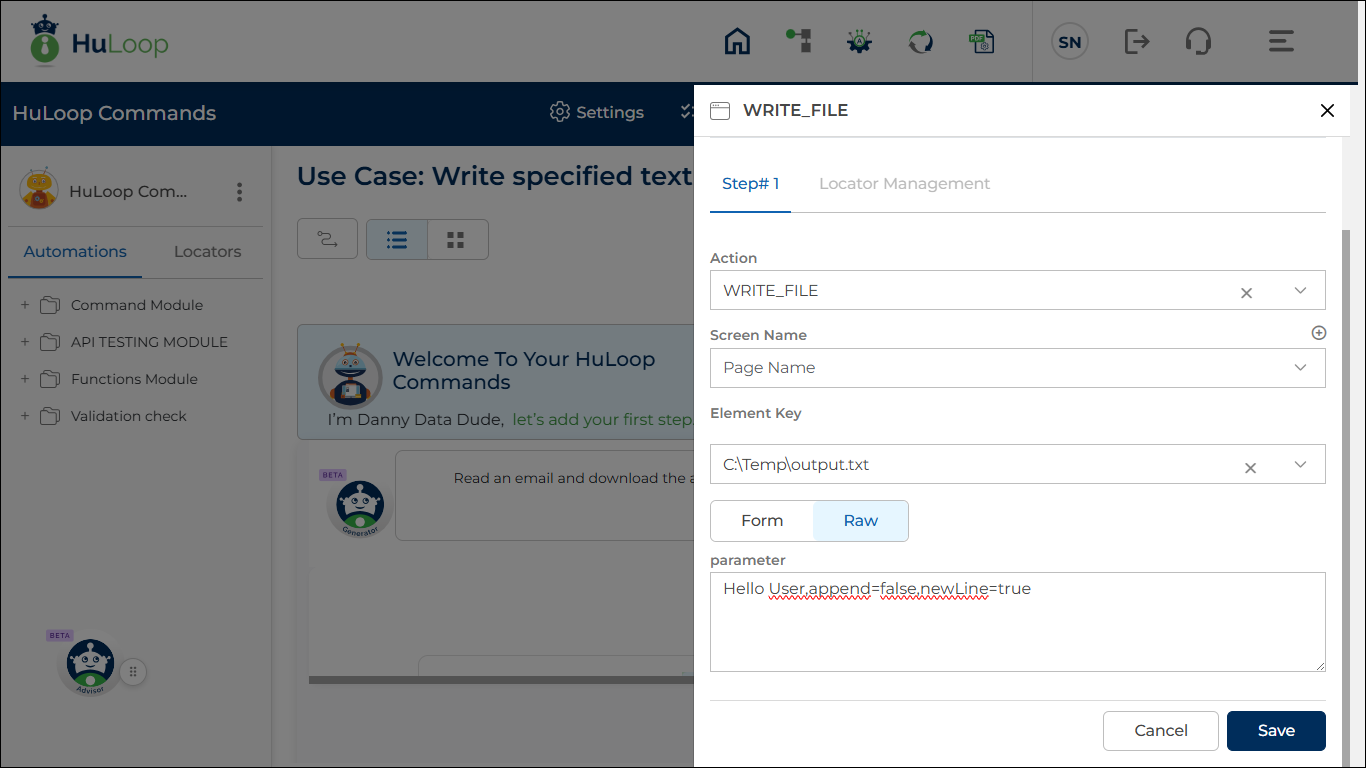
- Select WRITE_FILE from the Action dropdown.
- Leave the Screen field blank.
- In Element Key, enter the full path of the file you want to write to.
- Example: C:\Temp\output.txt
- In the Parameters section, provide the following three values in the required format:
<text>,append=<true/false>,newLine=<true/false>- Example: Hello User,append=false,newLine=true
Here:
- Text: the text you want to write.
- Append: set to:
- true if you want the new text to be added after the existing file content
- false if you want to overwrite the entire file
- newline: set to:
- true if you want the text to be written on a new line
- false if you want to continue on the same line
- Click Save.
Expected outcome on Execution:
The system writes the specified text into the file at the given path, following the append and newLine settings you provided. The file will be created automatically if it does not already exist.
Using Your File with the Execute CMD Commands Function
After generating a text or script file with WRITE_FILE, you can use it immediately in the Execute CMD Commands function.
This is useful when you want to run a custom PowerShell script, batch file, or any command that needs a file input, without maintaining a physical script file on your system.
For more details about running CMD or PowerShell commands, see the Execute CMD Commands function.
How to change the file type:
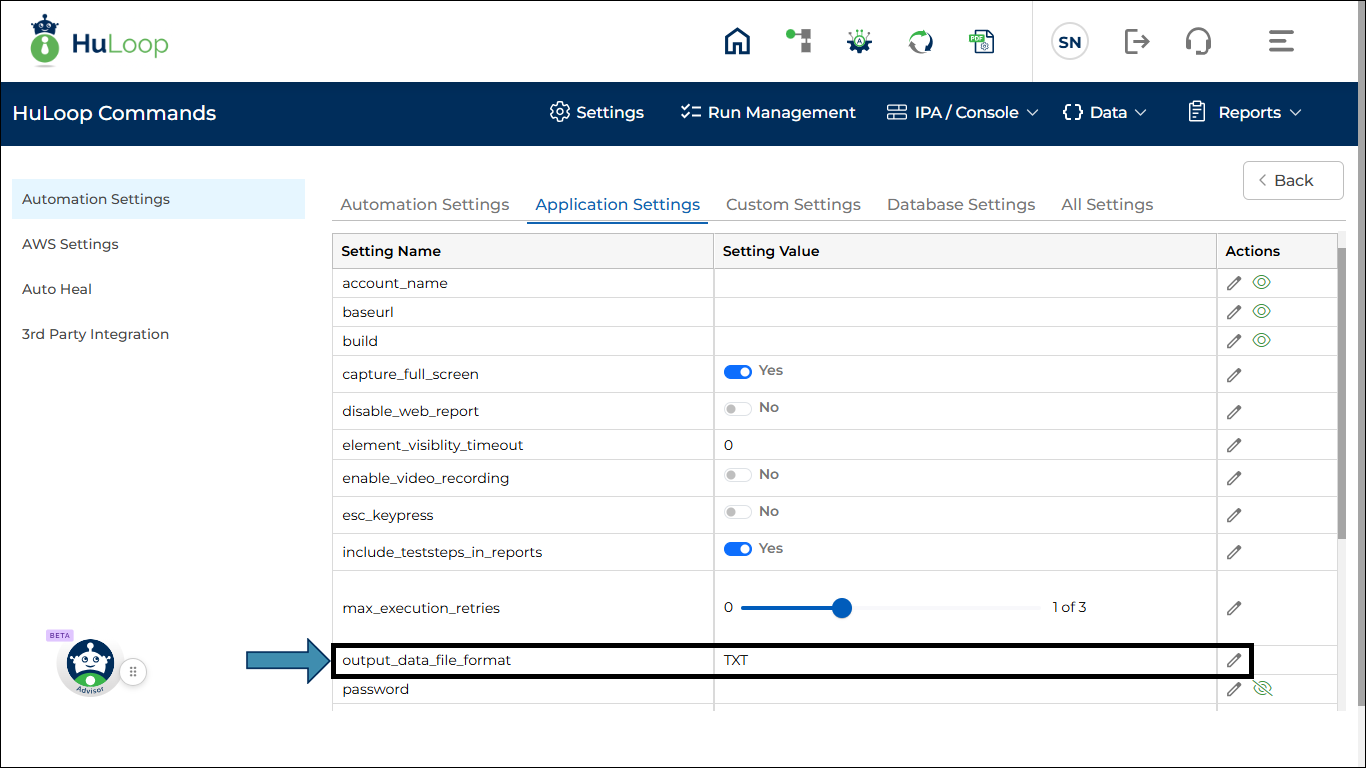
- If you want to write to a CSV file, make sure the platform setting output_data_file_format is set to CSV.
- Go to Settings > Application Setting > output_data_file_format
- Here you can:
- Keep it to TXT (default value) to write to text files
- Change it to CSV using the
 icon to write to CSV files

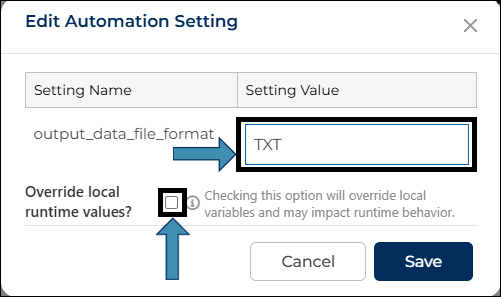
When you try to change the file format (for example, from TXT to CSV or from CSV to TXT), Edit Automation Settings pop-up appears.
- Update the file format in the Setting Value field
You will also see a checkbox labeled:
“Override local runtime values”
- If you check this box:
The system overrides local runtime values. This may impact how your automation behaves during execution. - If you do not check this box:
The file format will change, but local runtime values will remain unchanged.