


Green Screen/Image Processing: imageprocessinghandle
The Image Processing function lets you read and work with the content displayed inside a green-screen image. It supports both text and numeric values, and can be used to extract specific information or check whether certain content exists in the image. The function works using two operations: GET and SEARCH.
- GET: Extracts selected values, such as text, numbers, codes, or identifiers from the image and returns them as a JSON object.
- SEARCH: Looks for a specific word, number, or phrase in the image and returns true or false.
This allows you to validate information such as names, amounts, account numbers, status codes, or any other data that appears within the green-screen image.
Steps to configure:
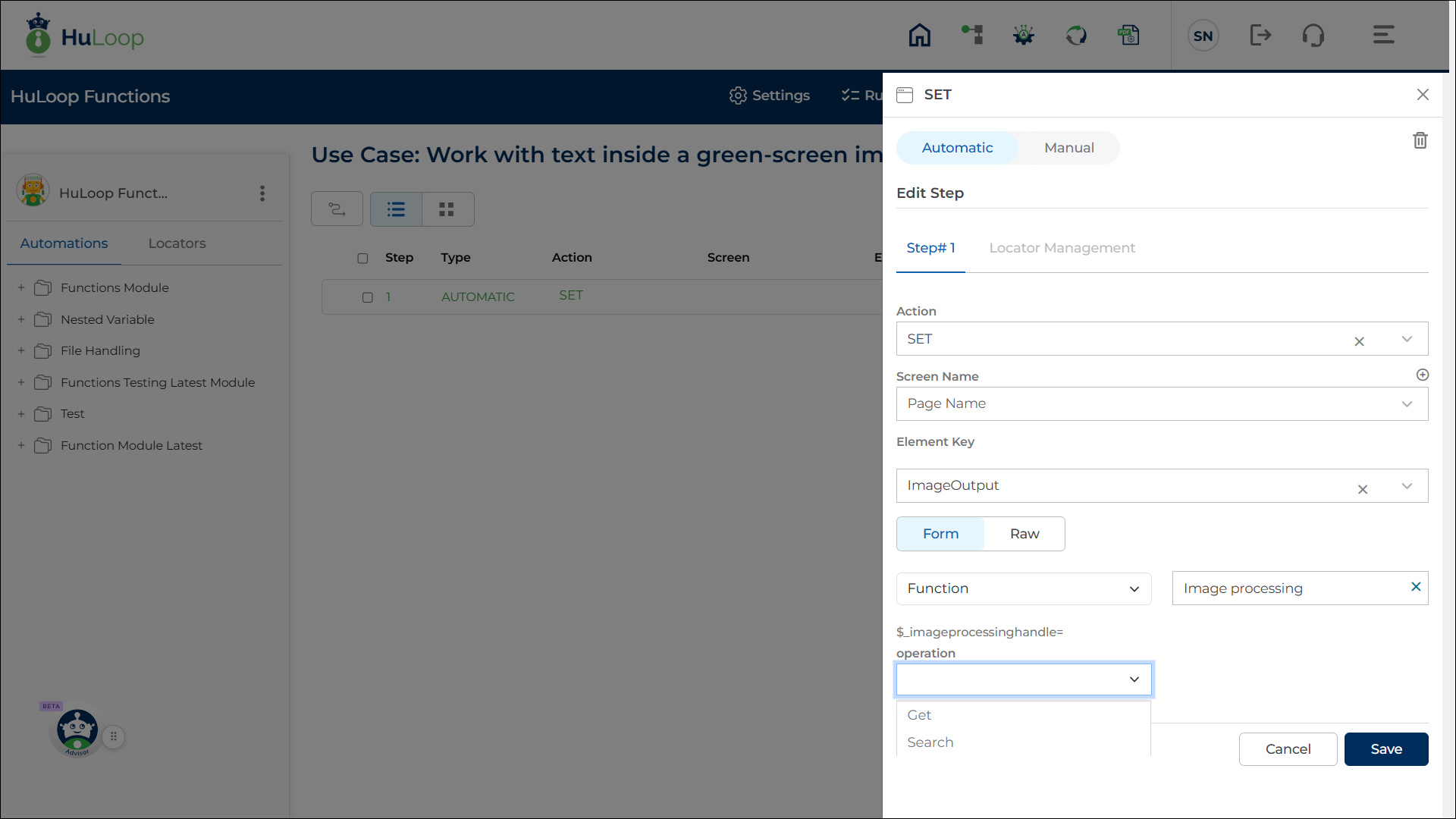
- Select SET from the Action drop-down.
- Leave the Screen Name field blank.
- In the Element Key field, enter the variable name where the final result should be stored. Example: ImageOutput
- In the Form drop-down, select Function.
- From the list of functions, choose Image Processing.
- In the Operation drop-down, select one of the following:
- GET: Returns a JSON object with values for the keys you entered
- SEARCH: to check whether a word or phrase exists in the image
On selecting an operation, the following configuration fields will appear on the screen:
- Image File: Provide the full path to the green-screen image. Example: C:\Images\TransactionScreen.png
- Keys: Enter the keys whose values you want to extract from/ check in the image. The keys must be enclosed in double quotes (“”). Example: “CustomerID,BranchCode”
- Separator: Enter the character that separates multiple keys. The separator can be any special character: comma, semicolon, etc. and must be enclosed in double quotes (“”). Example: “,”
- Text File: (Optional) Provide the full path of a text file that contains the same content shown in the green-screen image, in the same format. The function uses this text file to better identify and match values during processing. Example: C:\Files\ReferenceText.txt
- Click Save.
Output on Execution:
- For GET: Returns a JSON object containing the extracted values, stored in the variable provided in the Element Key field.
- For SEARCH: The output variable stores true or false, depending on whether the text was found in the image.
- Use the variable syntax ${VariableName} (e.g., ${ImageOutput}) to access this text in later steps.
Example 1: You receive a green-screen image that displays customer details.
You want to extract the Customer Name and Account Status so you can validate them with your internal system.
Configuration Details:
- Add a new step in the Use Case
- Define a variable in the Element Key field that will hold the output after execution. Example: ImageOutput
- Provide the following details:
- Operation: GET
- Image File: C:\Images\CustomerScreen.png
- Keys: “CustomerName,AccountBalance”
- Separator: “,”
- Text File: Provide the full path of a text file that contains the same content shown in the green-screen image, in the same format. Example: C:\Files\ReferenceText.txt (optional)
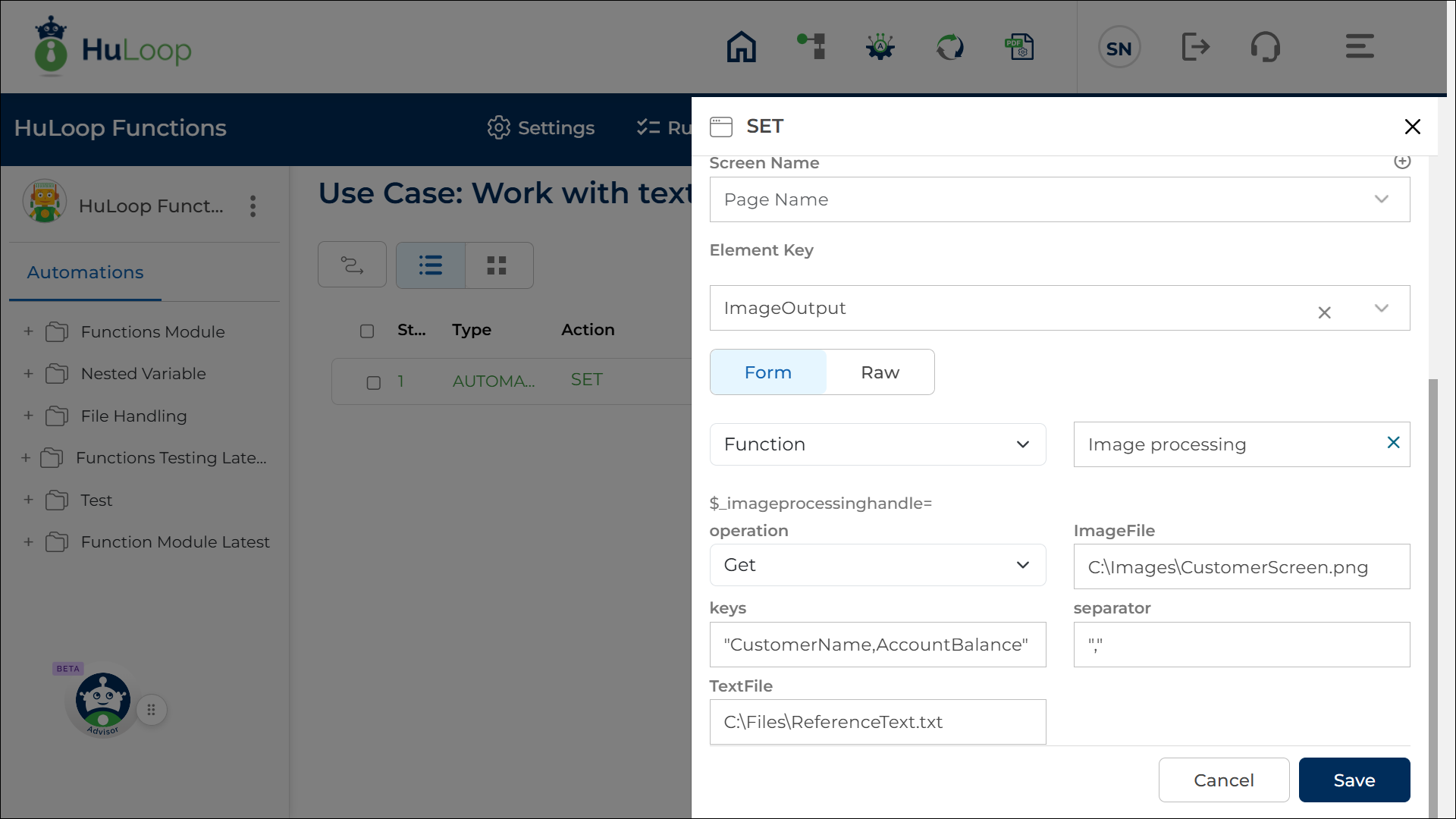
Outcome on Execution: The function extracts the values for both keys and returns them as a JSON object. This output is stored in the variable defined in the Element Key field. You can use this variable in later steps, using the syntax ${Variable Name}, example: ${ImageOutput}.
Example 2: You want to confirm whether the word “APPROVED” appears anywhere in the green-screen image. This helps you identify whether a transaction was completed successfully.
Configuration Details:
- Add a new step in your use case.
- In the Element Key field, enter the variable that will store the result. Example: SearchResult
- Enter the following configuration details:
- Operation: SEARCH
- Image File: C:\Images\TransactionStatus.png
- Keys: “APPROVED”
- Separator: “,”
- Text File: Provide the full path of a text file that contains the same content shown in the green-screen image, in the same format. Example: C:\Files\StatusList.txt (optional)
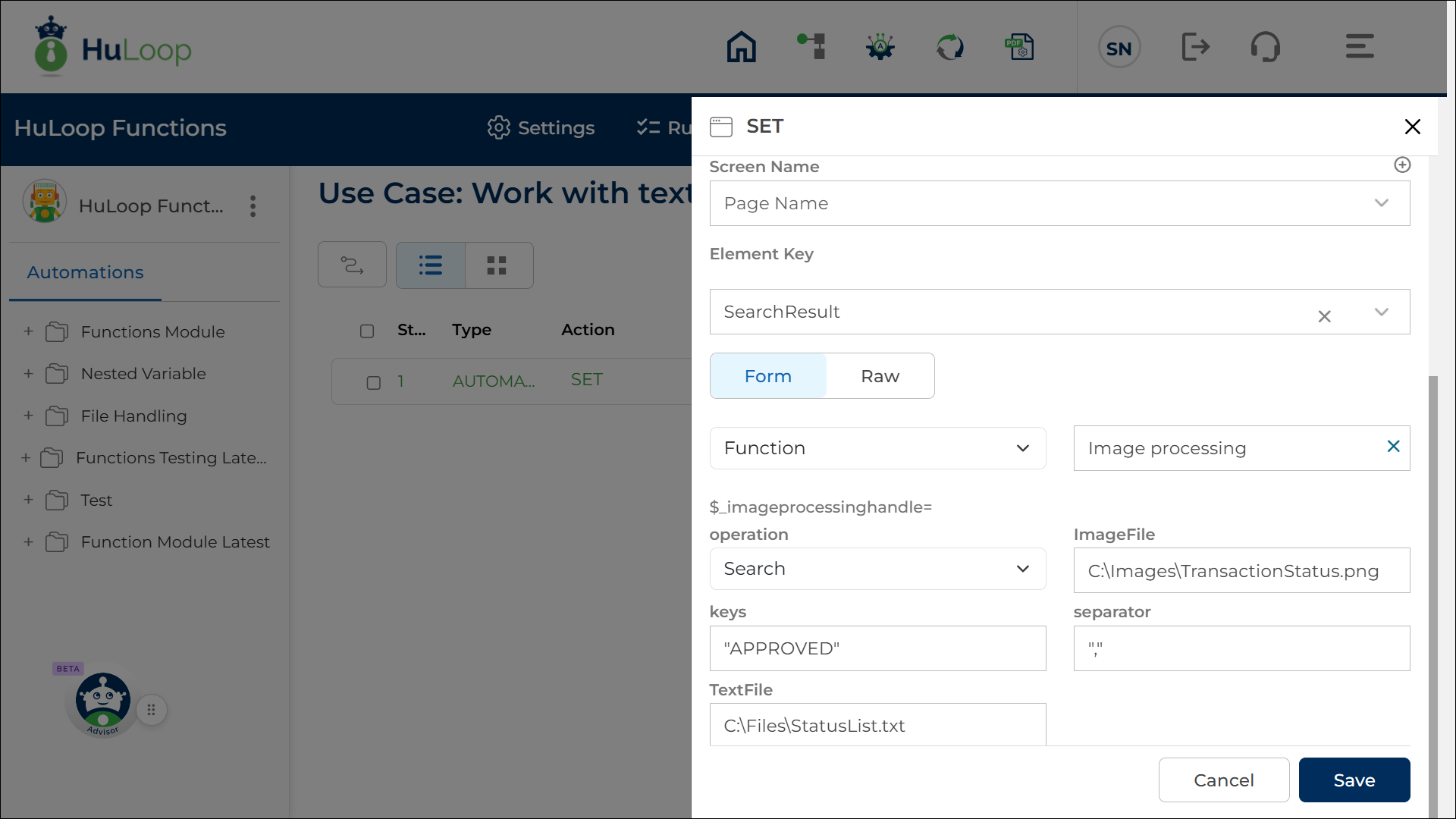
Outcome on execution: The function searches the image for the provided key.
- If the text exists, ${SearchResult} returns true.
- If it does not exist, ${SearchResult} returns false.
You can use this output in conditional steps or validations within your automation.
Last updated: Dec 03, 2025