Extract Checked Text: extractCheckedValue
The extractCheckedValue is an action under the PDF File Handler function. It identifies and extracts information related to checked checkboxes in a PDF file. It captures the total number of checked checkboxes and the associated text (such as the checkbox title or label) and stores this information in a variable for use in later steps.
This subfunction is useful when automations need to validate user selections in forms, surveys, or compliance documents where checkbox states are important.
Example: Suppose you have a PDF form named ApplicationForm.pdf located at C:\Forms. The form contains several checkboxes, and you want to identify which options were selected by the user. You can use the Extract Checked Text subfunction to extract details of all checked checkboxes and store them in a variable for validation or reporting.
Steps to Configure:
- Add a new step.
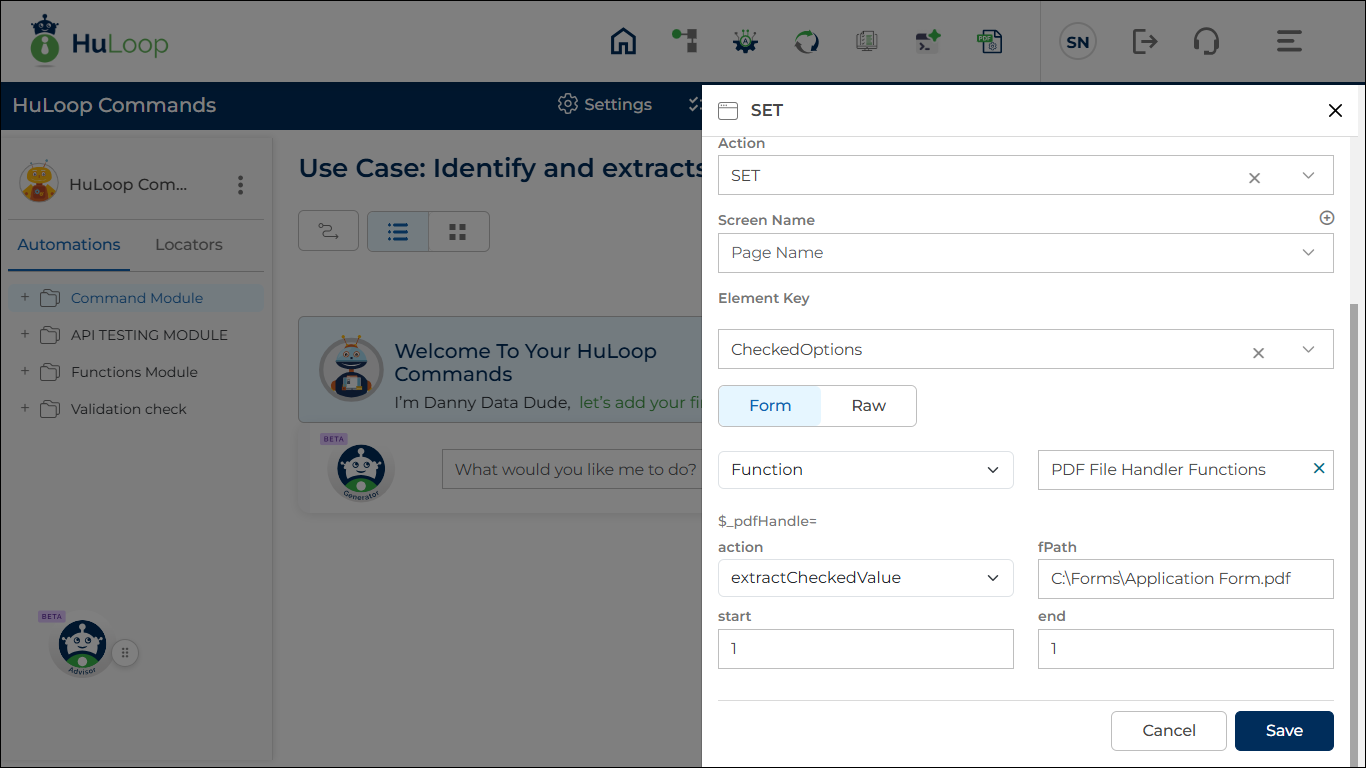
- Select SET from the Action dropdown.
- Leave the Screen Name field blank.
- In the Element Key field, enter the variable name to store the extracted checkbox details (Example: CheckedOptions).
- In the Parameters section, click Edit.
- Click Form, select Functions, and then choose PDF File Handler as the function.
- Provide the following parameters:
- action: extractCheckedValue
- pdffilepath: Enter the full path of the PDF file
(Example: C:\Forms\Application Form.pdf) - startPage: Enter the page number where checkbox extraction should begin
(Example: 1) - endPage: Enter the page number where checkbox extraction should stop
(Example: 1)
- Click Save.
Outcome on Execution:
- The variable defined in the Element Key stores structured information for each checked checkbox, including the checkbox text, its position in the PDF, and confidence score.
- You can use this variable using the syntax ${VaruableName} to use this later in the automation, if required.
Getting the Total Number of Checked Checkboxes
To retrieve the total count of checked checkboxes, add a new step after the extraction step:
- Add a new step.
- Set the step type to Manual.
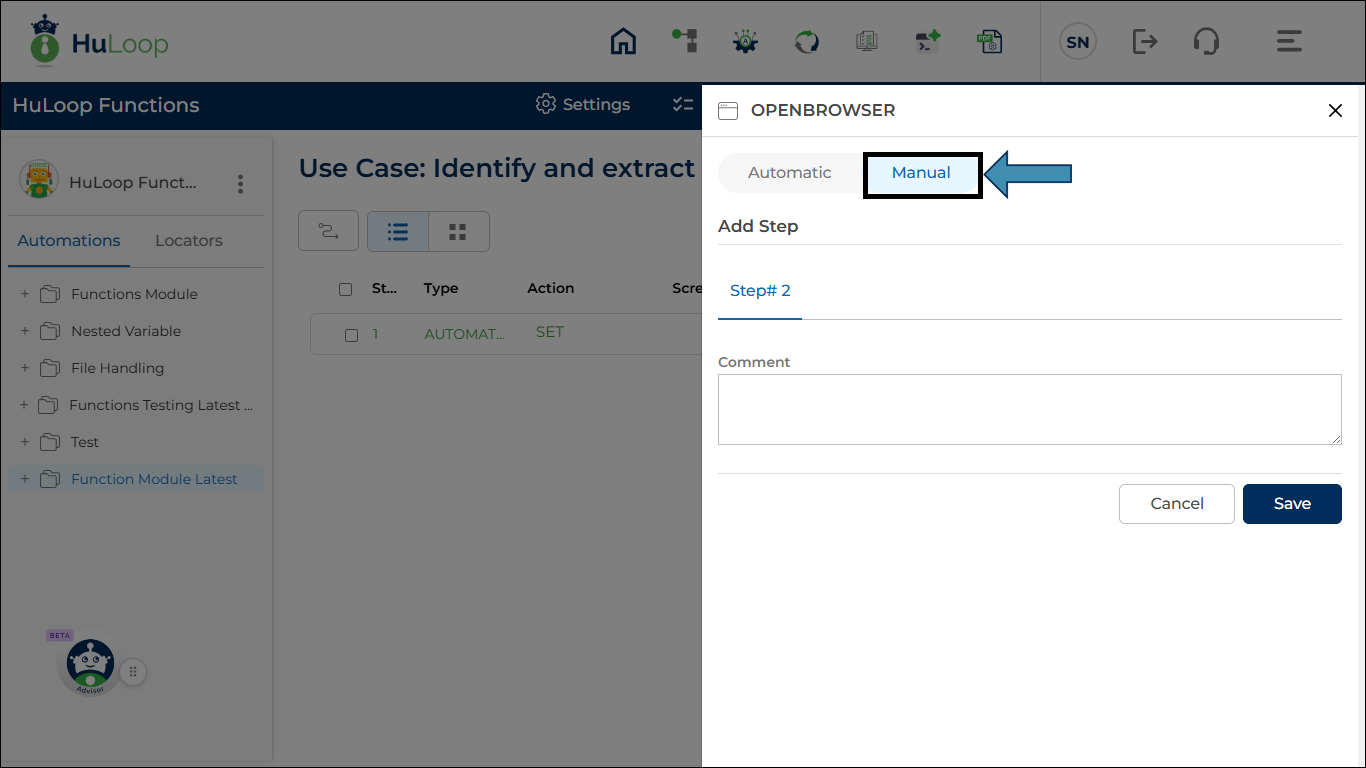
- In the Comment box, enter: ${CheckedOptions.checked.count()} where, CheckedOptions is the variable you defined in the Element Key field.
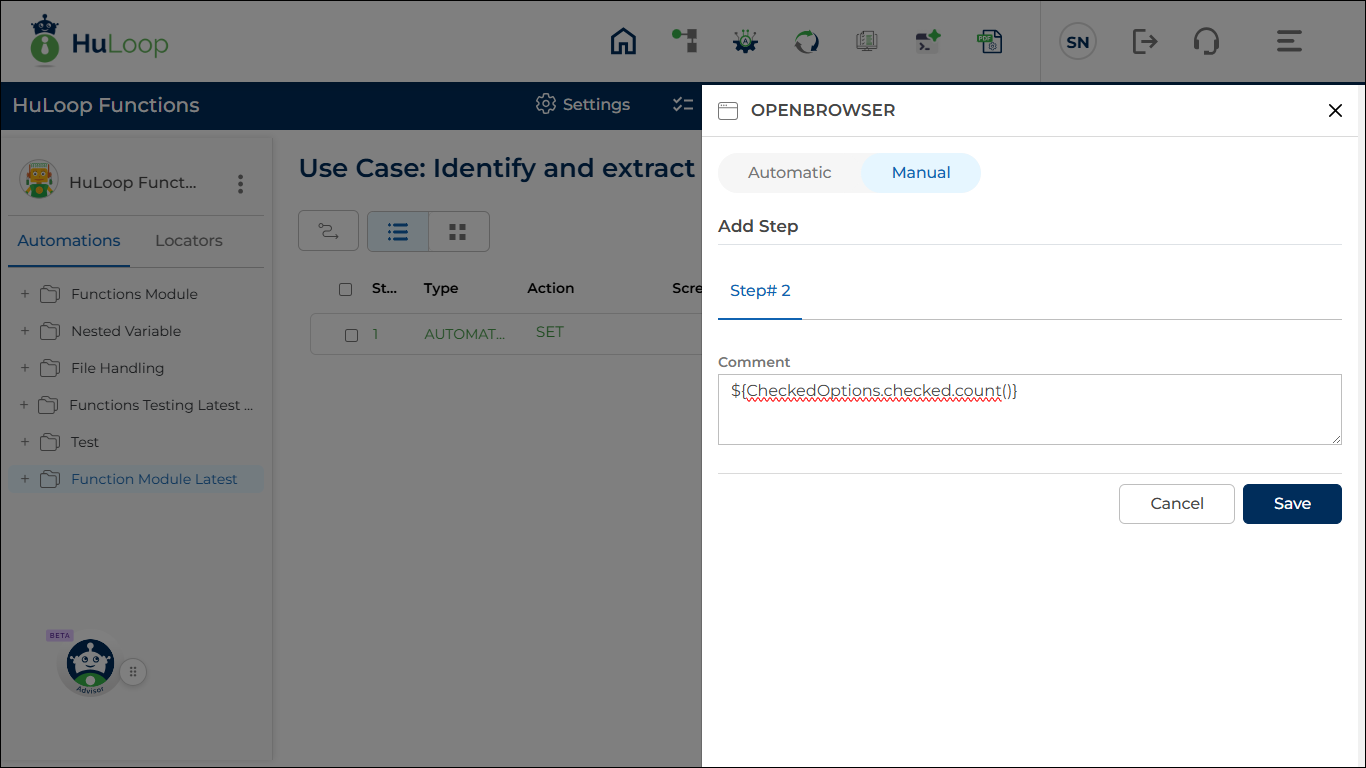
This returns the total number of checkboxes that are checked in the specified PDF pages.
Getting the Value of a Checkbox by Index
To retrieve the text of a specific checked checkbox, add another manual step:
- Add a new step.
- Set the step type to Manual.
- In the Comment box, enter:
${CheckedOptions.checked.index}
Replace index with the position of the checkbox you want to retrieve.
Indexing starts at 0.
Example:
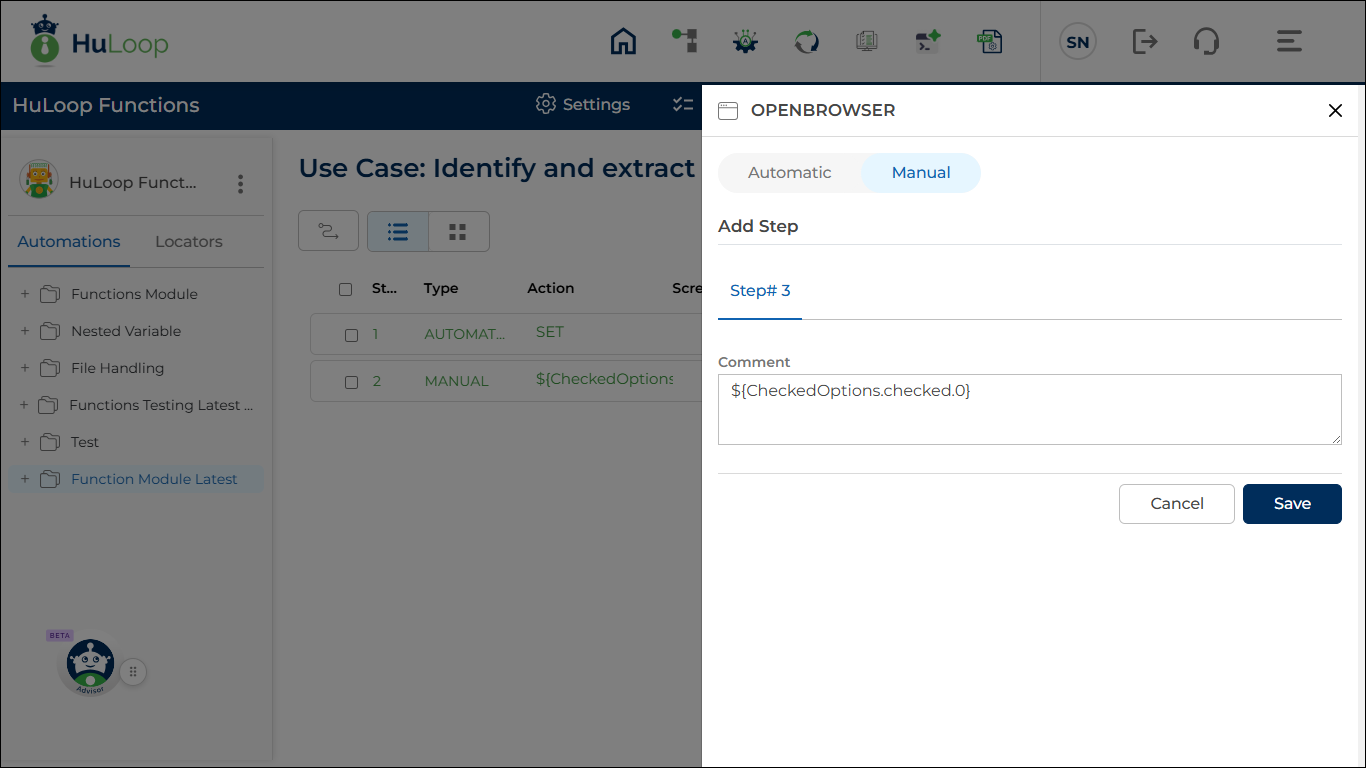
${CheckedOptions.checked.0}
This returns the text associated with the first checked checkbox.