

Add and Configure a Row
Rows are added inside a section. Rows are used to arrange controls inside a section.
- When you add a section, one row is added by default.
- You can add more rows by dragging the Row layout from the Layouts panel and dropping it inside the section on the design canvas.
- When a row is added, the properties panel opens on the right side of the screen.
- You can configure the row properties from this panel.
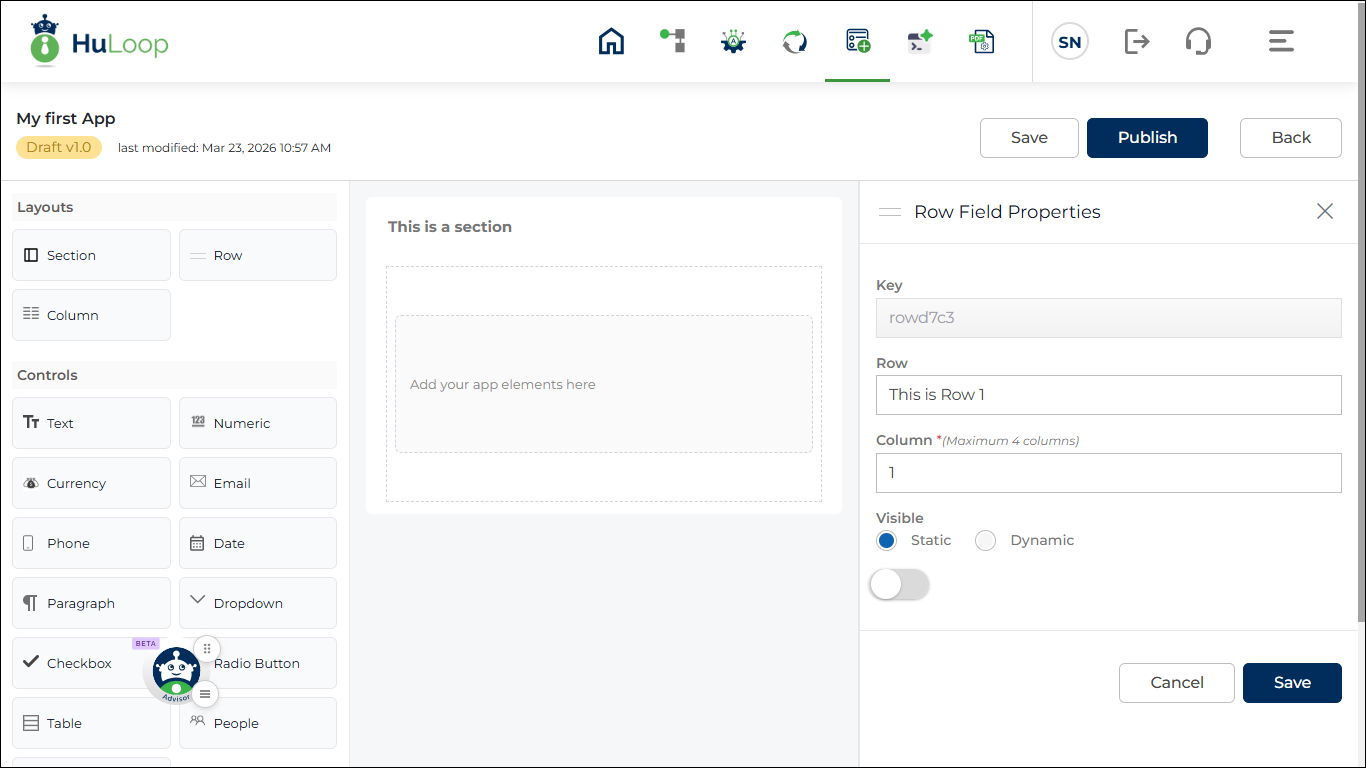
Rows are used to organize columns and controls inside a section.
Row Properties:
Key: auto generated
- Mandatory
- Must be unique
- Used internally
- Not visible to users
Row: Provide a Row heading
- Optional
- Used as label
Column: Number of columns in the row.
Rules:
- Mandatory
- Minimum = 1
- Maximum = 4
Visibility:
Options:
- Static
- Dynamic
Dynamic allows rule configuration.
Click +Add New Rule to configure rules.
Options:
- New Rule
- Existing Rule
- Copy From Existing Rule
Click Save to apply changes. Click Cancel to discard.
Last updated: May 11, 2026