Saving, Submitting, and Publishing the App
After designing the App layout and configuring all components, the app must be saved before it can be used.
The App Builder provides options to save the app, preview the App, and publish the app.
Saving the App
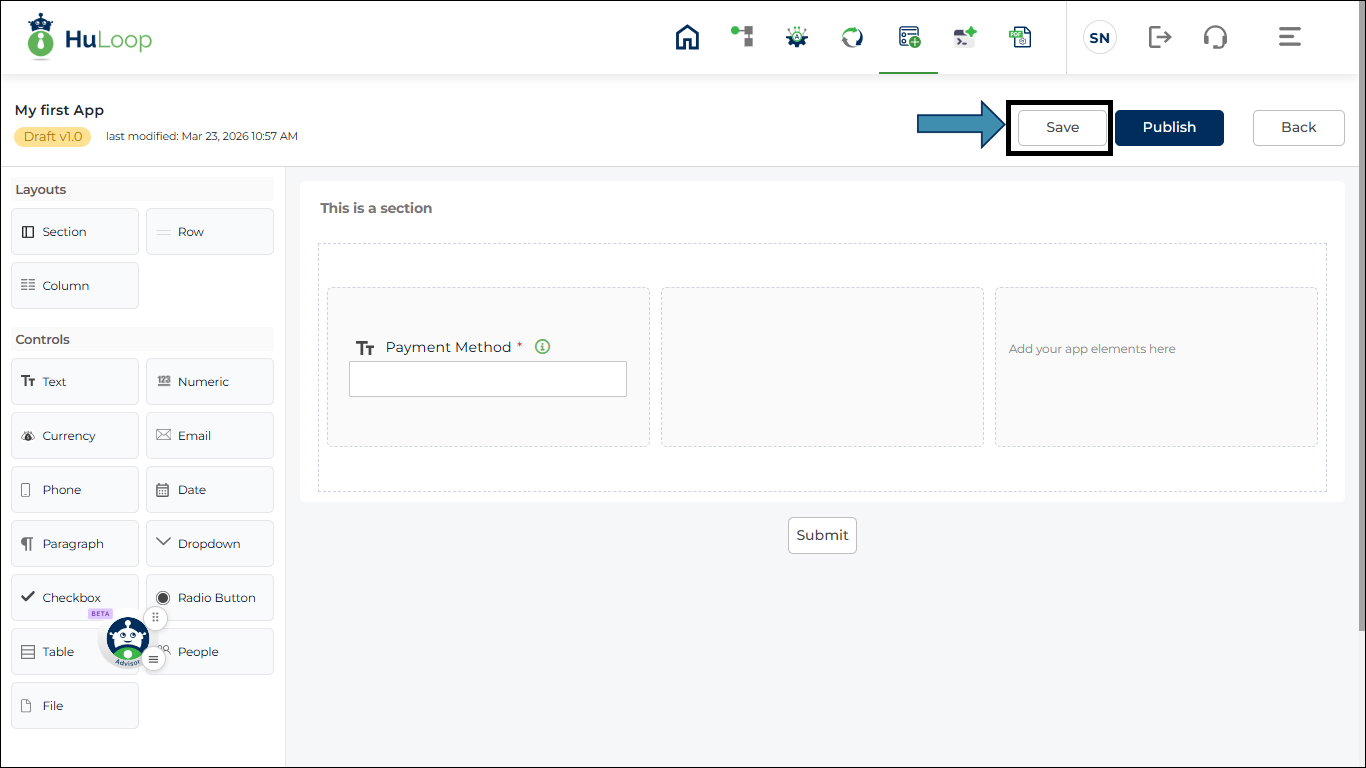
After adding Sections, Rows, Columns, Controls, and Rules, click the Save button.
Saving stores the current layout and configuration.
Submit the App
The Submit button is used to trigger a process automation or workflow.
On clicking, the Submit Properties panel opens on the right side of the screen.
Some fields such as Label and Tooltip are filled automatically and cannot be changed.
These fields are predefined for the Submit button.
- Trigger Properties
In the Trigger Properties section, select the Trigger Type.
The Trigger Type defines what will run when the user clicks the Submit button.
The available options are:
- Automation
- Workflow
- Select Automation: If you select Automation as the trigger type, a drop-down list of all active automations is displayed.
Select the automation that you want to run when the app is submitted.
- Select Workflow: If you select Workflow as the trigger type, a drop-down list of all active worflows is displayed.
Select the workflow that you want to run when the app is submitted.
- Data Mapping: After selecting an automation or workflow, the Data Mapping section appears.
Data mapping is used to pass values from the app fields to the automation or workflow variables.
In the Data Mapping section, two fields are shown.
- App Field
- Automation Variable or Workflow Variable
In the App Field drop-down, select the field from the app.
The list shows all fields that you created in the form.
In the Automation Variable or Workflow Variable drop-down, select the variable from the selected automation or workflow.
Mapping connects the app field with the automation or workflow variable.
During execution, the value entered in the app field is passed to the selected automation or workflow.
This allows the automation or workflow to use the data entered by the user.
- Add More Mappings
To map more fields, click +Add Mapping.
You can create multiple mappings as required.
Each mapping connects one app field to one automation or workflow variable.
- Save Configuration
After completing the mapping, click Save.
Publish the App
After the app is finalized, the app must be published so that it can be used in workflows or automation.
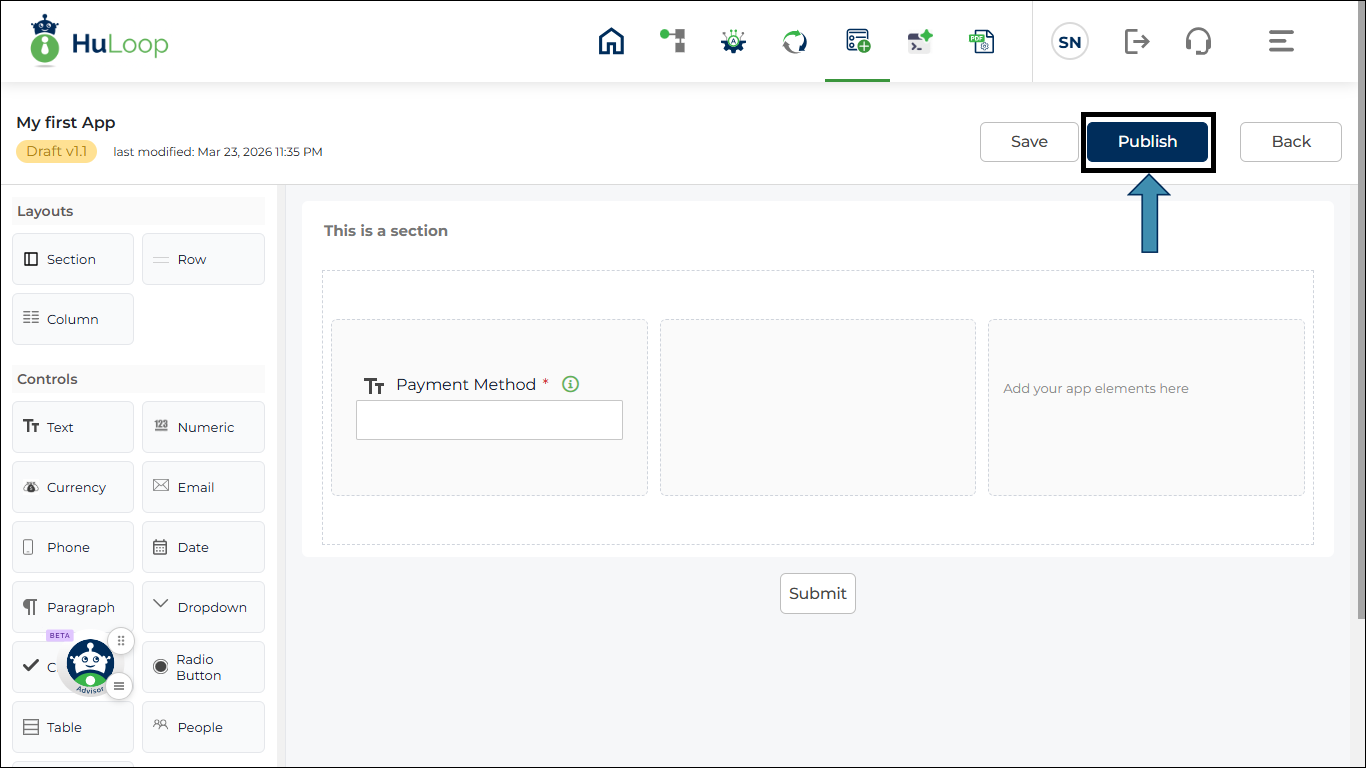
Click Publish to make the app available for use.
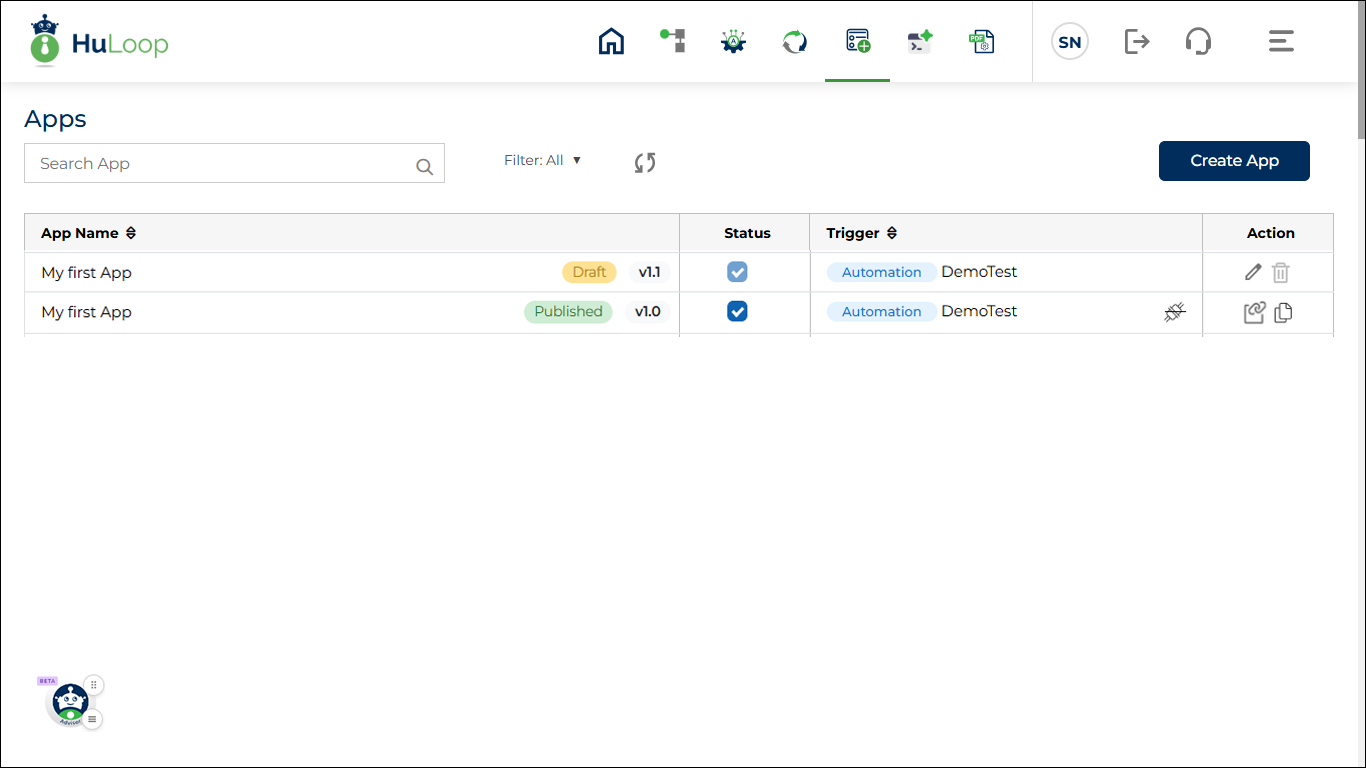
After the app is published, you are automatically navigated to the Apps page, where the list of all apps is displayed.
Once published, the app can be used in:
- Workflow forms
- Automation triggers
- User input screens
- Process execution steps
If changes are made after publishing, save and publish again to apply the updates.
After the app is published, you are automatically navigated to the Apps page, where the list of all apps is displayed.
The app status is also updated to Published on the Apps page.