


Sandbox End User Guide
Overview
HuLoop Transparency Sandbox is a controlled, pre-built environment that allows you to explore HuLoop’s AI capabilities before using them in real automations. It helps you understand how different AI models perform, compare results, and gain confidence in HuLoop’s AI-driven extraction features.
This guide explains how to access HuLoop Transparency Sandbox, run baseline experiments, create and manage experiments, and compare results.
Accessing the Sandbox
- Log into your HuLoop account.
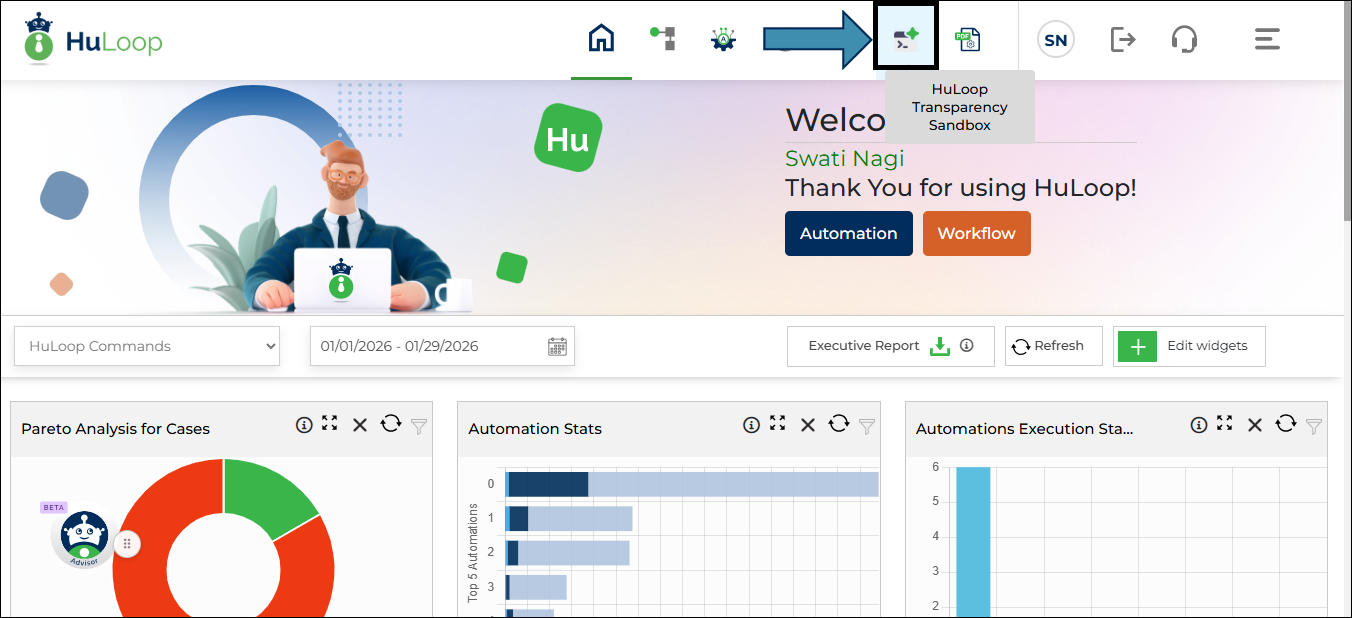
- Click the HuLoop Transparency Sandbox icon available in the top navigation bar of the HuLoop home page.
Permission requirements
- Only users with Sandbox Access permission can use the Sandbox features.
Only a Company Administrator can grant Sandbox Access permissions.
Sandbox Landing Page
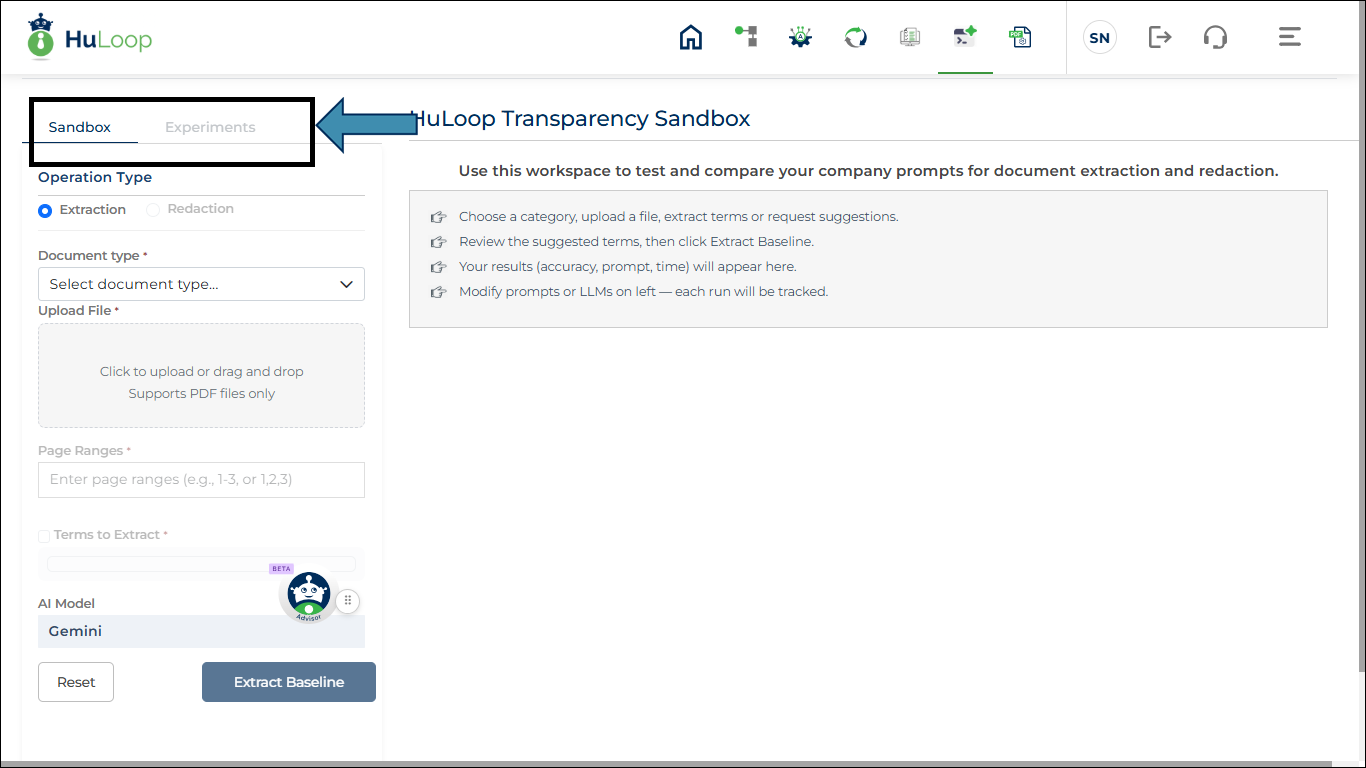
The Sandbox landing page includes the following tabs:
- Sandbox: Used to create a baseline experiment
- Experiments: Used to view, modify, and compare experiments
Creating a Baseline Experiment
A baseline experiment is the starting point for testing AI extraction.
Step 1: Configure the inputs
On the Sandbox tab, provide the following information:
- Operation Type
- Select Extraction. This option is selected by default.
- Document Category
- Select the category that best matches your document.
- Each category has predefined extraction terms.
You can choose from the following document categories, grouped by business area:
- Finance
- Payroll
- Retail operations and supply chain
- Banking and risk
- Upload Document
- Upload one PDF document.
- This document is used for extraction.
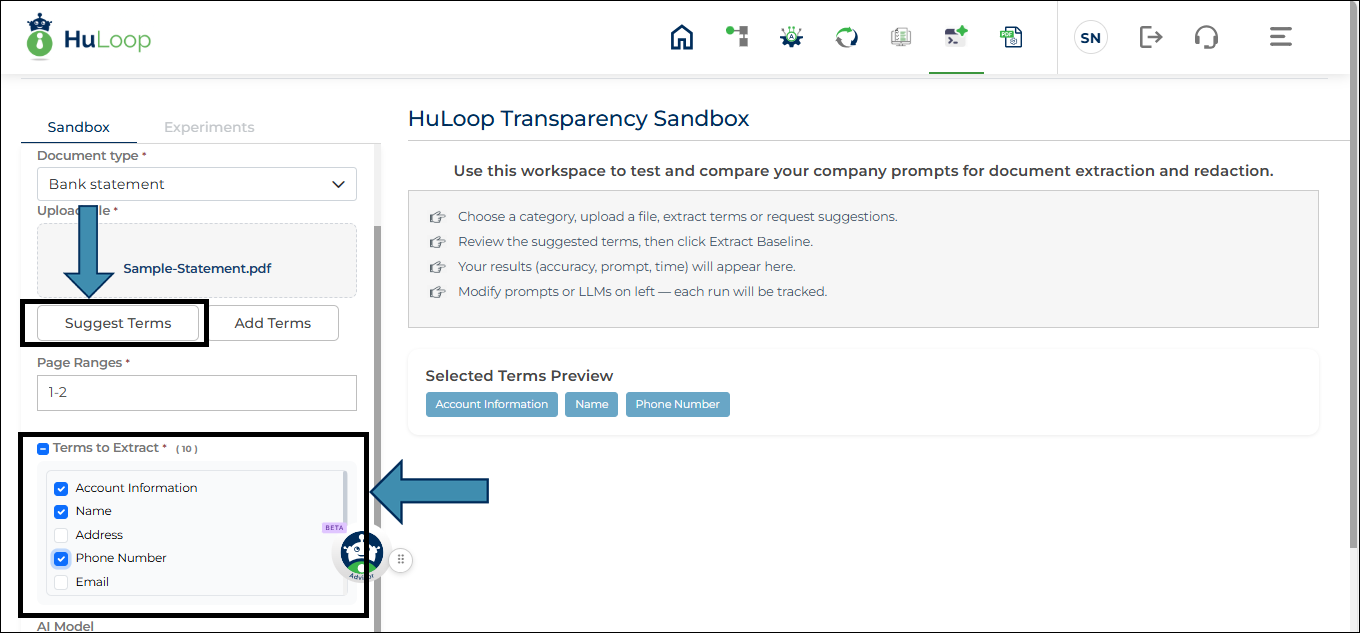
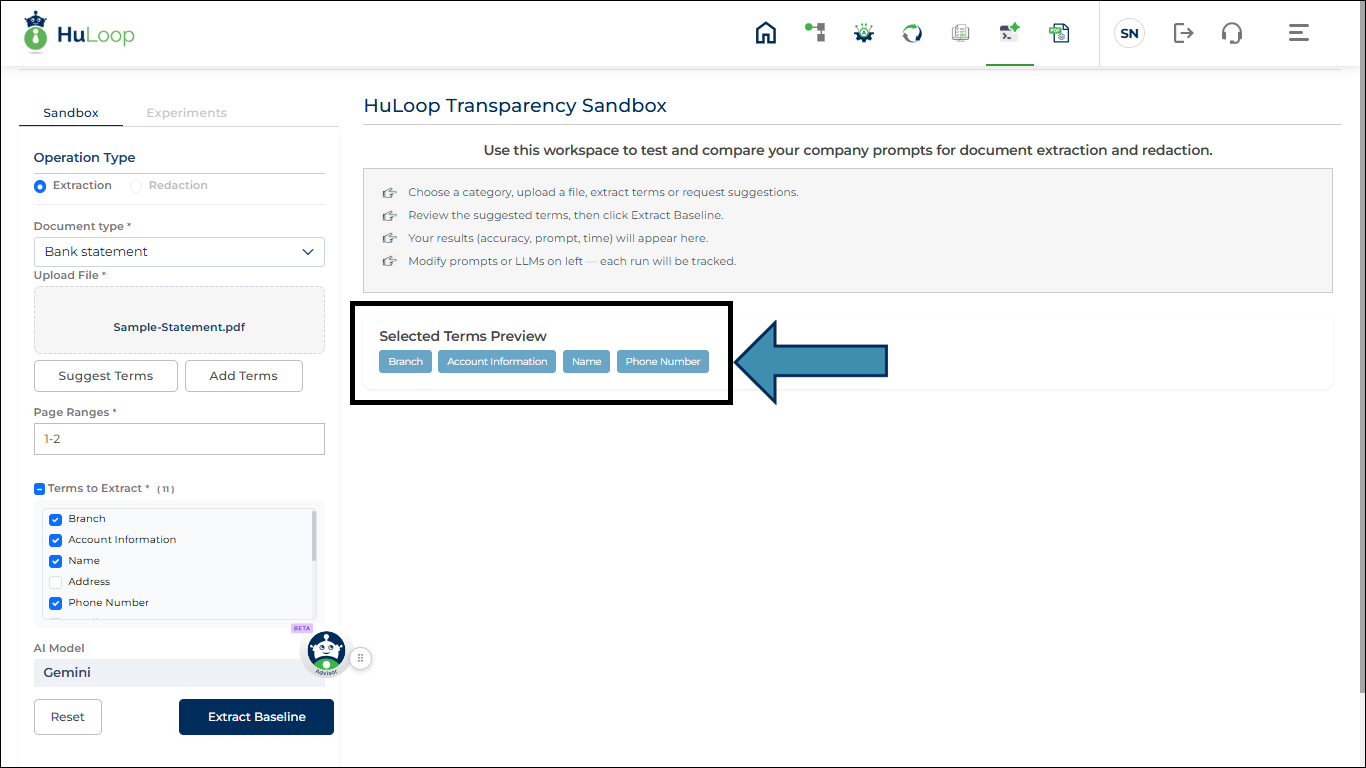
- Suggest Terms and Add Terms button (appears when you upload the document):
- Use Suggest Terms to let HuLoop AI identify possible terms from the document.
Selecting the checkbox next to Terms to Extract automatically selects all suggested terms.
- A list of Terms to Extract appears on the screen. Select at least one term from the pre-populated list. Only selected terms are included in the extraction prompt.
- Use Add Term to include custom terms. A pop-up appears in which you can specify the custom term and click Add Term. You can use Add Term to manually add custom terms that are not part of the suggested list.
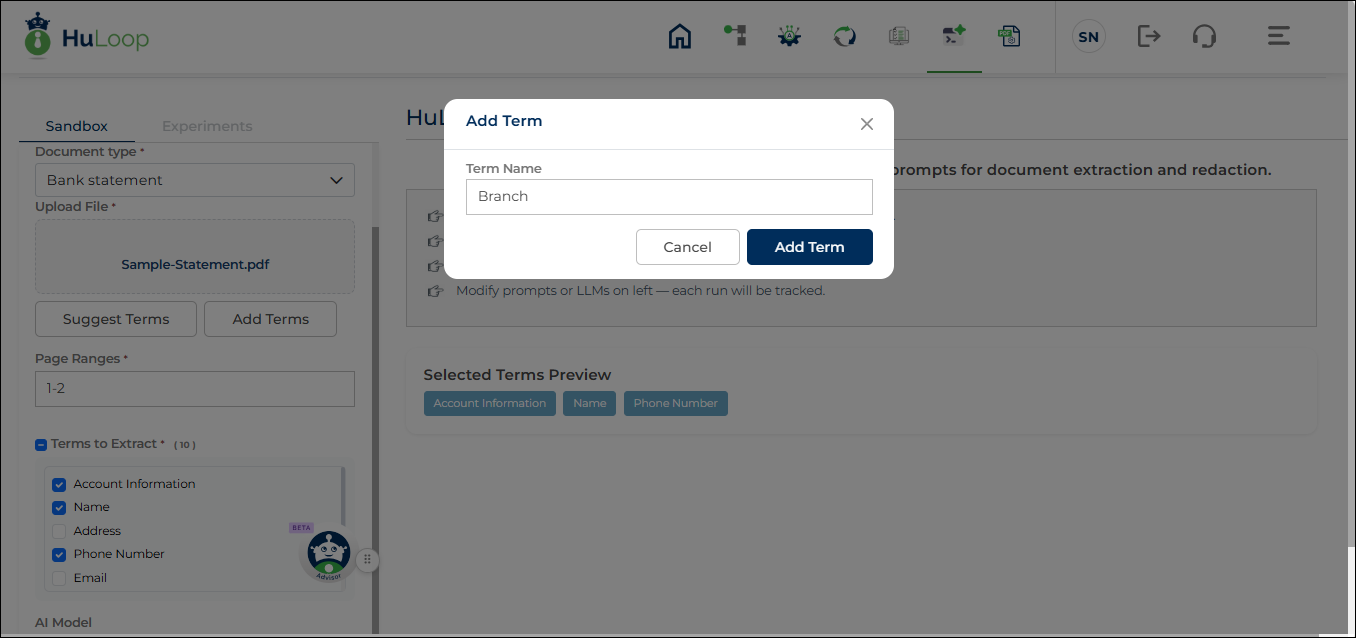
Once you select the terms, they appear under Selected Terms Preview, allowing you to review your selections before running the extraction.
- Page Range
- Specify the pages to extract data from (for example, 1–2).
- AI Model
- Displays the default AI model (Gemini) used by the Sandbox.
Step 2: Run the baseline
- Click Extract Baseline.
- HuLoop automatically generates an AI prompt and runs the extraction.
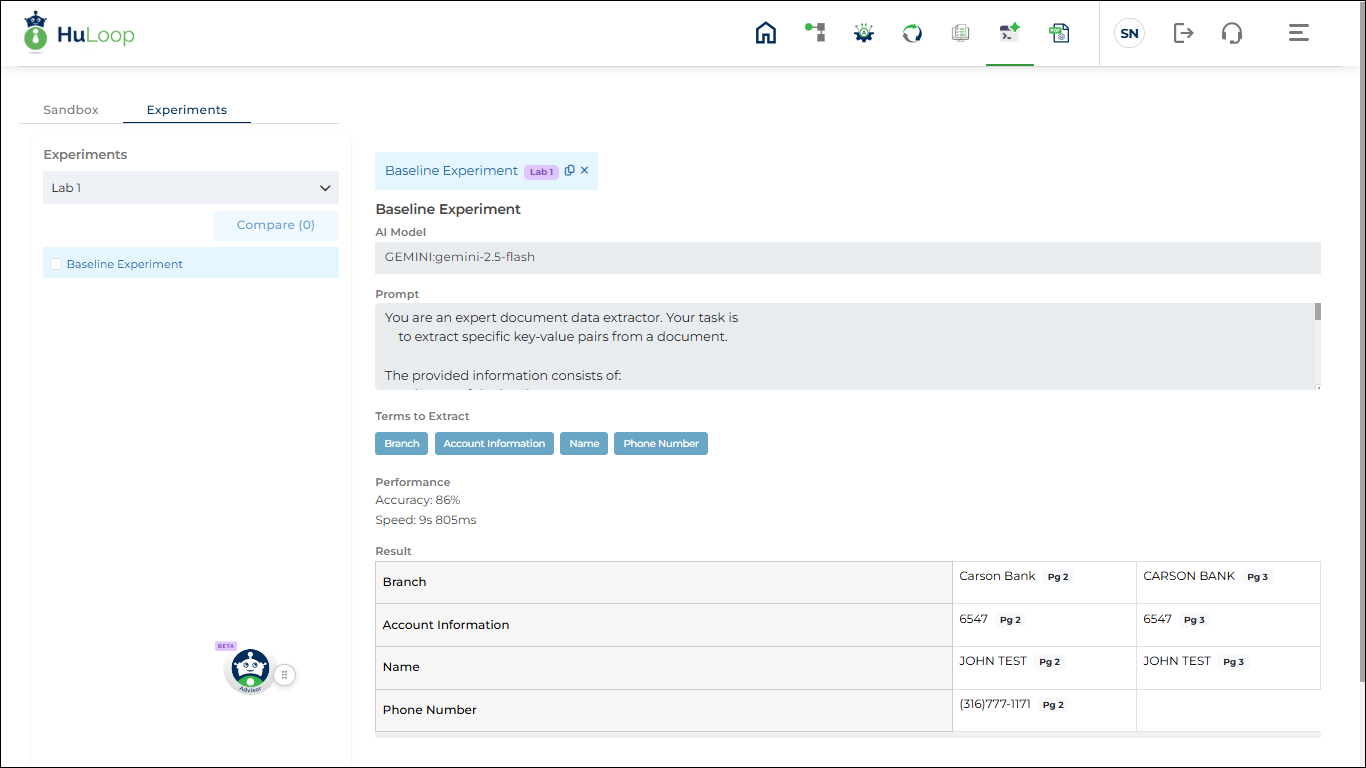
- Extracted results are displayed along with performance metrics.
Important notes
- Baseline experiments cannot be edited.
- Each baseline creates a new session.
- Validation or processing errors are shown as on-screen messages.
Experiments and Sessions
After creating a baseline experiment:
- You are automatically taken to the Experiments tab.
- A new Session is created.
- The baseline experiment appears as Experiment 1.
Session behavior
- All experiments created from a baseline belong to the same session.
- Sessions are visible as expandable sections in the left panel.
Viewing a Baseline Experiment
The baseline experiment opens in a right-panel tab and is read-only. Baseline experiment details cannot be modified. Only the experiment name can be updated.
You can view:
- AI Model: The default model used
- Prompt: The auto-generated extraction prompt
- Terms to Extract: Selected terms
- Performance: Accuracy and speed
- Result: Extracted values in a table
Available actions:
- Copy: Clone the experiment
- Close: Close the tab (the experiment remains in the session)
Cloning an Experiment
Cloning lets you modify inputs and test different AI behaviors.
How to clone
- Click the Copy icon
 on an experiment tab.
 on an experiment tab.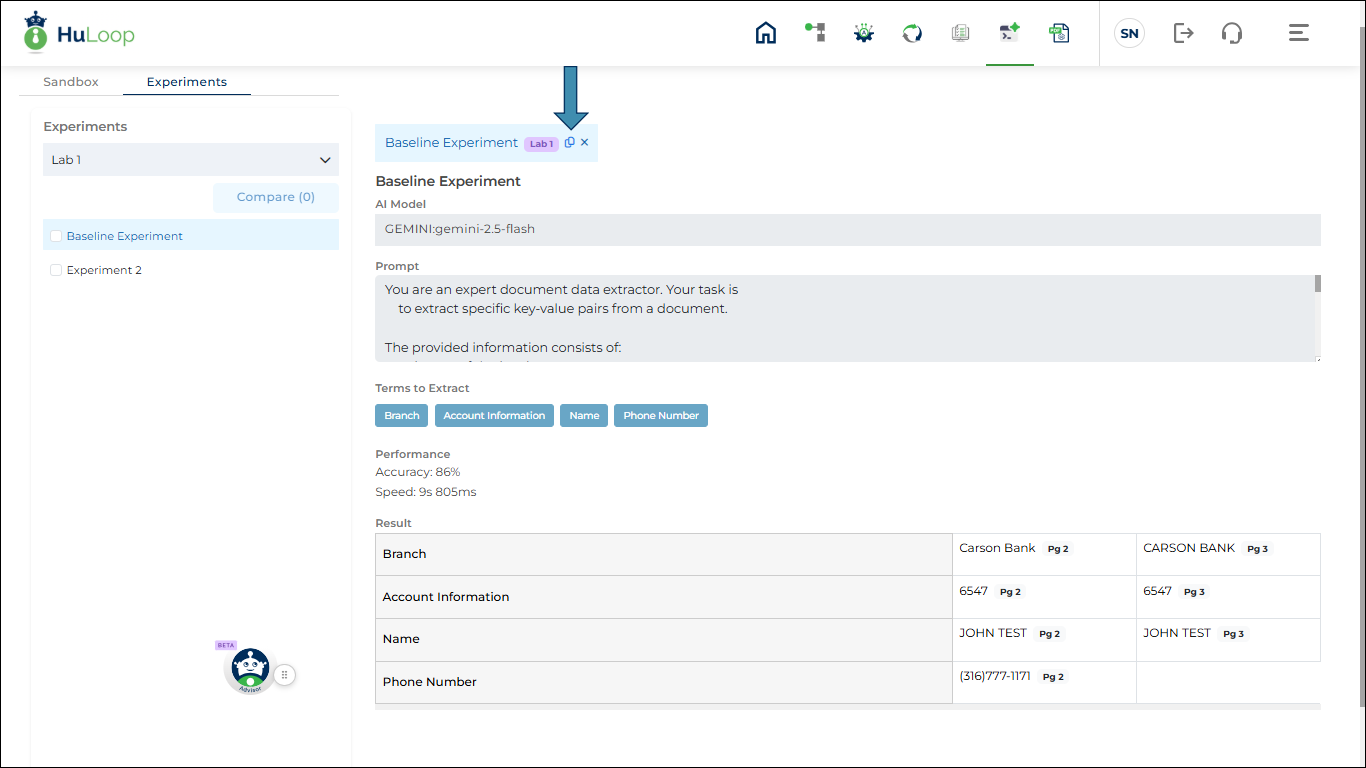
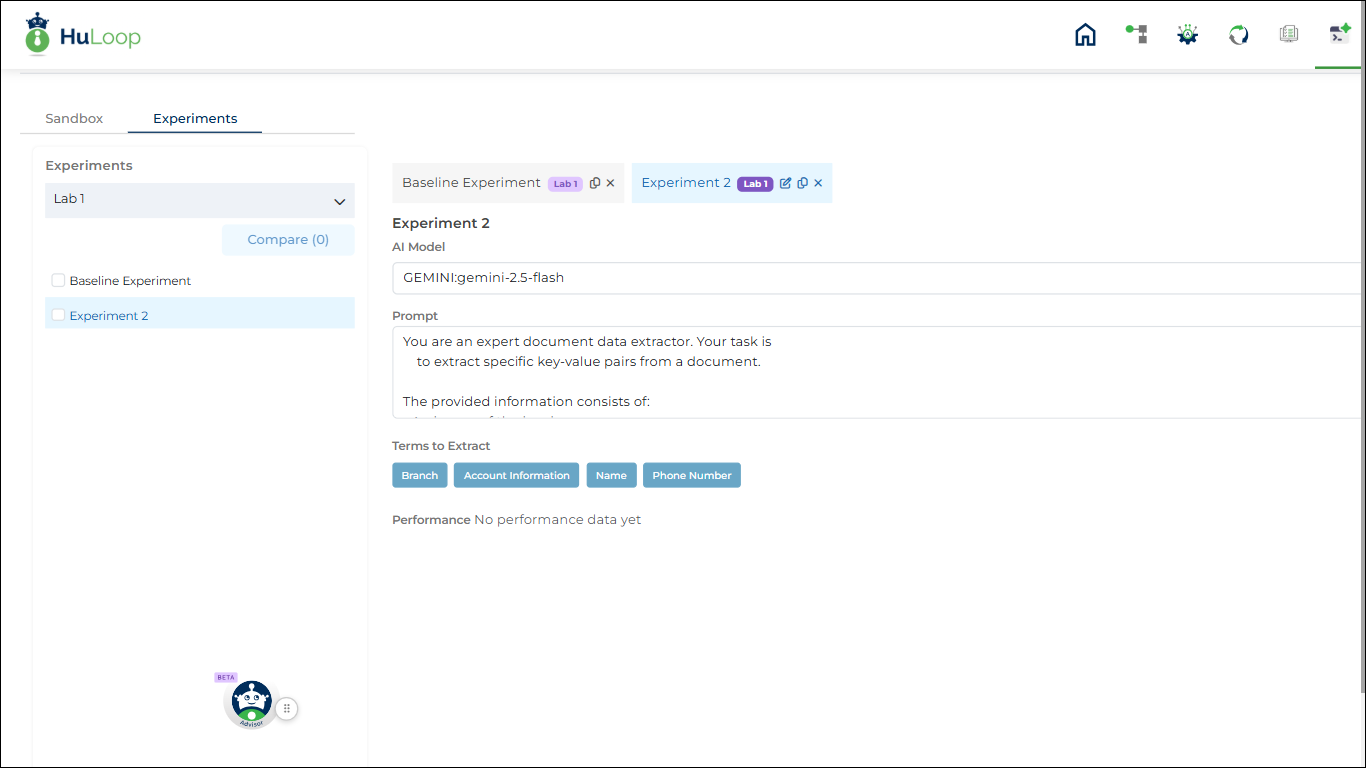
- A new experiment tab is created with the next sequence number.
What you can modify
- Rename: Click the Edit icon
 and a pop-up appears where you can update the Experiment Name.
 and a pop-up appears where you can update the Experiment Name.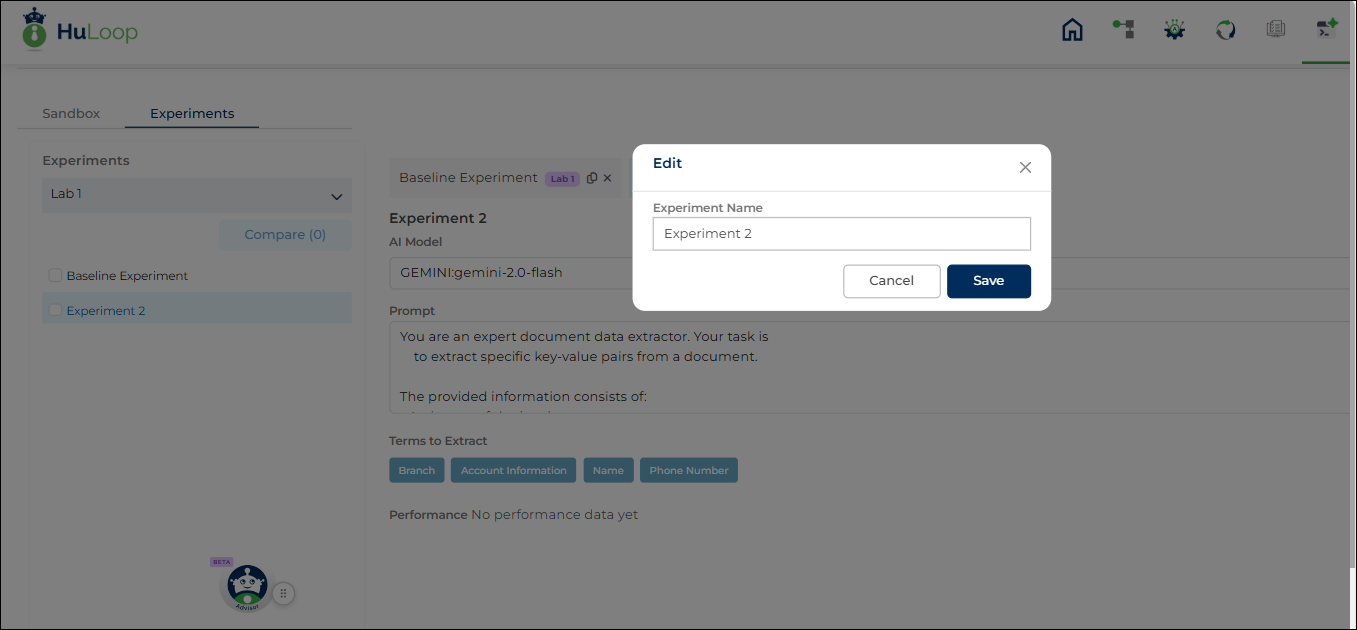
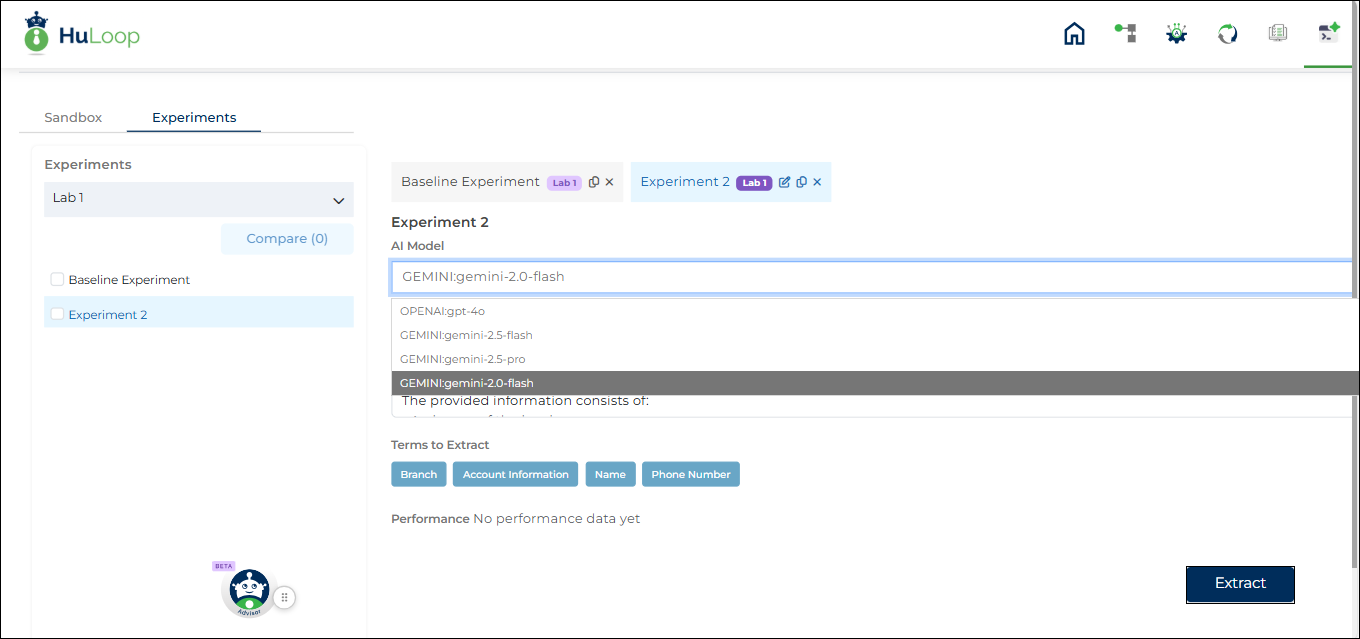
- AI Model: Select a different supported model. Gemini-2.0-flash selected by default.
- Prompt: Edit the prompt text
Running the experiment
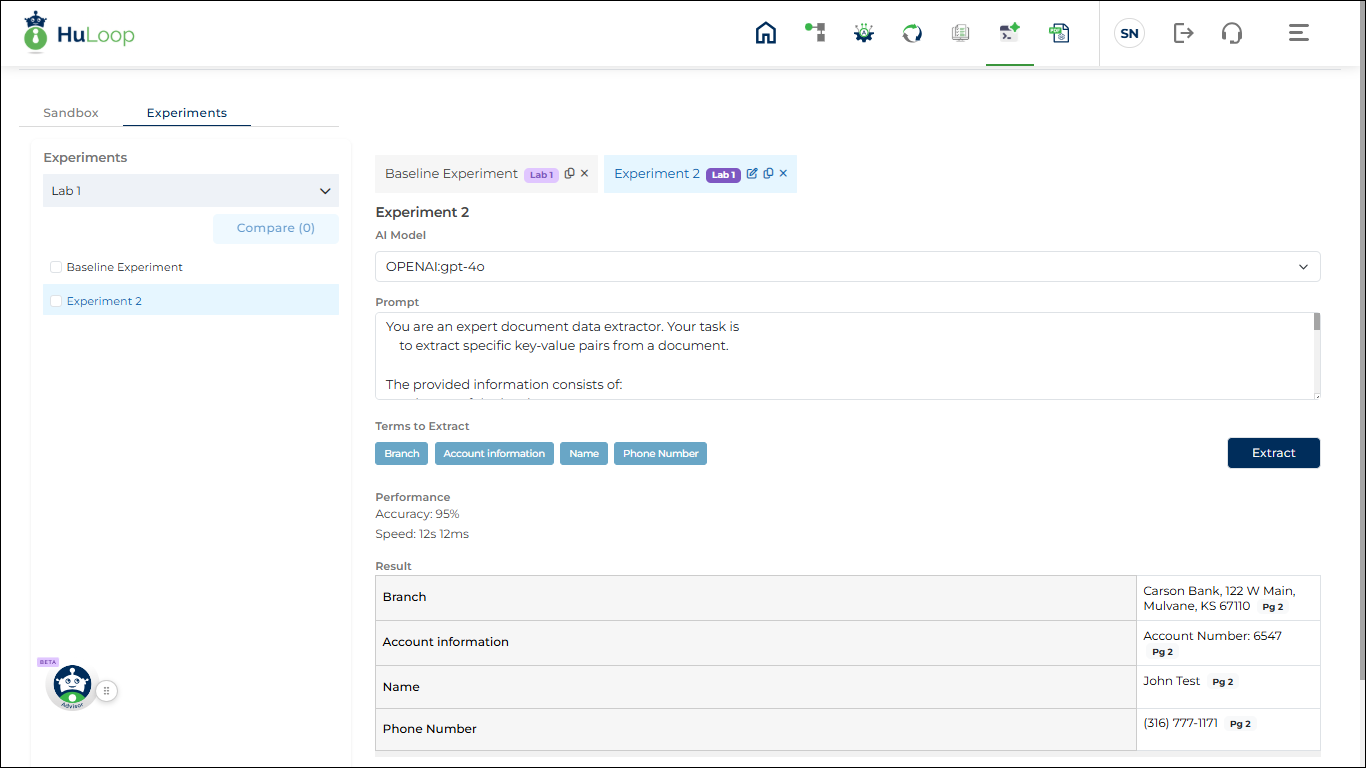
- Click Extract to execute the updated experiment.
Results
- Performance metrics and results refresh after execution.
- Errors or validation issues are shown on screen (if any)
Comparing Experiments
Comparison rules
- You can compare up to three experiments within the same session.
- Cross-session comparisons are not supported.
How to compare
- Select experiments in the left panel.
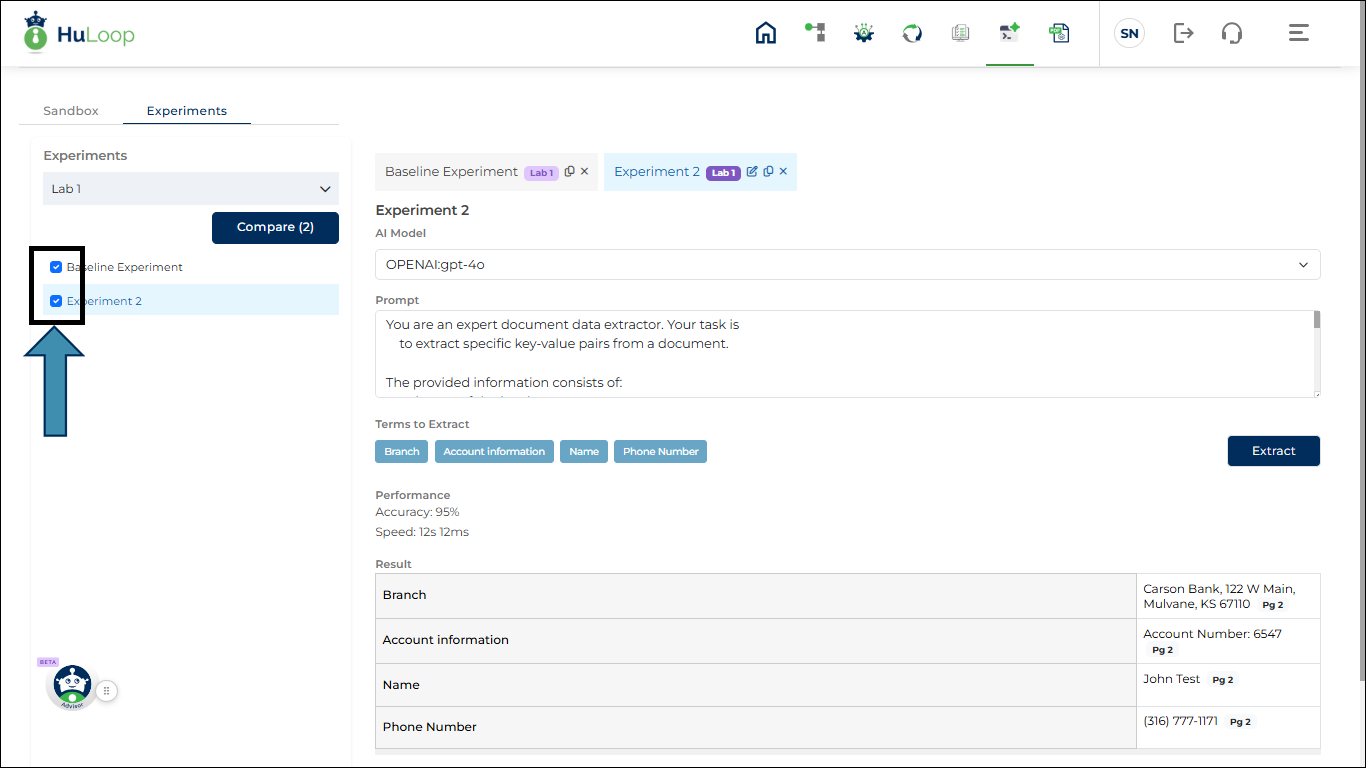
- Click Compare.
- A Compare Experiments tab opens as shown.
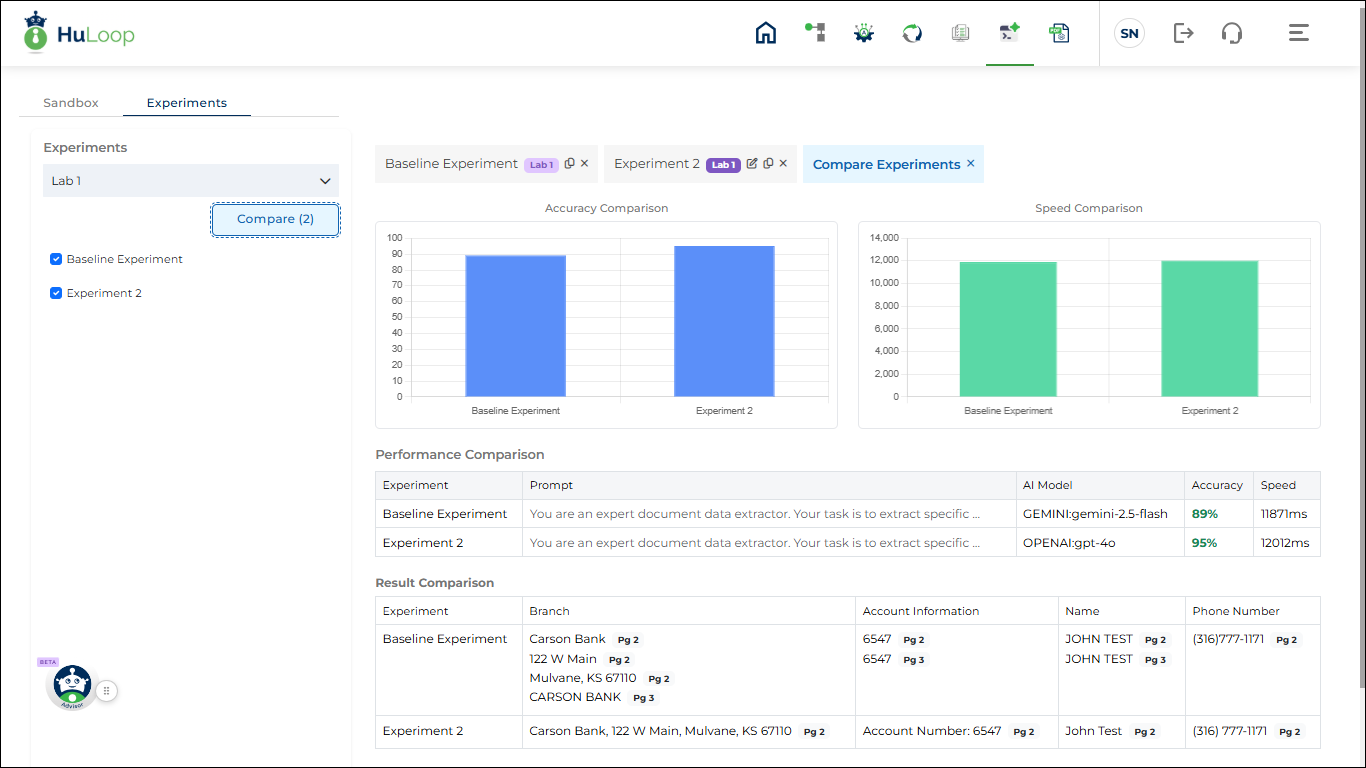
Comparison view includes
- Performance chart for:
- Accuracy
- Speed
- Tabular comparison of:
- AI model
- Performance metrics
- Extraction results
Closing the comparison tab clears the selected experiments.
Data Handling and Limitations
- All data is session-based and cleared when the browser closes.
Summary
The HuLoop Sandbox helps you:
- Safely test AI extraction on PDF documents
- Compare AI models and prompts
- Validate extraction accuracy before building automations
