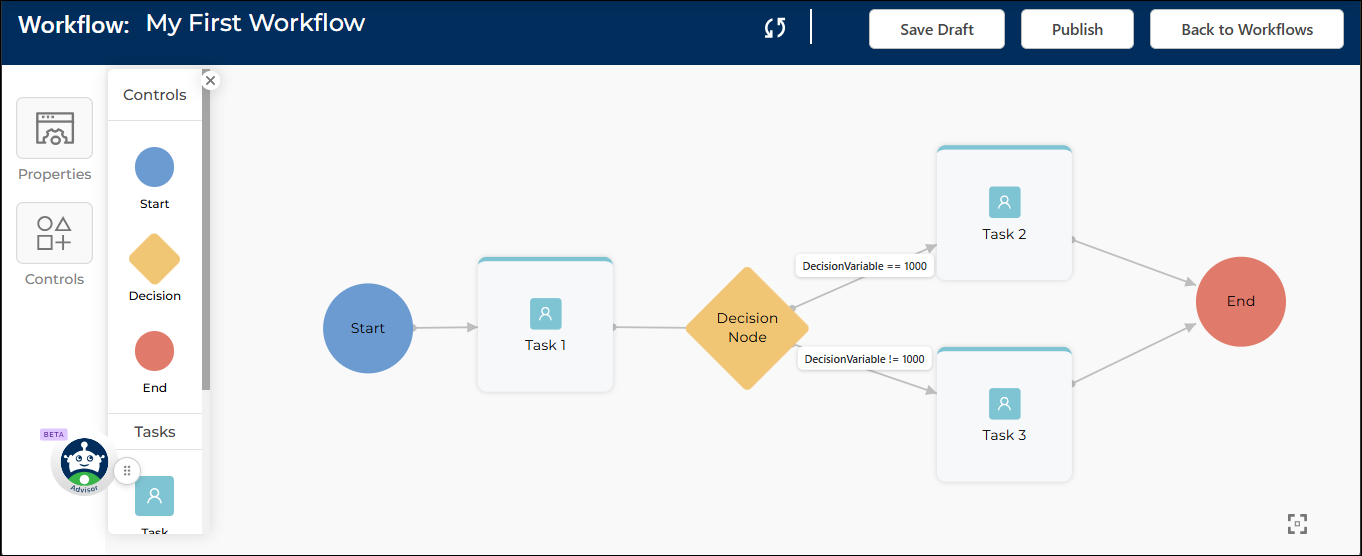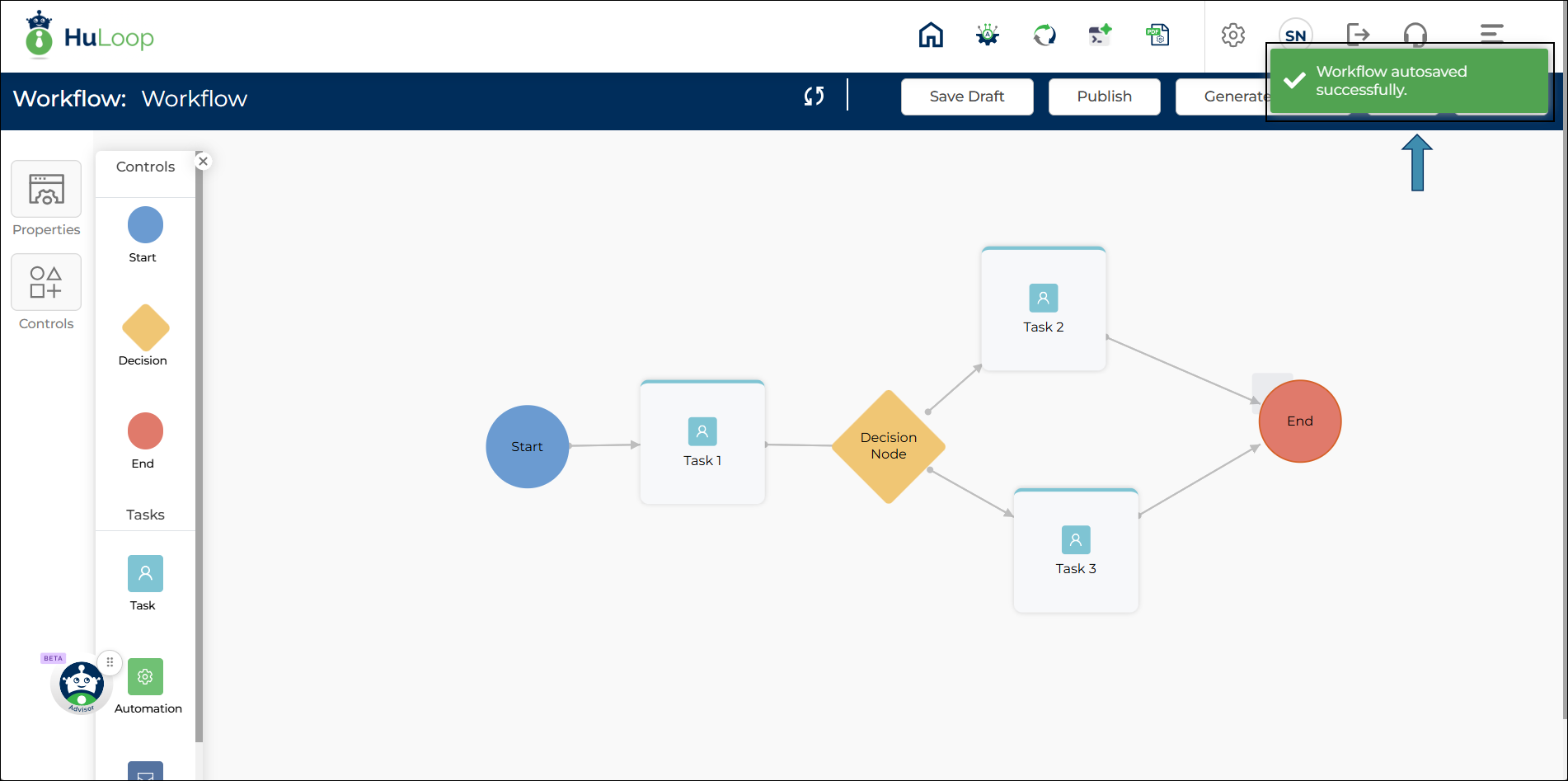

Creating a Workflow
Creating a workflow in HuLoop is a simple, step-by-step process. Let’s walk through how to build a basic workflow using the visual designer, from initial setup to task assignment and conditional routing.
Note: In addition to creating workflows manually, you can generate workflows from existing SOP documents or previously exported workflow files. For more information, see Generating a Workflow from an SOP or Workflow File.
Step 1: Start a New Workflow
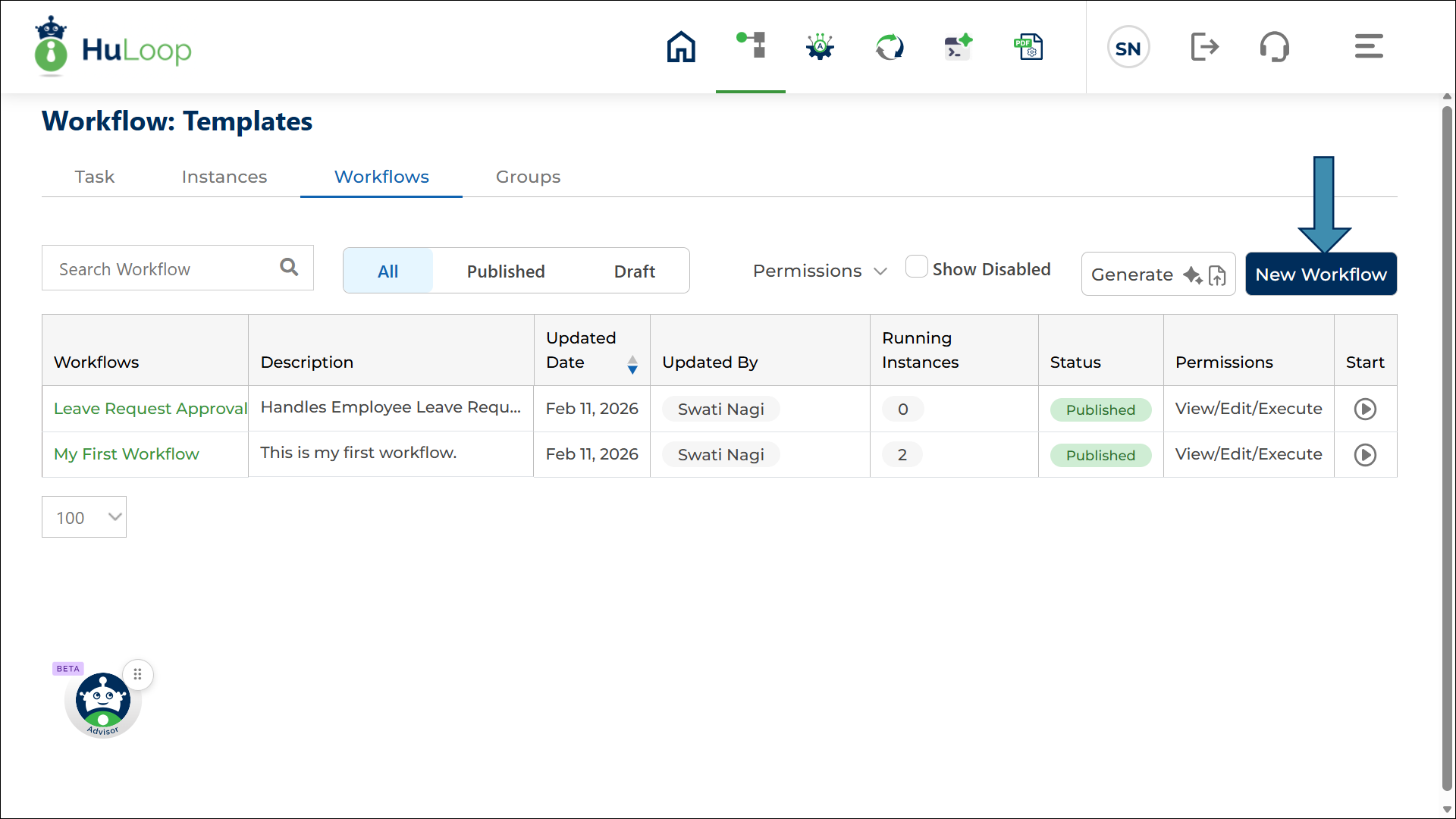
- Navigate to the Workflows page
- Click New Workflow to start creating a new workflow
Step 2: Understanding the Workflow Canvas Layout
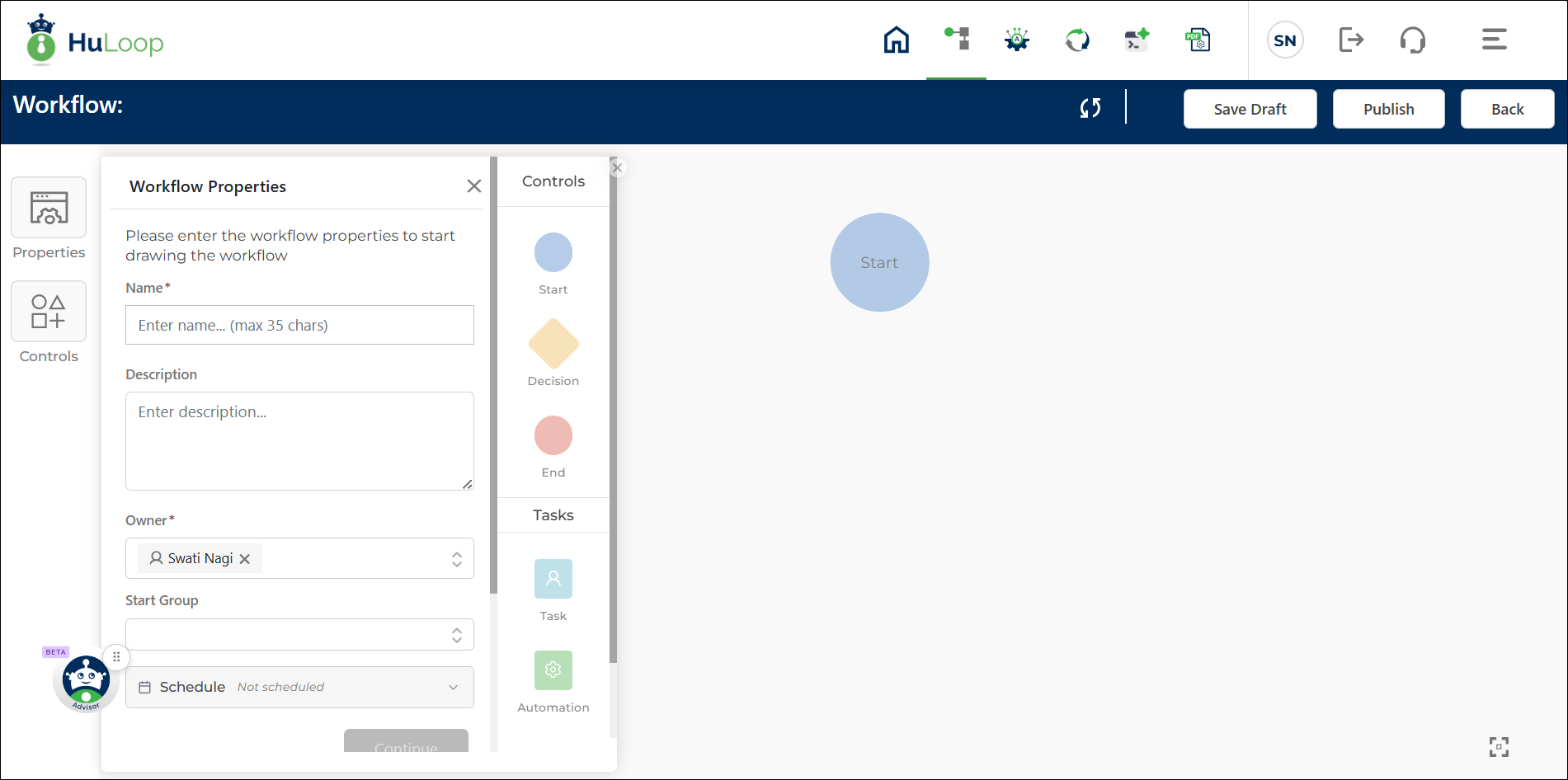
You will be navigated to the New Workflow page, where you’ll see:
- Canvas (center): This is your visual workspace for designing workflows using Start, Task, Decision, and End nodes.
- Workflow Properties panel (left): This panel is used to define foundational details for your workflow.
- Workflow Designer Canvas Controls: The Workflow Designer canvas includes quick-access icons that help you manage the workspace more efficiently.
- Properties icon: Use the Properties icon to expand or collapse the Workflow Properties panel. This allows you to quickly view or hide workflow-level settings while designing the workflow.
- Controls icon: Use the Controls icon to expand or collapse the Workflow Element Nodes panel. This helps you focus on the canvas by hiding the list of available nodes when it is not needed.
These controls make it easier to switch between configuration and design views without navigating away from the workflow canvas.
Note: A Start node appears by default on the canvas but remains inactive (faded) until you save the required workflow properties.
Step 3: Define Workflow Properties
In the Workflow Properties panel, fill in the following:
- Name: Enter a name for your workflow (maximum 35 characters).
- Description (optional): Provide a brief description of what the workflow does.
- Trigger Type: Select Manual.
- Owner: This field is automatically populated with the name of the user creating the workflow (the Creator). The Creator can change the Owner by selecting a different user from the dropdown list, if needed.
- Start Group: The Start Group dropdown lets you control who can start a workflow instance. This dropdown displays all groups created in the system. When you select a group:
- Only members of the selected group are allowed to start this workflow
- Members of the Start Group can view all workflow instances associated with that workflow in the Instances tab.
- Authorized Start Group members can start, pause, resume, and stop instances, regardless of who initiated them.
- These users can manage workflow execution but do not have permissions to modify the workflow configuration.
- Users outside the group cannot initiate a workflow instance.
- If no Start Group is selected, any user with permission to execute the workflow can start it.
- Scheduling a Workflow: Workflow Builder allows you to schedule workflows to run automatically at a specified date, time, or recurring interval. Scheduling is configured through the Workflow Properties panel and can be used to automatically start workflow instances without manual intervention.Important: Workflow scheduling is available only for workflows that do not contain a Start Form.
If a workflow contains a Start Form, scheduling cannot be enabled because user input is required before the workflow can begin.
Enable Workflow Scheduling
To configure a schedule:
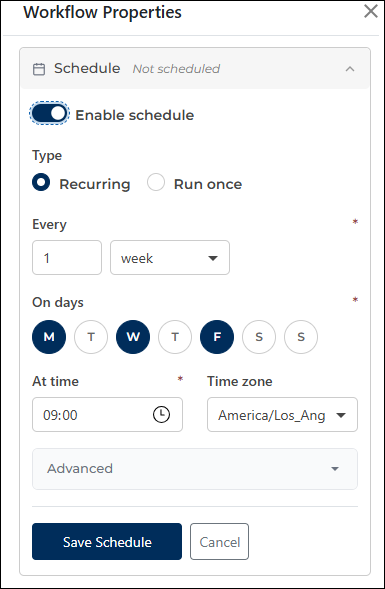
- In the Workflow Properties panel, select Schedule.
- Turn on the Enable Schedule toggle.
Additional scheduling options become available after scheduling is enabled.

Schedule Toggle in Workflow Properties Schedule Types
Workflow Builder supports two scheduling options:
- Run Once
- Recurring
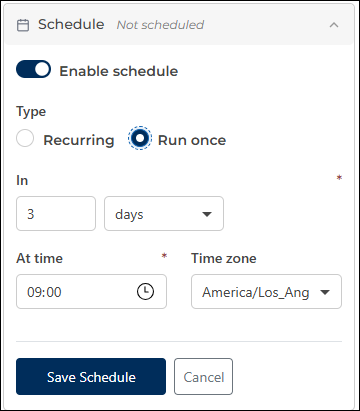
Configure a Run Once Schedule
Use a Run Once schedule when the workflow should execute a single time.
To configure a Run Once schedule:
- Select Run Once as the schedule type.
- Specify when the workflow should run.
- Enter the required value and select the desired time unit:
- Minutes
- Hours
- Days
- Weeks
- Select the execution time.
- Select the appropriate time zone.
- Click Save Schedule.
Supported time zones include:
- Asia/Kolkata (IST)
- America/Los Angeles
- America/New York
- UTC
Run Once Schedule Configuration Configure a Recurring Schedule
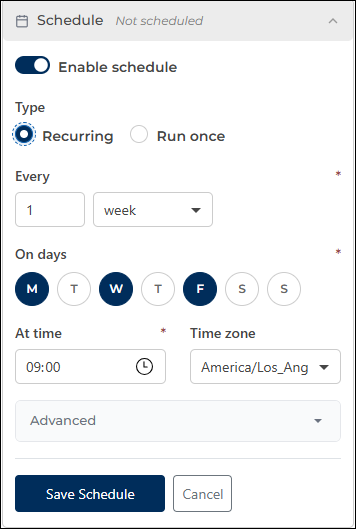
Use a Recurring schedule when the workflow should execute repeatedly according to a defined schedule.
To configure a Recurring schedule:
- Select Recurring as the schedule type.
- Specify how often the workflow should run.
- Enter a value and select the recurrence interval:
- Minute
- Hour
- Day
- Week
- Month
- Year
- Select the day or days on which the workflow should run, if applicable.
- Select the execution time.
- Select the appropriate time zone.
Recurring Schedule Configuration Advanced Scheduling Options
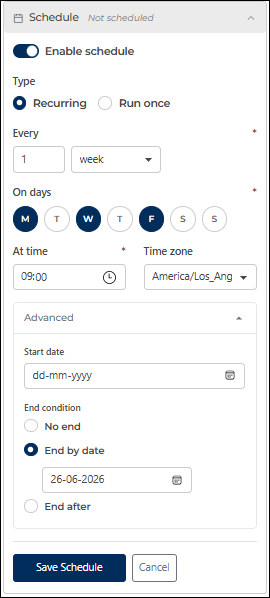
Select Advanced to configure additional scheduling settings.
Available options include:
Start Date: Specify the date on which the schedule becomes active.
End Condition: Choose one of the following options:
- No End – The schedule continues until it is manually disabled.
- End By Date – The schedule stops on a specified date.
- End After – The schedule stops after a specified number of occurrences.
Advanced Scheduling Options Save the Schedule
After configuring the required schedule settings, click Save Schedule to apply the schedule to the workflow.
Once saved, the workflow can automatically create workflow instances according to the configured schedule.
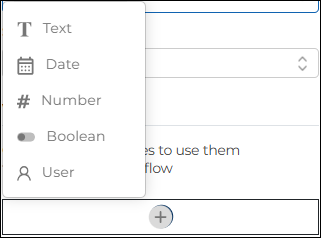
- Variables: You can define global workflow variables here, which are used to pass data between tasks and decisions. If preferred, you can also create global variables later while configuring individual tasks.In addition to Text, Date, Number, and Boolean variables, workflows also support a User variable type.A User variable allows you to capture user selection dynamically during workflow execution. This variable type is commonly used when tasks are assigned to a group and you want to control which group members should be excluded from task assignment at runtime.User variables are available:
- In the Workflow Properties panel
- In the Start Form
- In the Form Builder for field mapping
- In task assignment settings for user exclusion
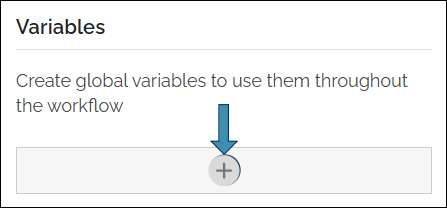
- To add a global variable:
- Click the + icon.
- To add a global variable:
- Choose a Variable Type (Text, Date, Number, Boolean, User).
- Enter a Variable Name using letters and numbers only. Underscores (_) are allowed. Spaces and special characters are not supported (for example: Variable1_Name).
- Click the Save icon to add it to the list.
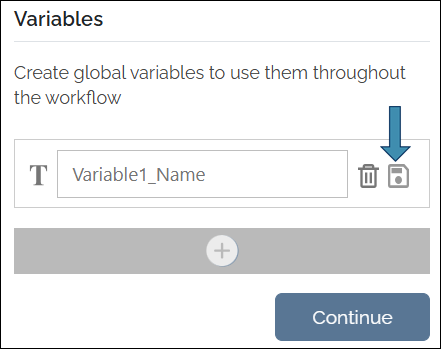
- Once all the required fields are filled, the Continue button becomes enabled. Click Continue to proceed to the canvas and begin configuring other workflow elements.
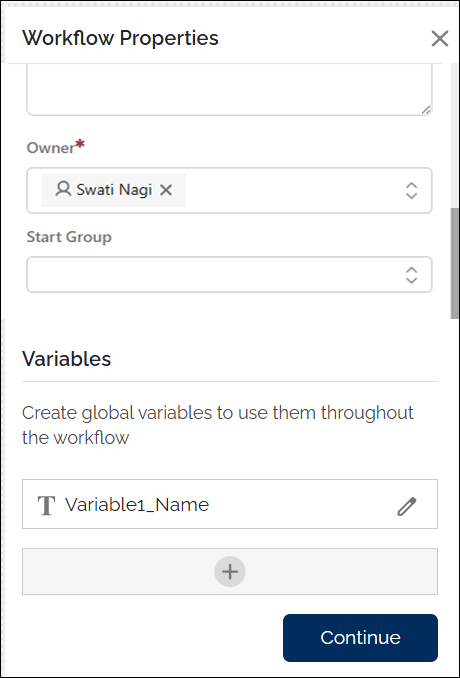
You can open or close the Workflow Properties pane any time by clicking the Properties icon.
Step 4: Configure the Start Node
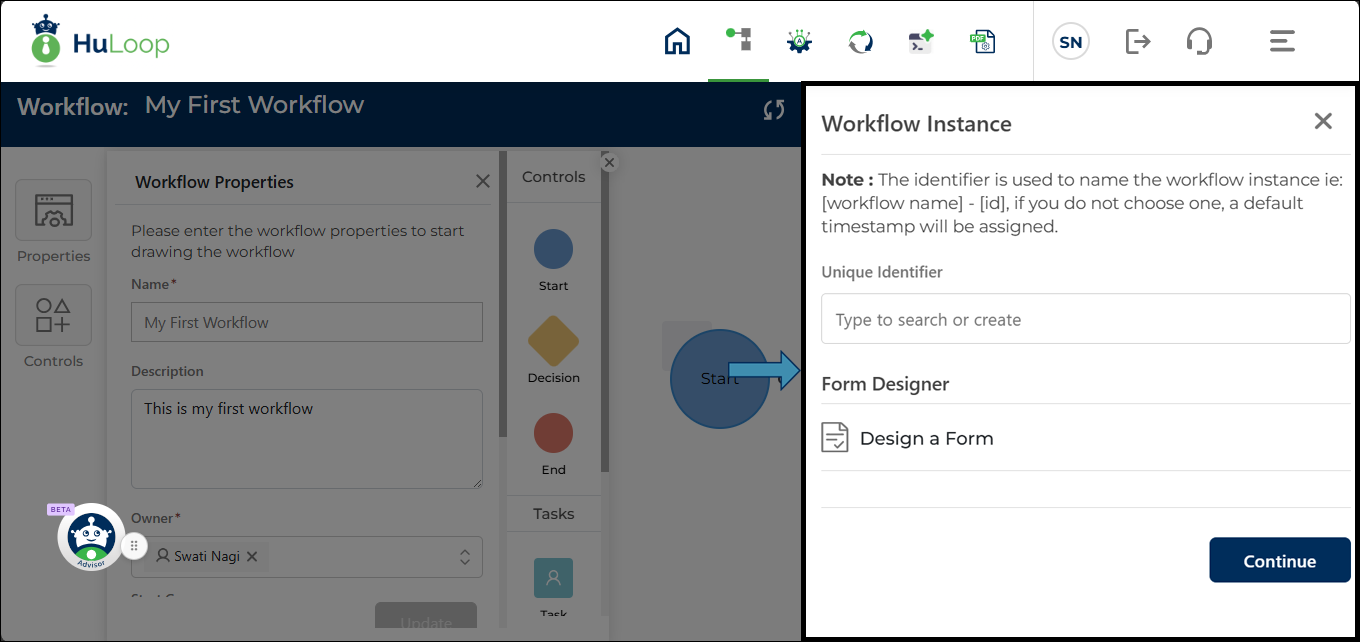
After you click Continue, the Start node becomes active and its configuration pane opens on the right:
- Define the Start Variable (Unique Identifier) (Optional)
You can optionally define a Start Variable (Unique Identifier) to help distinguish workflow instances during execution.
When a Unique Identifier is configured:
- The selected variable is appended to the workflow instance name during execution.
- Users must provide a value for this field when starting the workflow.
- The value helps identify and differentiate workflow instances more easily.
If no Unique Identifier is configured:
- HuLoop automatically generates a default timestamp-based identifier when the workflow starts.
- The generated identifier is appended to the workflow instance name automatically.
For example:
- Leave Request Approval – EMP001
- Leave Request Approval – 2026-03-05T14:30
Note: The unique identifier follows the same naming rules as other workflow variables.
- If you’ve already defined global variables in the Workflow Properties panel, they will appear in the Unique Identifier dropdown once you click it.
- You can choose one of these variables as your unique identifier.
However:
- The unique identifier becomes non-editable after selection
- It cannot be used in tasks, forms, or decision logic
- You can use a global variable as a unique identifier, but you cannot reuse the unique identifier as a general global variable
- This variable is visible throughout the workflow alongside other variables
Designing a Start Form (Optional)
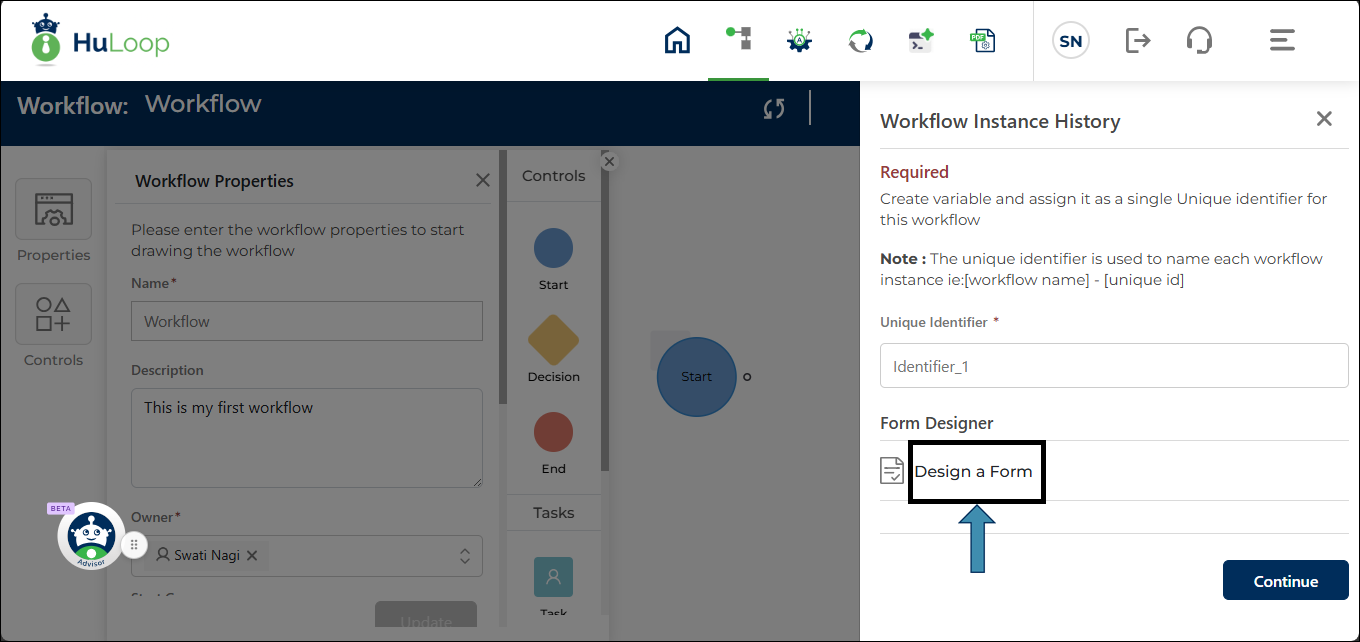
After defining a Start Variable, you can optionally configure a Start Form using the Design a Form option. This form appears at the time of workflow initiation and is completed by the user who starts the workflow.
Notes:
- If a Unique Identifier variable is configured in the Start Node, the field automatically appears in the workflow start form during execution and becomes mandatory for users starting the workflow.
- If no Unique Identifier and no Start Form are configured, the workflow starts immediately without displaying a start form. In this case, HuLoop automatically generates a timestamp-based identifier for the workflow instance.
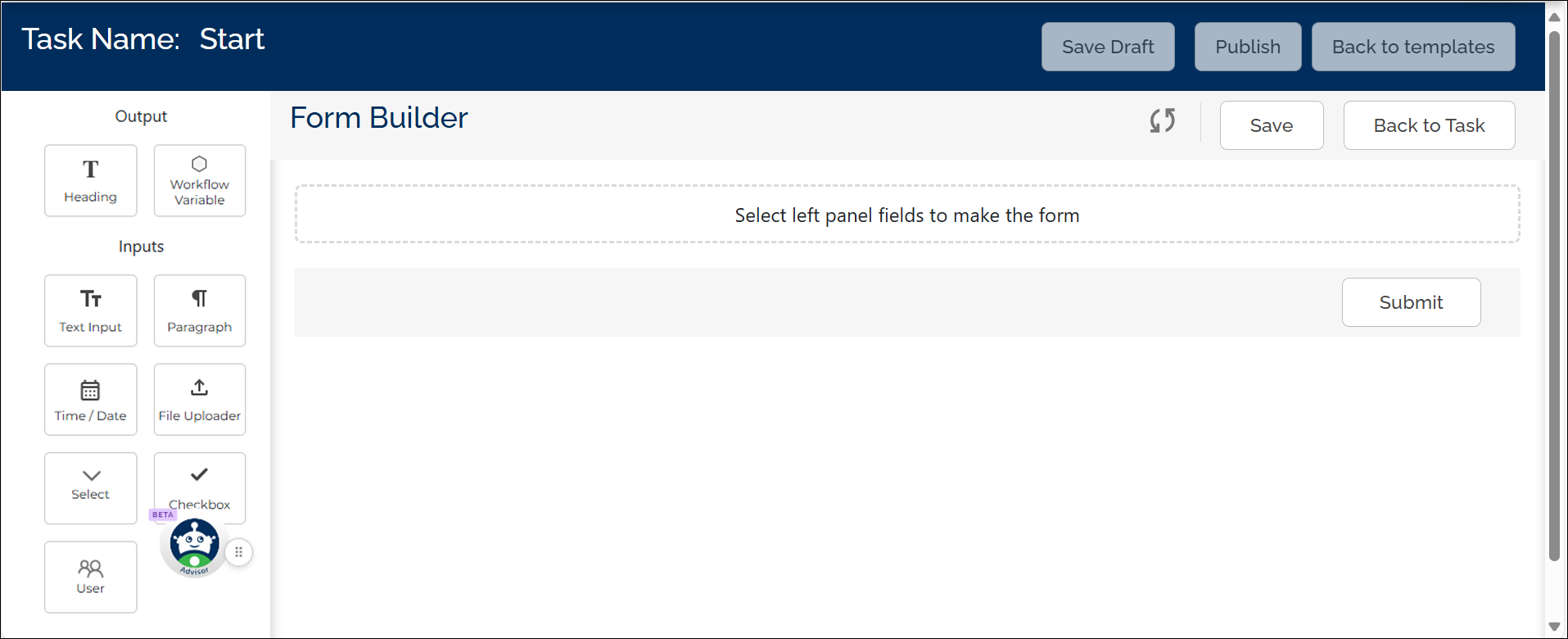
The Start Form uses Form Builder interface as task forms and supports the following input field types:
- Text Input
- Paragraph
- Date/Time Picker
- Select (Dropdown)
- Checkbox
- File Uploader (supports formats like PDF, DOC, and EXL)
- User
To learn more about how to design this form, see the Form Builder section.
- Once the Start Form is designed, click Back to Task to return to the workflow canvas and continue designing the flow.
- After defining the Unique Identifier and configuring the Start Form (optional), click Continue to confirm.
- You can now proceed to design your workflow using different elements on the canvas.
Notes:
- If a Unique Identifier variable is configured in the Start Node, the field automatically appears in the workflow start form during execution and becomes mandatory for users starting the workflow.
- If no Unique Identifier and no Start Form are configured, the workflow starts immediately without displaying a start form. In this case, HuLoop automatically generates a timestamp-based identifier for the workflow instance.
Step 5: Add Tasks and Decision Nodes
Once you have configured the Start node, you can begin designing the logic of your workflow by adding Task and Decision elements to the canvas.
Adding Task Elements
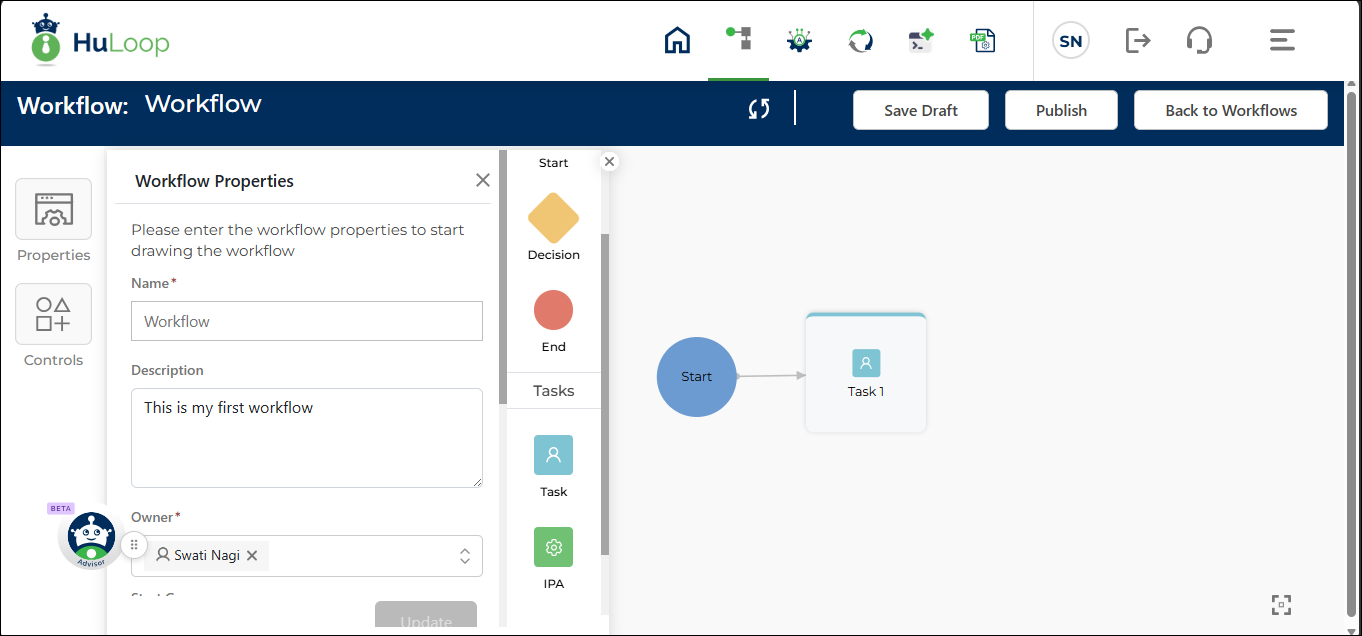
- From the left toolbar on the canvas, drag a Task element onto the canvas.
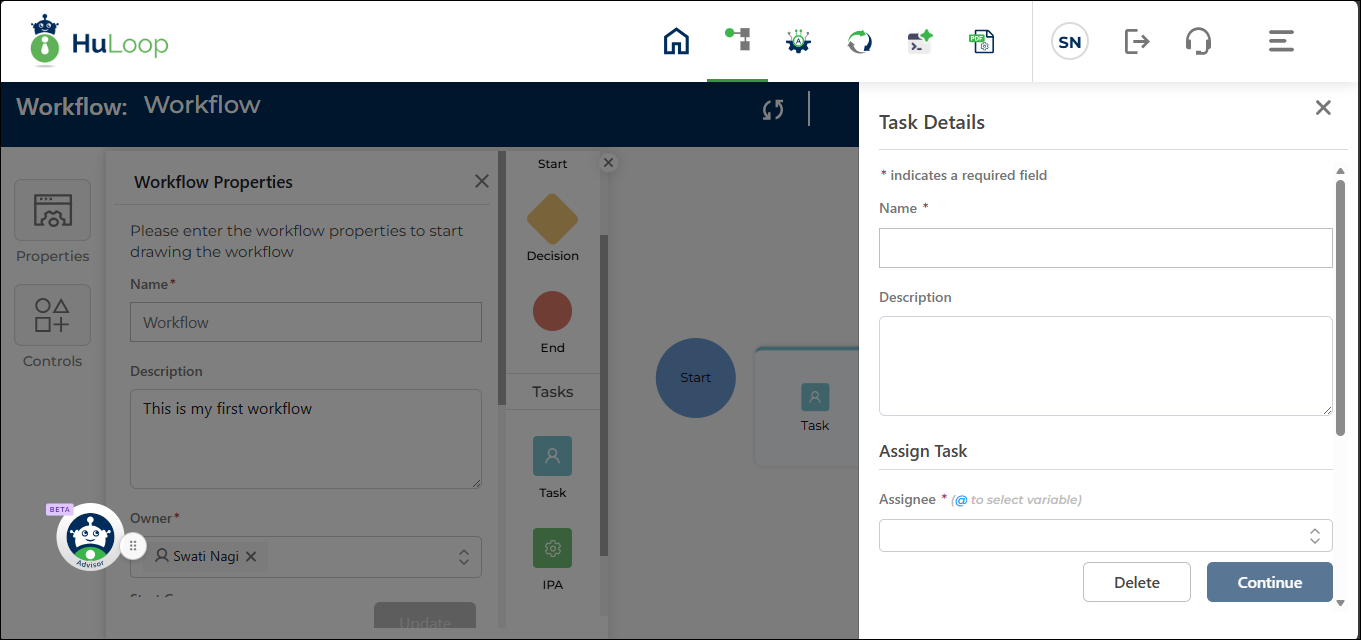
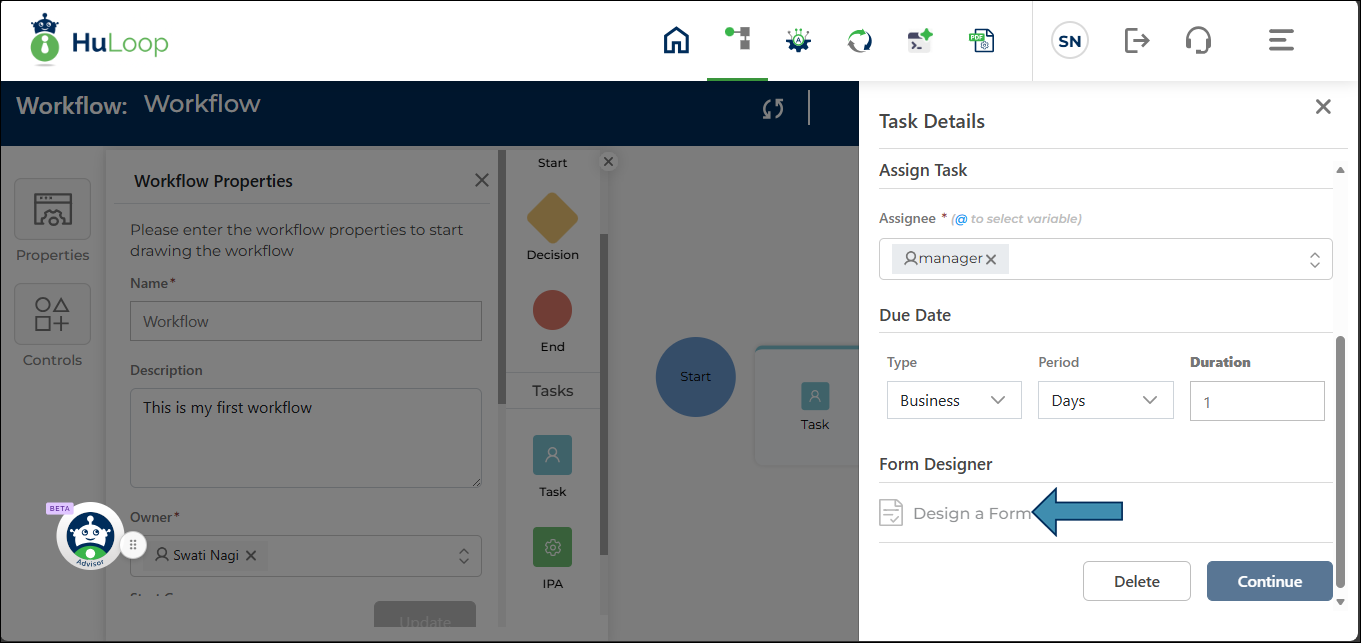
- When placed, the task configuration pane opens on the right:
Configure Task Details:
- Name: Enter a name for the task.
- Description (optional): Add a short description of the task.
- Assignee: Select the user or group responsible for the task. You can also use a Workflow User variable by typing the @ symbol to dynamically assign the task at runtime. Only variables of type User are available for dynamic task assignment.
Click here to know about groups: Learn more about groups.
Group Exclusion
When a task is assigned to a group, a Group Exclusion section becomes available in the task properties panel. This section allows you to exclude specific users from being assigned the task during workflow execution.You can choose from the following options:- Previous Assignee: Excludes the user who was assigned the immediately preceding task in the workflow.
- Any Previous Assignee: Excludes any users who have been assigned to earlier tasks in the same workflow.
- User Variable: Excludes users dynamically based on a User variable defined in the workflow.
The users to be excluded are determined by selections made in the Start Form or Form Builder during execution. These exclusions are applied automatically when the workflow runs.
- Due Date (optional):
- Type: Choose Business or Normal
- Period: Choose Days, Weeks, or Hours
- Duration: Enter the number of units for the due date
Click Design a Form to open the Form Builder.
Design a Form for the Task:
You will be redirected to the Form Builder page, where you can design the form that will appear during task execution. Here you configure task fields the assignee will see when completing the task. For detailed steps on form creation, see Form Builder.
You can change the position of the elements by dragging them to your desired location on the workflow canvas.
Adding Decision Nodes
Decision nodes allow you to define conditional logic that controls the path of a workflow based on the value entered by a user in a form field, which is stored in a workflow variable.
To add a Decision Node:
- From the left toolbar on the canvas, drag a Decision element onto the canvas.
- When placed, the Decision Details panel opens on the right.
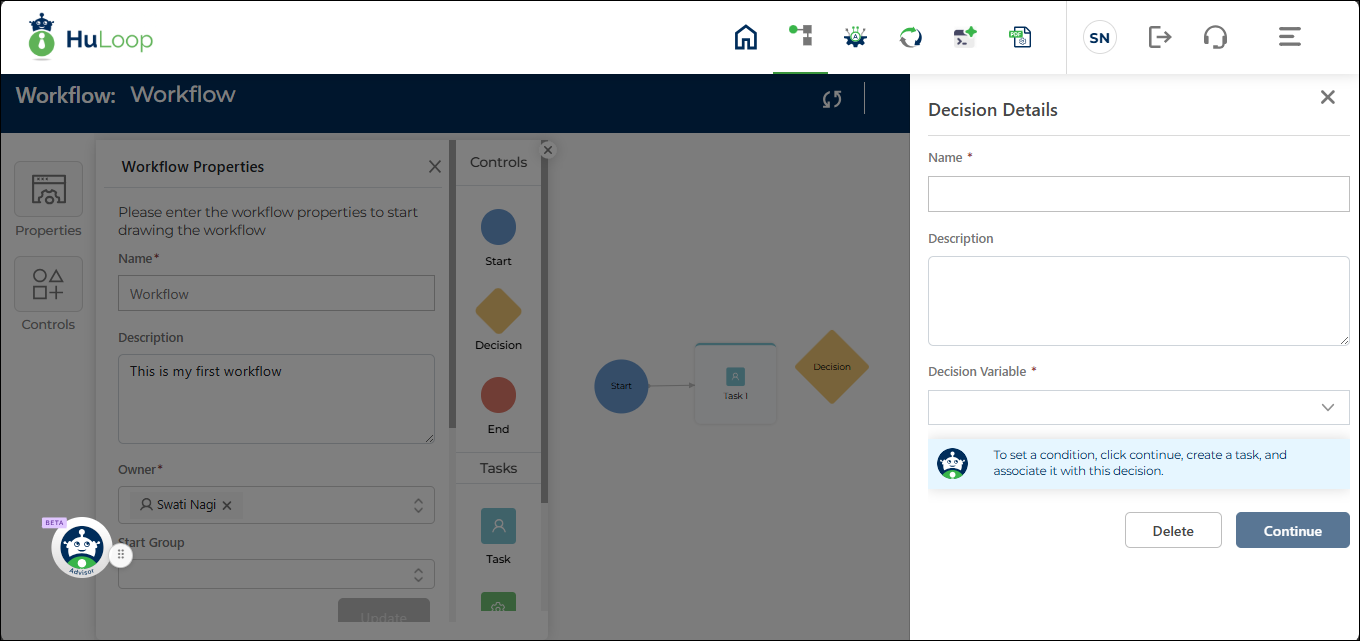
Configure the Decision Node:
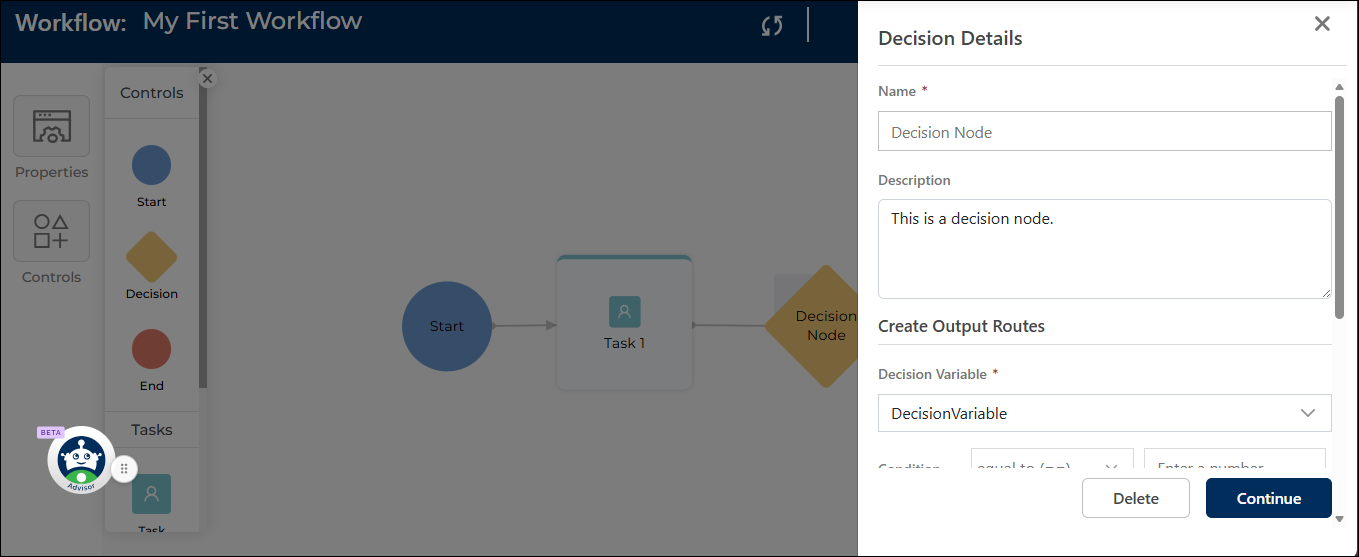
- Name: Enter a name that describes the purpose of this decision point.
- Description (optional): Provide a brief explanation to help users understand the context.
- Decision Variable: Select a variable that will be evaluated to determine the outcome of the decision. This variable must already be defined in the workflow.
- Click Continue.
Define Decision Logic
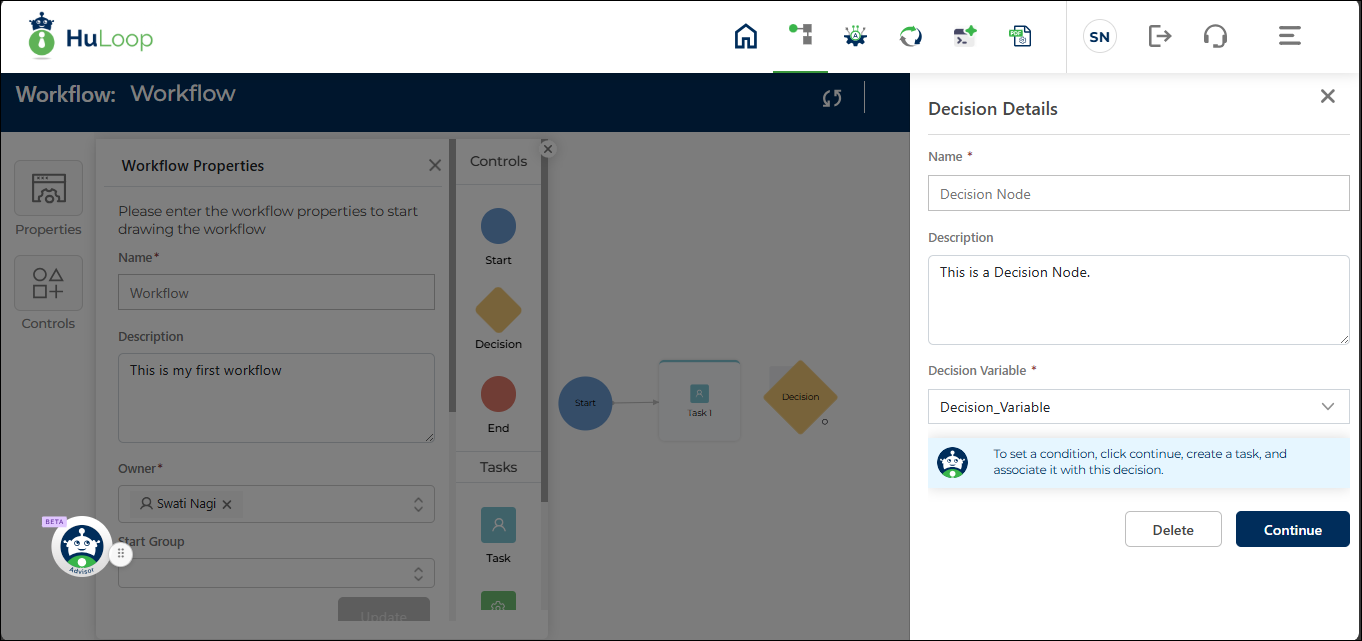
After adding a Decision node, define the task that should follow based on the decision logic. To configure decision logic:
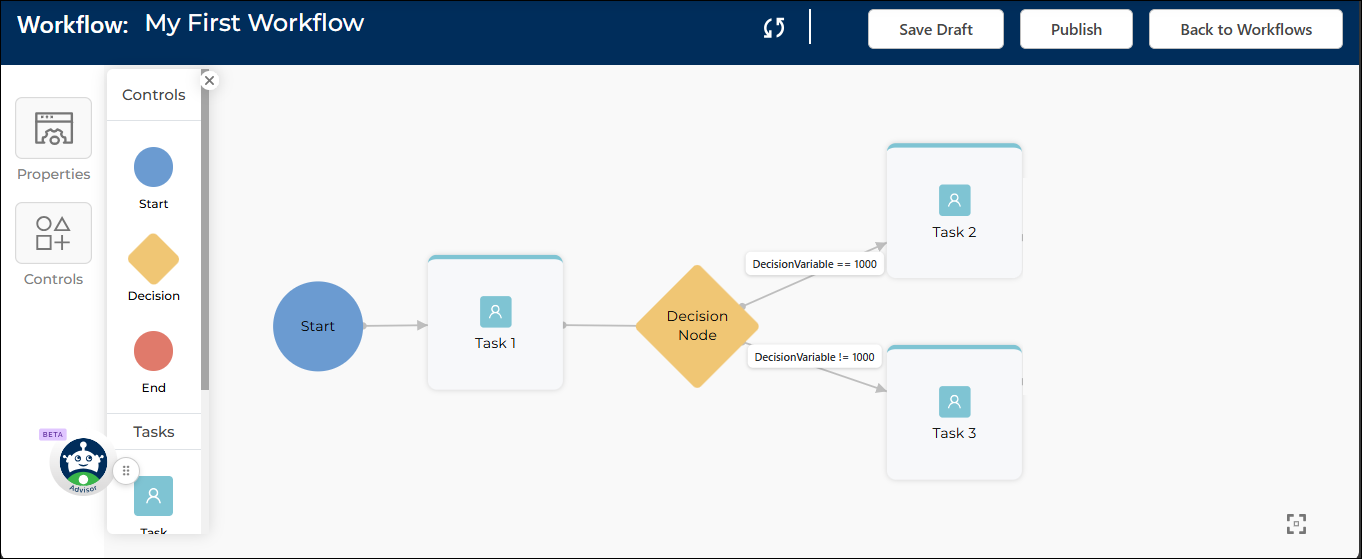
Connect the Decision Node to the tasks that should follow:
Drag a connector from the Decision node to the tasks that should be performed based on the outcome of the decision.
Open the Decision Panel:
Double-click the title of the Decision node to open the configuration panel.
The Decision panel automatically opens when you first connect the node to a task. However, you can open it anytime by double-clicking the node’s title on the canvas.
Set the Routing Conditions
In the panel:
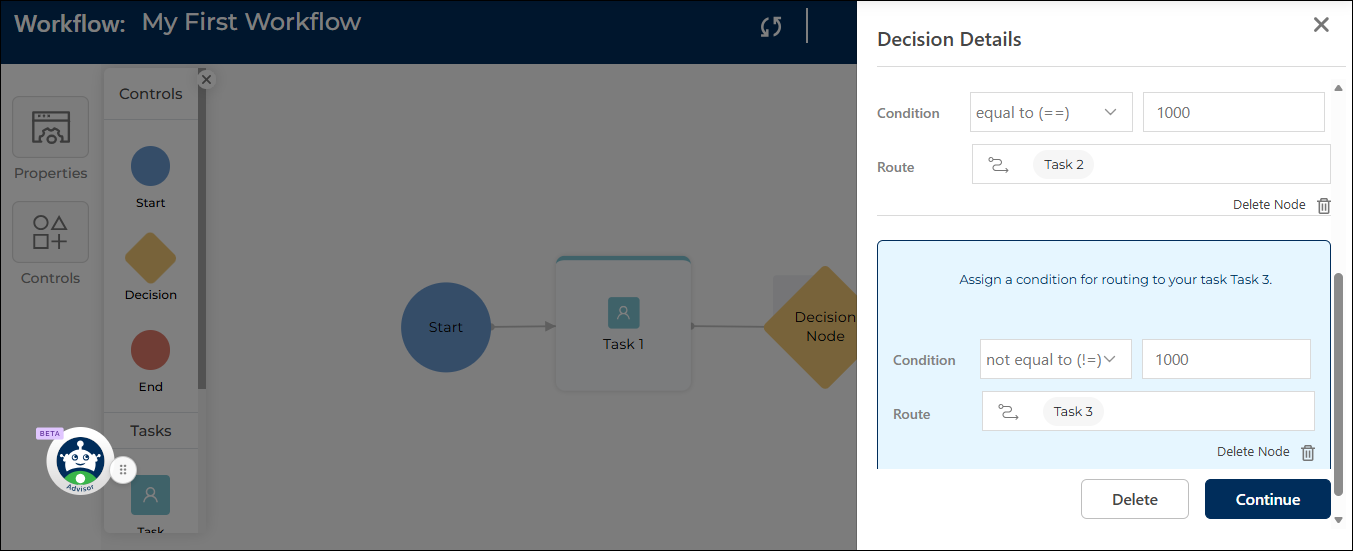
- Condition: Set the logic so that the workflow can determine which task it should proceed to based on the value of a specific variable.
For example, if the value of a field is equal to 1000, the workflow will follow one path; otherwise, it will follow the alternative path.- Operand: Select the comparison operator from the drop-down list, such as:
- Greater than
- Less than
- Equal to
- Greater than or equal to
- Not equal to
- Operand: Select the comparison operator from the drop-down list, such as:
- Condition: Set the logic so that the workflow can determine which task it should proceed to based on the value of a specific variable.
The available operands in the Condition dropdown depend on the type of variable you’re using:
- Text: Only shows Equal To and Not Equal To
- Number and Date: Show all comparison options like Greater Than, Less Than, and more
- Boolean: Offers Equal To and Not Equal To for values like True or False
- Value: Enter the value to compare against, such as 1000 in the example above.
- Click Continue to save the routing logic.
Configure a Default Route for Unmatched Values
When using Branch by Value with non-Boolean variables, you can configure a Default Route to define what happens if none of the configured conditions match the variable value.
This helps ensure that workflow execution continues even when an unexpected or unmatched value is received.
For example, if the configured conditions are:
- Name = Ron
- Name = John
- Name = Peter
and the variable value is:
- Emilie
the workflow follows the configured Default Route.
To configure a Default Route:
- Open the Decision Node configuration panel.
- Configure the required Branch by Value conditions.
- Select a route from the Default Route dropdown.
The Default Route executes only when no configured condition matches the variable value.
Notes:
- The Default Route option appears only for non-Boolean variables.
- Boolean variables already support predefined True and False outcomes, so a separate default route is not required.
Step 6: Add the End Node
The End node marks the point where the workflow stops. Every workflow must include one End node to indicate that all defined tasks and paths have been completed.
To add the End Node:
- From the left panel, drag the End node onto the canvas.
- Connect all final tasks in the workflow to this single End node.