



Outlook Handler Function
The Outlook Email Handler function enables you to connect to an Outlook mailbox and perform email-related operations directly from HuLoop. This function uses Microsoft Graph API integration to automate common email handling activities such as searching emails, downloading email content, downloading attachments, and updating email status.
The Outlook Email Handler function supports the following actions:
- Connect
- Search
- Download Email
- Download Attachment
- Mark As Read
Before You Begin:
Before using the Outlook Email Handler function, ensure that the required Microsoft permissions and environment configurations are configured on the desktop machine hosting the HuLoop Agent. These permissions are required to securely access Outlook mailboxes using Microsoft Graph APIs.
Connect Action
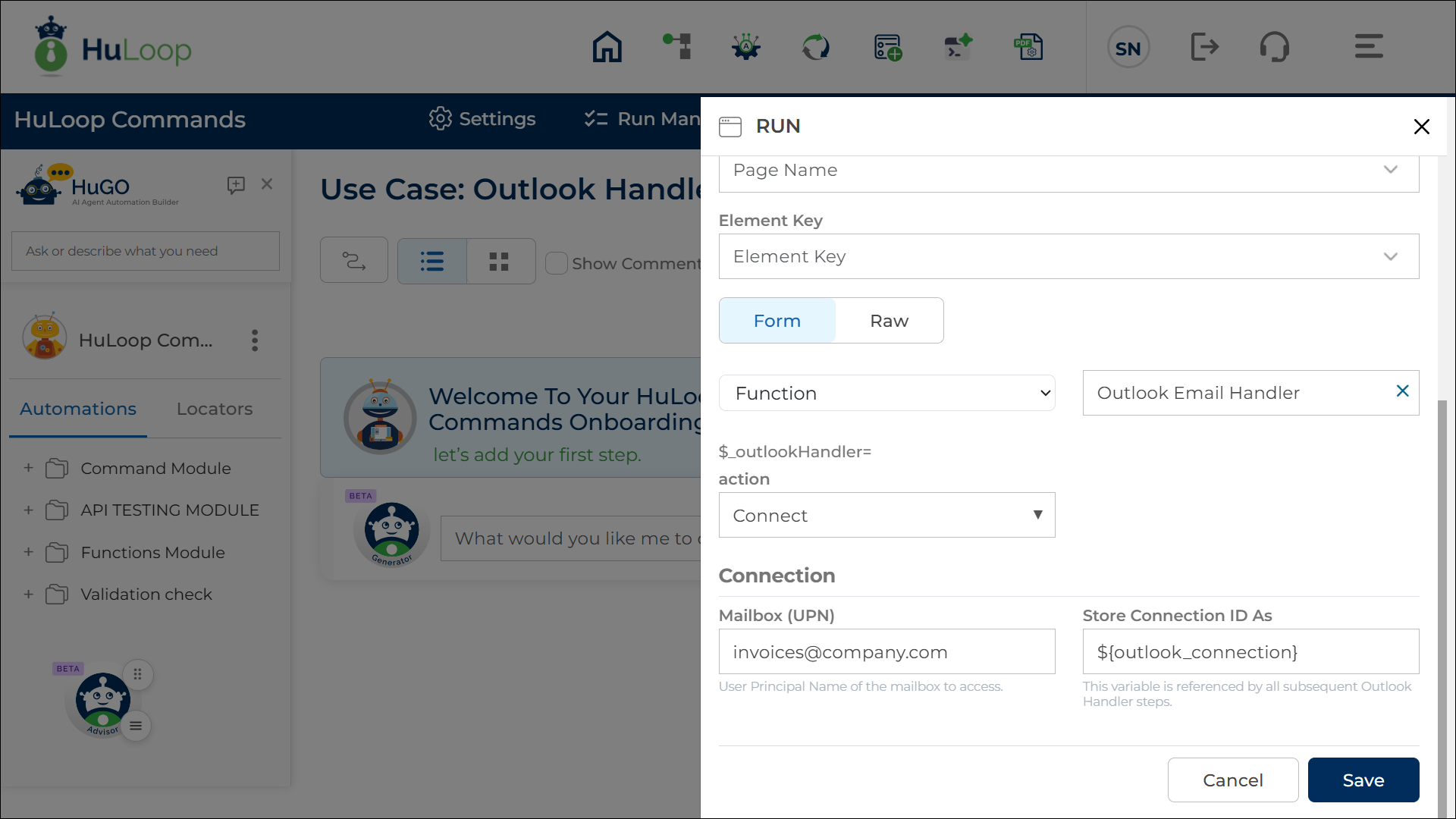
The Connect action establishes a connection with an Outlook mailbox. This connection is required before performing other Outlook Email Handler actions.
Example: You want to connect to the mailbox [email protected] and store the connection ID for use in later Outlook Email Handler steps.
Steps to Configure
- Add a new step.
- Select RUN from the Action dropdown.
- Click on Form, select Functions, and choose Outlook Email Handler.
- In the action dropdown, select Connect.
- Provide the following details:
- Mailbox (UPN): Specify the User Principal Name (UPN) of the mailbox you want to access.
You can enter:- A hard-coded email address. E.g. [email protected]
Or - A variable. E.g. ${mailboxName}
- A hard-coded email address. E.g. [email protected]
- Store Connection ID As: Provide a variable name to store the generated connection ID, e.g. ${outlook_connection}. This connection ID is required for all subsequent Outlook Email Handler actions.
- Mailbox (UPN): Specify the User Principal Name (UPN) of the mailbox you want to access.
- Click Save.
Outcome on Execution:
- HuLoop connects to the specified Outlook mailbox.
- A connection ID is generated and stored in the configured variable.
- The stored connection ID can be used in subsequent Outlook Email Handler actions using the syntax ${VariableName}.
Notes:
- Do not use spaces or special characters in variable names.
- Use only letters, numbers, and underscores (_) in variable names.
Search Action
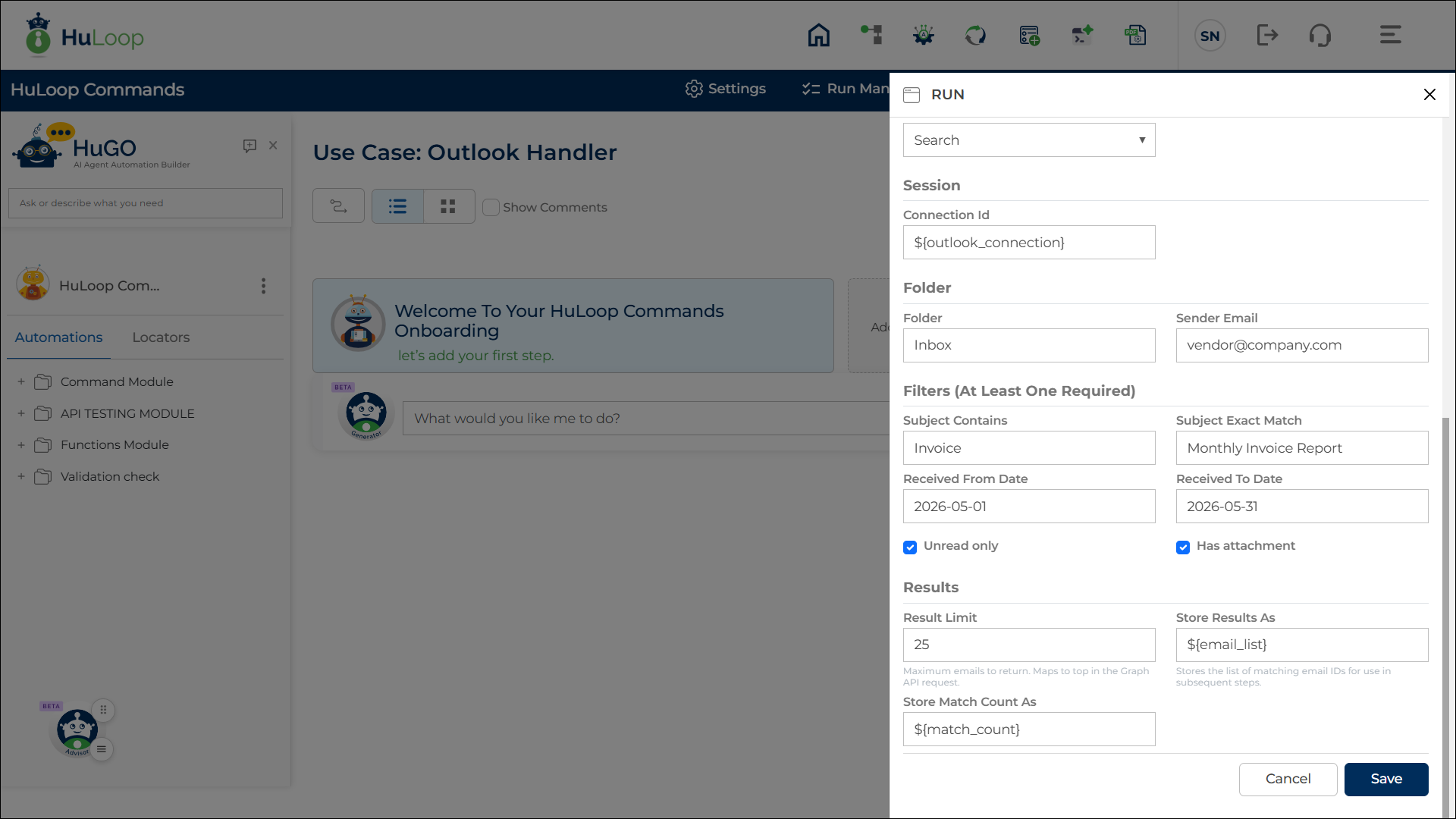
The Search action searches emails in an Outlook mailbox using filters such as subject, sender email, received date, unread status, or attachment availability.
Example: You want to search the Inbox folder for unread invoice emails received from [email protected] during the current month.
Steps to Configure:
- Add a new step.
- Select RUN from the Action dropdown.
- Click on Form, select Functions, and choose Outlook Email Handler.
- In the action dropdown, select Search.
- Provide the following details:
- Connection ID: Specify the connection ID variable created during the Connect action. Example: ${outlook_conn}
- Folder: Specify the Outlook folder to search. By default, the value is: Inbox
- Sender Email: Specify the sender email address to filter emails from a specific sender. Example: [email protected] Or ${senderEmail}
- Subject Contains: Searches for emails where the subject contains specific text. Example: Invoice.
- Subject Exact Match: Searches for emails with an exact subject line match. Example: Monthly Invoice Report
- Received From Date: Searches for emails received on or after the specified date. Format: YYYY-MM-DD. Example: 2026-05-01
- Received To Date: Searches for emails received on or before the specified date. Format: YYYY-MM-DD. Example: 2026-05-31
- Unread Only: Enable this option to search only unread emails.
- Has Attachment: Enable this option to search only emails containing attachments.
- Result Limit: Specify the maximum number of emails to return. The default value is: 25
- Store Results As: Provide a variable name to store the matching email IDs. Example: ${email_list}
- Store Match Count As: Provide a variable name to store the total number of matching emails. Example: ${match_count}
- Click Save.
Outcome on Execution:
- HuLoop searches the specified Outlook folder using the configured filters.
- Matching email IDs are stored in the configured variable.
- The total number of matching emails is stored in the configured count variable.
- These variables can be used in subsequent Outlook Email Handler actions using the syntax ${VariableName}.
Download Email Action
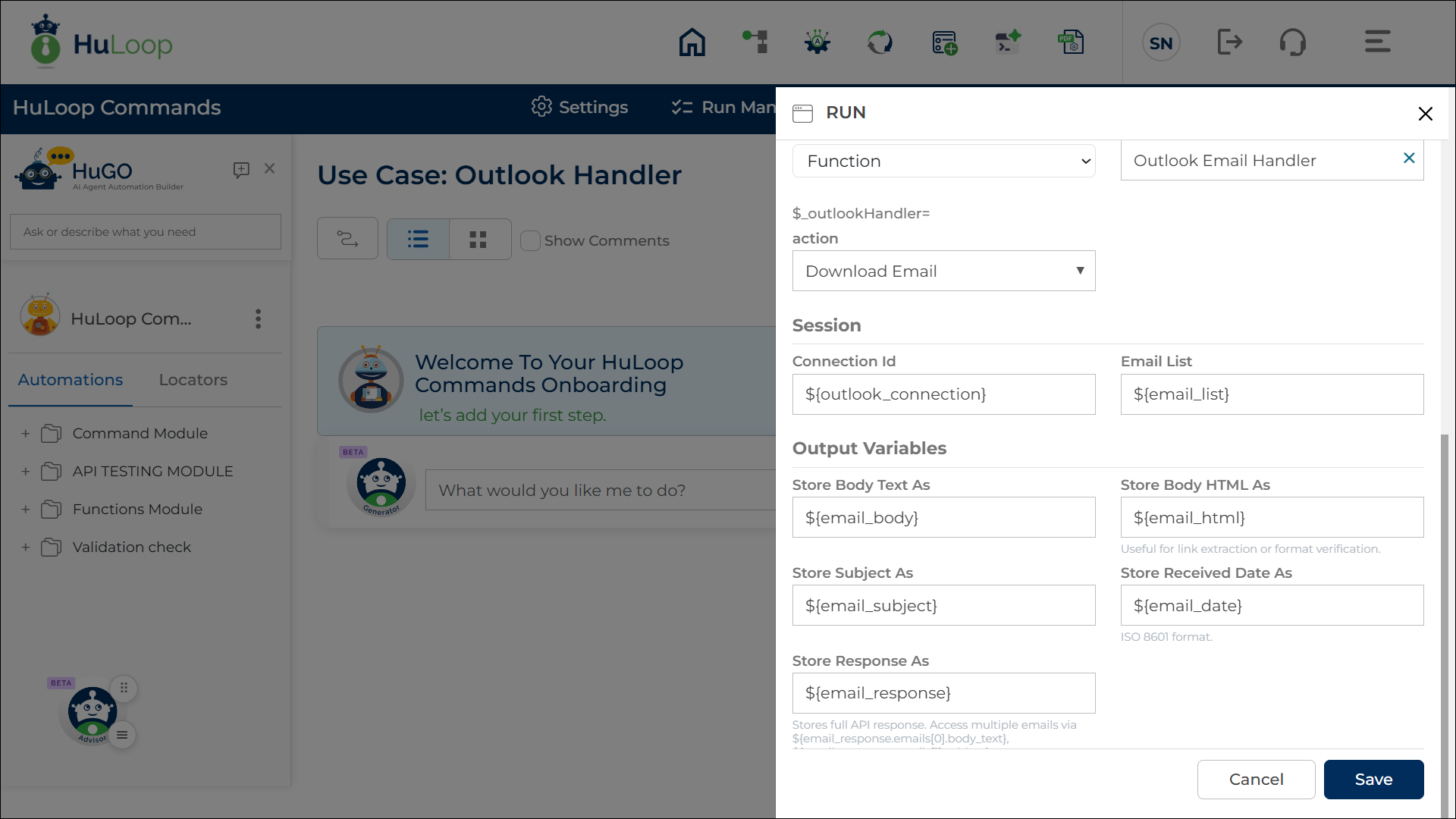
The Download Email action downloads email details from Outlook and stores the email content in variables for later use in the automation.
Example: You want to download the body and subject of invoice-related emails identified during the Search action.
Steps to Configure:
- Add a new step.
- Select RUN from the Action dropdown.
- Click on Form, select Functions, and choose Outlook Email Handler.
- In the action dropdown, select Download Email.
- Provide the following details:
- Connection ID: Specify the connection ID variable created during the Connect action. Example: ${outlook_connection}
- Email List: Specify the variable containing the email IDs returned from the Search action. Example: ${email_list}
- Store Body Text As: Provide a variable name to store the email body text. Example: ${email_body}
- Store Body HTML As: Provide a variable name to store the email body in HTML format. Example: ${email_html}
- Store Subject As: Provide a variable name to store the email subject. Example: ${email_subject}
- Store Received Date As: Provide a variable name to store the email received date. The date is stored in ISO 8601 format. Example: ${email_date}
- Store Response As: Provide a variable name to store the complete email response. Example: ${email_response}
- Click Save.
Outcome on Execution:
- HuLoop downloads the selected email details from Outlook.
- The email content is stored in the configured variables.
- The stored variables can be used in subsequent automation steps using the syntax ${VariableName}.
Download Attachment Action
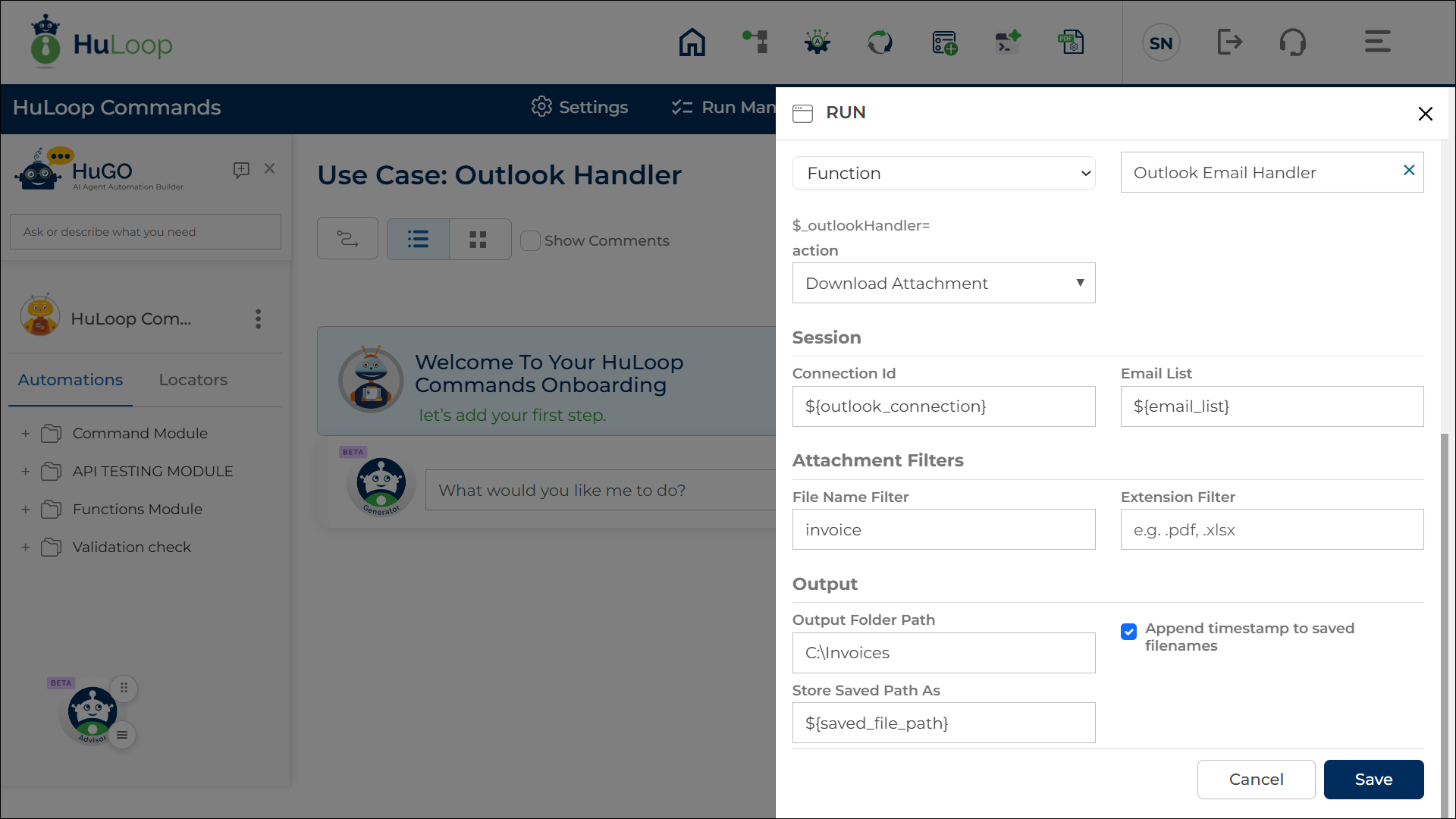
The Download Attachment action downloads email attachments from Outlook and saves them to a specified folder location.
Example: You want to download invoice attachments received through email and save them to the C:\Invoices folder for further processing.
Steps to Configure:
- Add a new step.
- Select RUN from the Action dropdown.
- Click on Form, select Functions, and choose Outlook Email Handler.
- In the action dropdown, select Download Attachment.
- Provide the following details:
Connection ID: Specify the connection ID variable created during the Connect action.
Example: ${outlook_connection}
Email List: Specify the variable containing the email IDs returned from the Search action.
Example: ${email_list}
File Name Filter: Optionally provide a file name or partial file name to download only specific attachments. Example: invoice
Extension Filter: Specify the file extension to download only specific attachment types.
Example: .pdf or .xlsx
Output Folder Path: Specify the folder location where the attachments should be saved.
You can enter a hard-coded folder path Example: C:\Invoices
- Or A variable Example: ${download_path}
Append Timestamp to Saved File Names: Enable this option to append a timestamp to downloaded file names. This helps prevent duplicate file names from overwriting existing files.
Store Saved Path As: Provide a variable name to store the saved file path of the downloaded attachment. Example: ${saved_file_path}
- Click Save.
Outcome on Execution:
- HuLoop downloads the matching email attachments from Outlook.
- The attachments are saved to the specified output folder location.
- If enabled, a timestamp is appended to the downloaded file names.
- The saved file path is stored in the configured variable.
- The stored variable can be used in subsequent automation steps using the syntax ${VariableName}.
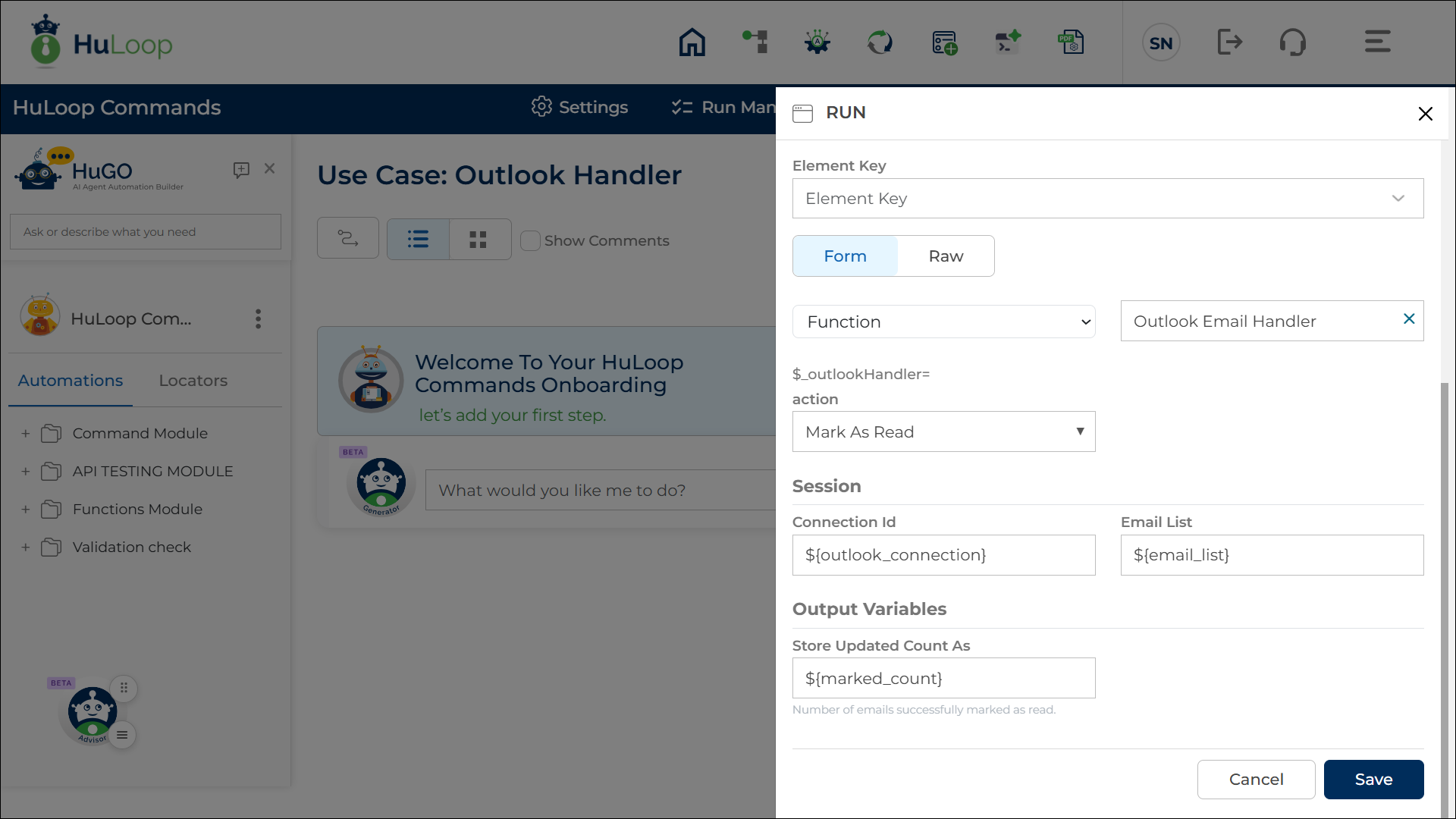
Mark As Read Action
The Mark As Read action marks selected Outlook emails as read.
Example: You want to mark invoice emails as read after successfully processing their attachments.
Steps to Configure:
- Add a new step.
- Select RUN from the Action dropdown.
- Click on Form, select Functions, and choose Outlook Email Handler.
- In the action dropdown, select Mark As Read.
- Provide the following details:
Connection ID: Specify the connection ID variable created during the Connect action.
Example: ${outlook_connection}
Email List: Specify the variable containing the email IDs returned from the Search action.
Example: ${email_list}
Store Updated Count As: Provide a variable name to store the number of emails successfully marked as read.
Example: ${marked_count}
- Click Save.
Outcome on Execution:
- HuLoop marks the selected emails as read in Outlook.
- The total number of successfully updated emails is stored in the configured variable.
- The stored variable can be used in subsequent automation steps using the syntax ${VariableName}.
Important: The Connect and Search actions form the foundation of the Outlook Email Handler workflow and are required for most subsequent actions.
- The Connect action establishes a connection to the Outlook mailbox and generates a Connection ID.
- The Search action retrieves the email IDs that match the specified search criteria.
The Connection ID and email IDs returned by these actions are used by the Download Email, Download Attachment, and Mark As Read actions. For this reason, it is recommended to configure and execute the Connect and Search actions before using the other Outlook Email Handler actions.
