



HuLoop Agentic Operations Center
The HuLoop Agentic Operations Center (AOC) is a centralized control layer for coordinating and managing intelligent agents across your organization. This chapter explains how to sign in, navigate the AOC, and use key shortcuts.
Signing In
- Log into HuLoop.
- Click Agentic Operations to be automatically signed in.
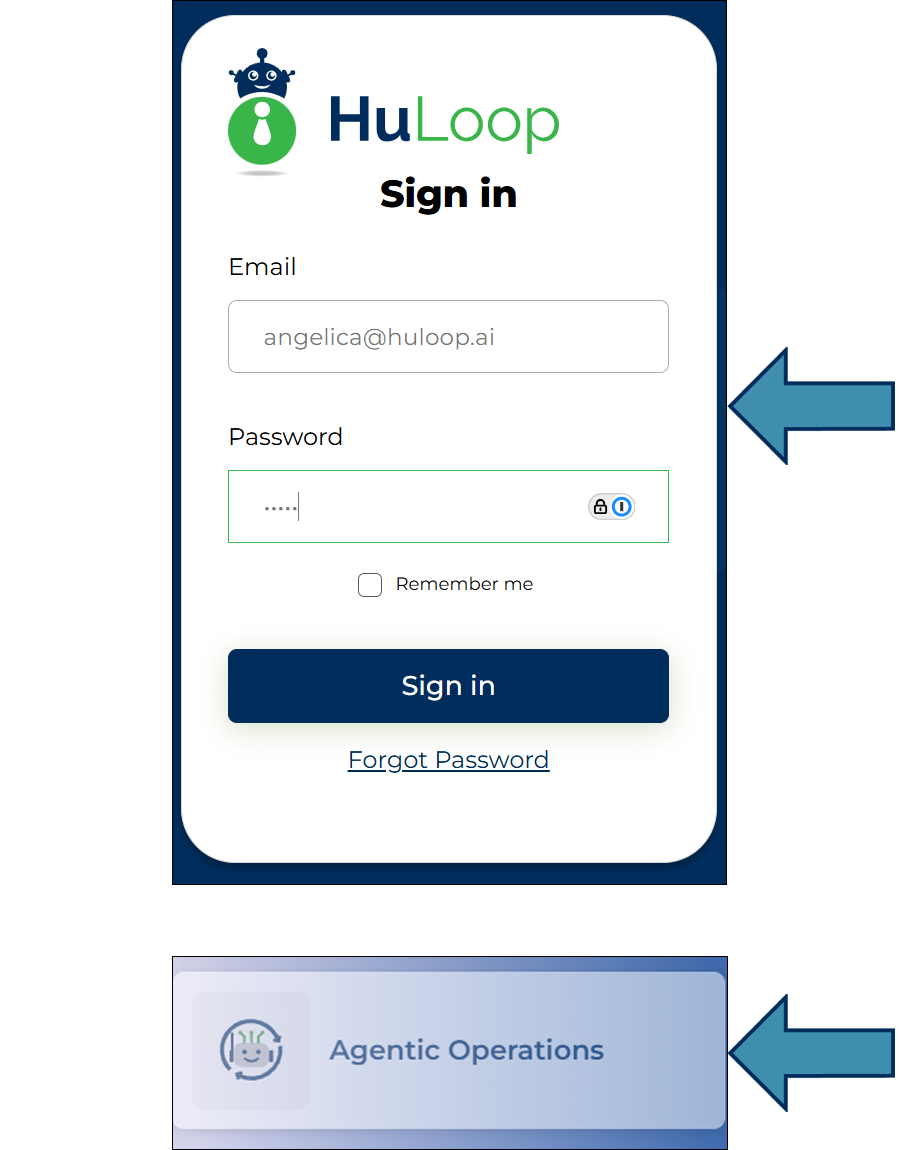
If your organization uses Single Sign-On (SSO), select Use Single Sign-On (SSO) and follow the prompts to sign in with your organizational account.
After you sign in, you will see the Dashboard.
Informational Note: Change your password after your first login. Open the user menu at the top right, then choose Change Password.
The Sidebar Map
Use the left sidebar to navigate. Pages are grouped by task, and available groups depend on your role.
| Group | What You Do Here |
|---|---|
| BUILD | Create agents, set up tools, and design screens. |
| CONNECT | Connect other systems, add knowledge documents, link desktop bridges, and browse the marketplace. |
| RUN | Run agents, view the schedule, and compare setups with A/B testing. |
| OBSERVE | See analytics, look back over past runs, and read reports. |
| GOVERN | Set safety rules (guardrails), change settings, and read the audit log. |
| ADMIN | Manage people and sign-in, backups, appearance, and runners. |
As a new user, you will mainly use BUILD and RUN.
Per-Agent Tabs
When you open a single agent, a row of tabs appears across the top. Each one has a different view of the same agent:
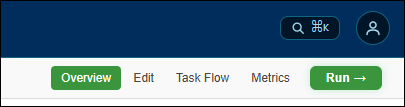
| Tab | What It’s For |
|---|---|
| Overview | A summary of the agent, plus its recent activity. |
| Edit | Change the agent’s setup. |
| Task Flow | Design a multi-step task flow for the agent. |
| Run | Run the agent and watch it work. |
| Metrics | Charts and stats for this agent. |
As a new user, you mostly use Edit (to set the agent up) and Run (to use it).
Shortcuts
- Ctrl+K (Windows) or ⌘K (Mac) opens the command palette — a search box that navigates you to any page. Start typing a page name and press Enter.
- The floating ? button opens in-app help, where you can ask questions without leaving the page.
- A toggle at the top of the sidebar collapses it to give you more room.
Try it: Sign in, then find BUILD → Agents and CONNECT → Knowledge in the sidebar — no need to create anything yet. Now press Ctrl+K / ⌘K and type Agents to jump straight there.
Last updated: Nov 03, 2026