Array Function: array
The array data type function was created to simplify looping logic, have cleaner variable management, and improve automation scalability. With this capability, users can create arrays, add, update and retrieve values, and iterate through arrays in loops. The specific commands in the Automation Builder are as follows:
- Create: Create a new array variable
- Add: Append one value to an array
- Get: Get value at a specific index
- Update: Update value at a specific index
- Set: Alias of update
- Delete: Delete value at a specific index
- Size: Return the array size
- Length: Alias of size
- Clear: Clear all values from an array
- Deleteall: Alias of clear
- Contains: Check whether value exists in an array
- Getall: Get the full array as a JSON string
Steps to Configure
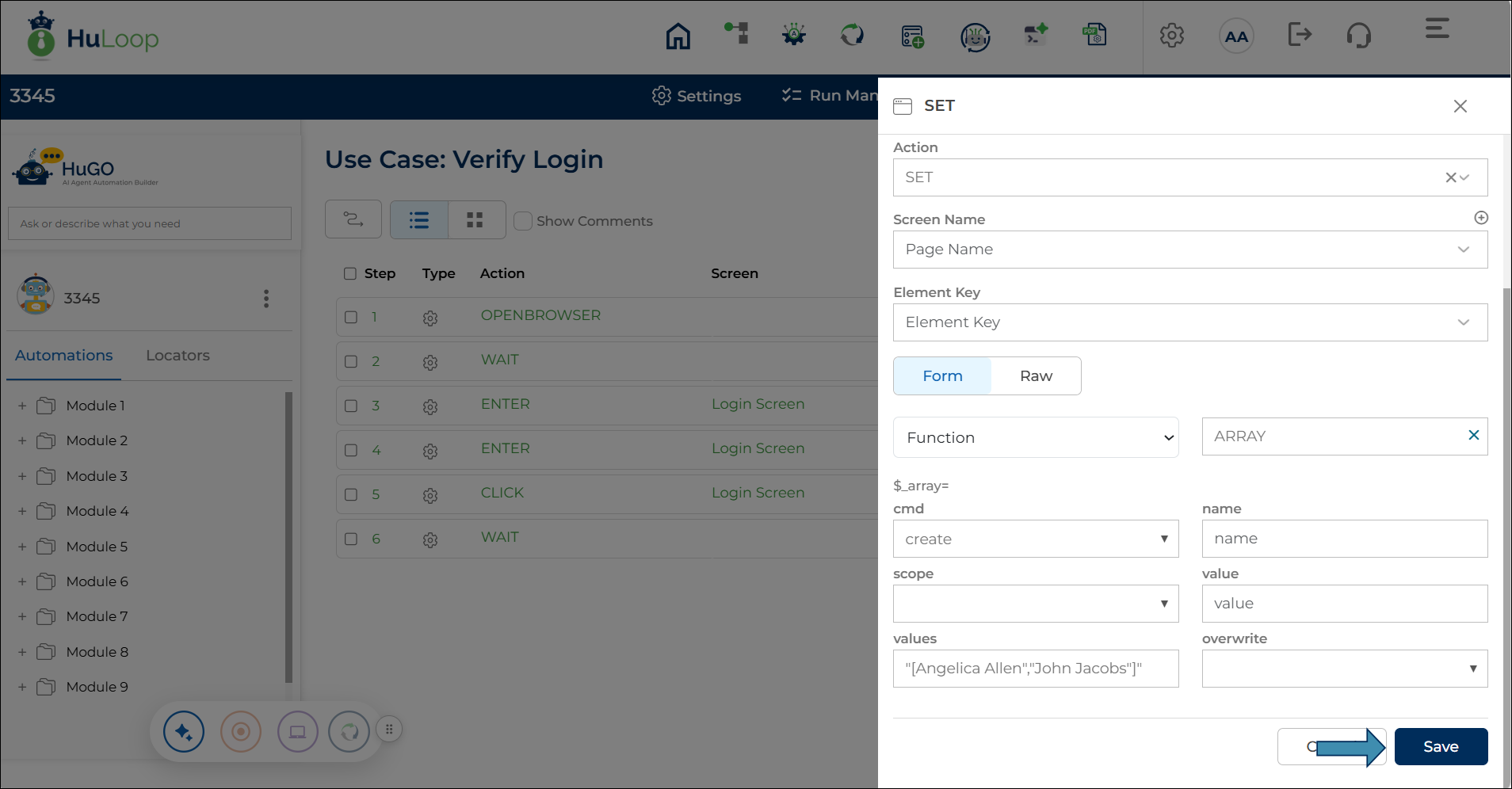
- Select SET from the Action dropdown.
- Click on FORM to open the configuration form.
- From the dropdown, select Function and choose ARRAY.
- From the CMD (Command) dropdown, select Create, Add, Get, Update, Set, Delete, etc., depending on what action you want the array to perform.
- Name your array.
- Enter your value or values. If you have multiple, use double quotes and brackets.
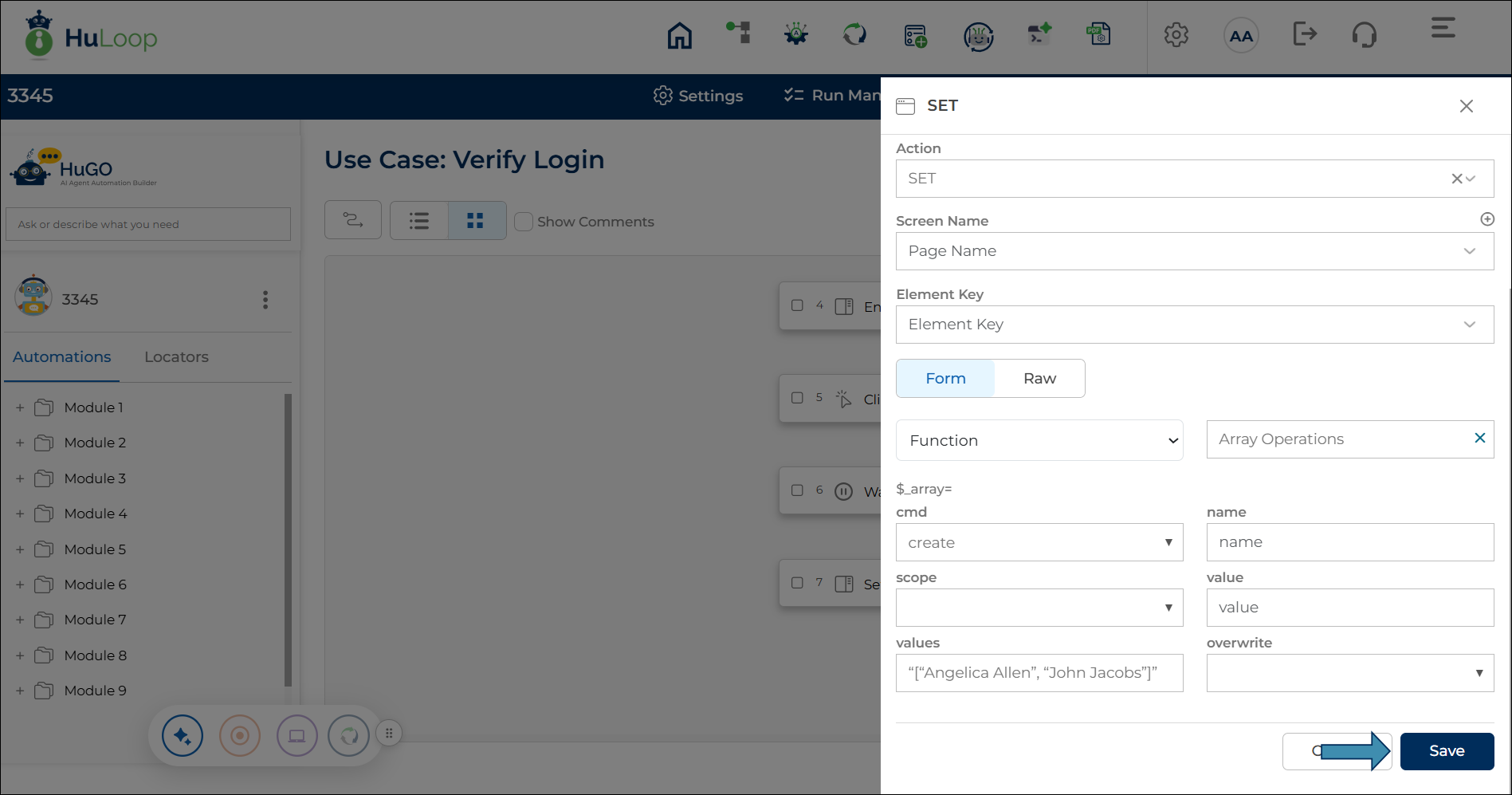
Ex. “[“Angelica Allen”]” for one value or
“[“Angelica Allen”, “John Jacobs”]” for multiple values - Select Overwrite and then True if you have another array with the same name and you want to override it.
- Select the scope as Local if you want the array to be defined to one test case only or select Suite if you want the array to be used in different suites or different cases of the suites.
- Click Save.
Informational Note: The data type that supports the array function is a string, not integers.