



Using the Message Node in a Workflow
The Message Node allows you to send notifications as part of a workflow without assigning a task to a user. It can be used to notify stakeholders about workflow progress, completion of steps, or important events during execution.
The Message Node runs automatically when the workflow reaches it and does not pause workflow execution.
When to use the Message Node
Use the Message Node when you want to:
- Send email notifications at a specific point in the workflow
- Notify users after an automation or task completes
- Share workflow status updates without requiring user action
Example Use Case: Workflow Notification
In a leave approval workflow:
- An employee submits a leave request.
- The manager reviews the request.
- After approval, the workflow reaches the Message Node.
- The Message Node automatically sends an email notification to the employee confirming the approval status.
You can also use Message Nodes to:
- send reminders
- notify stakeholders about workflow progress
- share status updates after automation or task completion
Adding and Configuring a Message Node
To add and configure a Message Node:
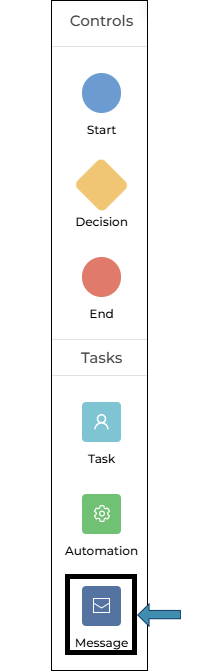
- In the Workflow Designer, drag and drop the Message Node onto the canvas.
- Connect the node to the required step in the workflow.
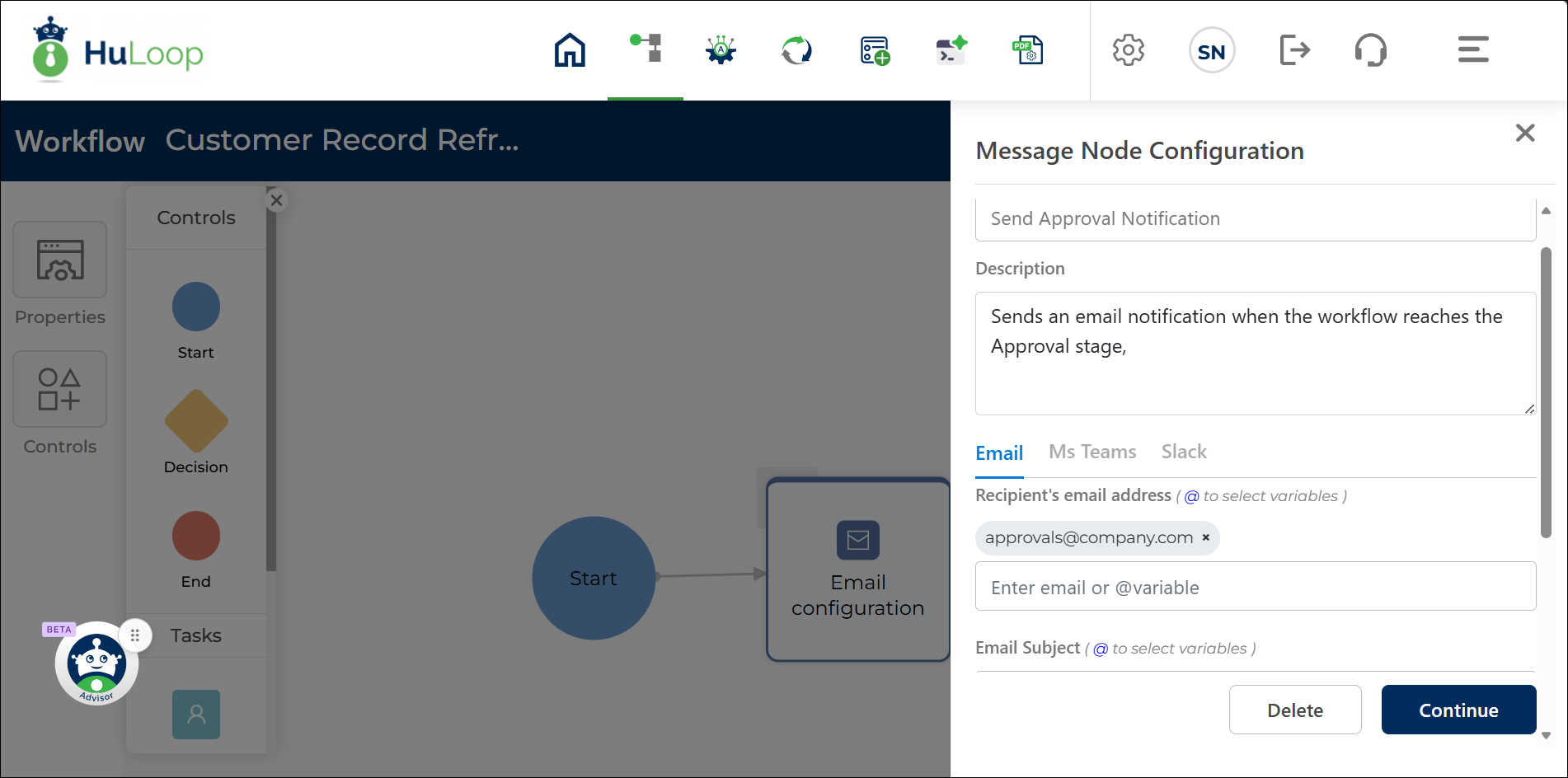
- Double-click the Message Node to open the Message Node Configuration panel.
- Provide the following details:
- Name (required): Enter a meaningful name for the messaging step.
- Description (optional): Add a short description for reference.
- Select the communication channel. Currently, Email is supported.
- Configure the email fields:
- Recipient’s email address: Enter an email address or use a workflow variable.
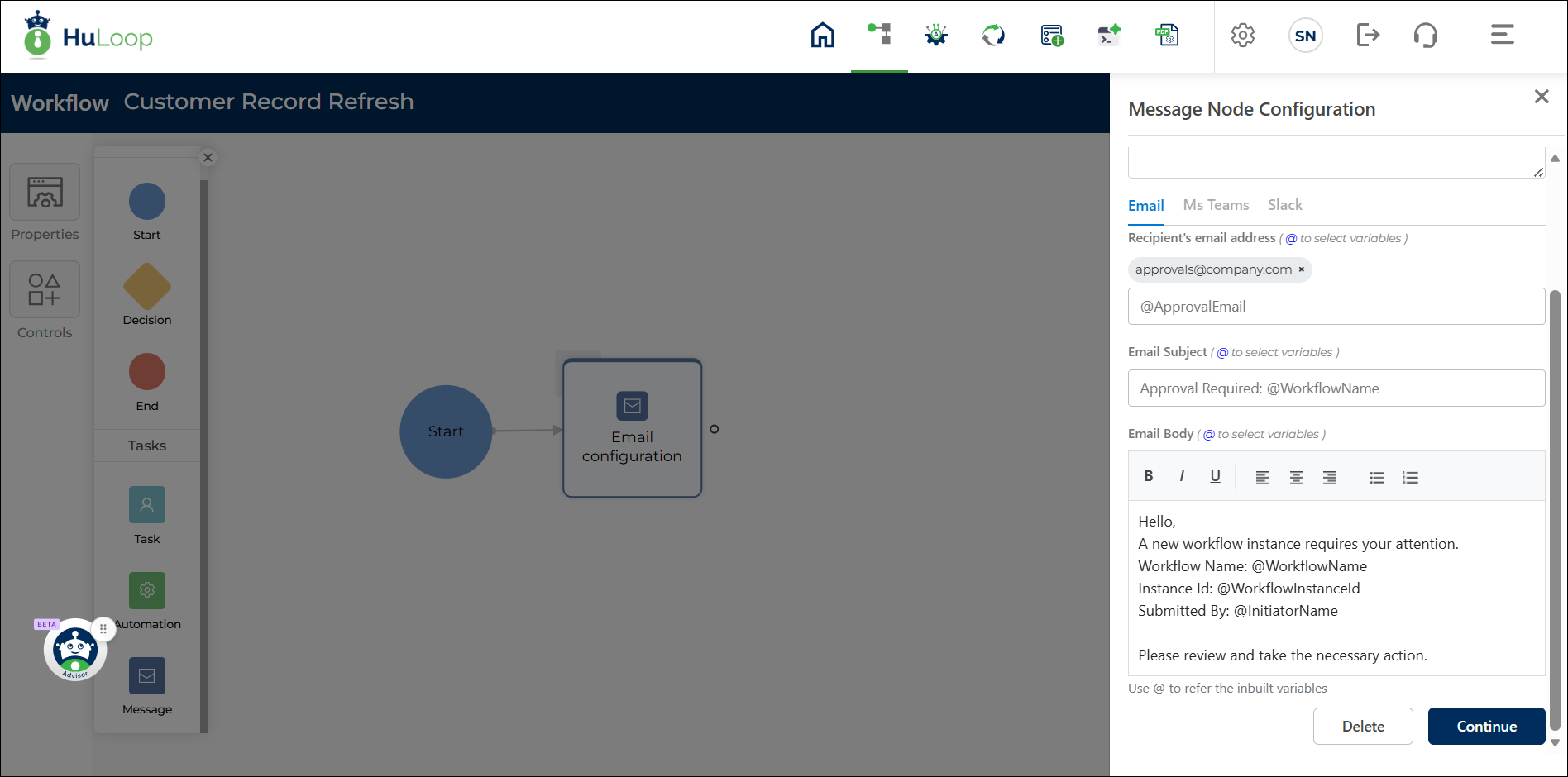
- Email Subject: Enter a subject or reference a workflow variable.
- Email Body: Compose the message content. You can format the text and include workflow variables using the @ symbol.
- Click Continue to save the configuration.
Using workflow variables in messages
The Message Node supports workflow variables, allowing message content and recipients to be defined dynamically at runtime.
You can use workflow variables:
- In the recipient’s email address
- In the email subject
- In the email body for contextual messaging
Use the @ symbol to insert available workflow variables.
Note: Only existing workflow variables appear when using the @ symbol.
What happens during workflow execution?
- When the workflow reaches the Message Node, the message is sent automatically.
- No user action is required.
- The workflow continues to the next step after the message is sent.
