



Knowledge Bases
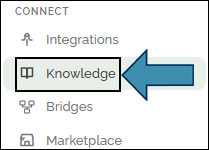
Where to find it: CONNECT → Knowledge in the left sidebar.
What a Knowledge Base Is
An agent starts with two sources of knowledge: its configured instructions and the knowledge built into the language model. It does not automatically know your organization’s policies, documents, or internal information unless those resources are explicitly provided.
A knowledge base (KB) gives an agent access to your organization’s information. Instead of relying only on its built-in knowledge, the agent can search your documents, find the most relevant content, and use it to answer questions. This approach, known as Retrieval-Augmented Generation (RAG), helps the agent use your information.
The result: more accurate answers that align with your policies, processes, and documentation.
Create a Knowledge Base
- Go to CONNECT → Knowledge.
- Click New Knowledge Base.

- Give it a Name (for example, HR Policies). A short Description is optional.
- Leave the other settings at their defaults unless your administrator suggests otherwise.
- Click Create.
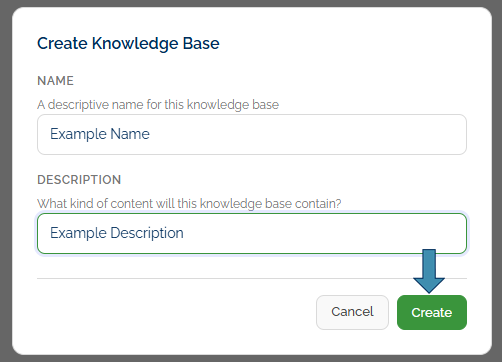
Your knowledge base is now ready for documents. A one-time cost is incurred when embeddings are generated for newly added content.
About Those Default Settings
When you create a Knowledge Base you’ll see the options below:
| Setting | What it does |
|---|---|
| Embedding Model | How the agent measures which paragraphs are similar to a question. The default works well. |
| Chunk Size | How big each piece of a document is when it’s split up (see below). |
| Chunk Overlap | How much neighboring pieces share, so a sentence split across two pieces isn’t lost. |

Add Your Documents
Open your knowledge base, then add content in one of two ways.
Upload Files
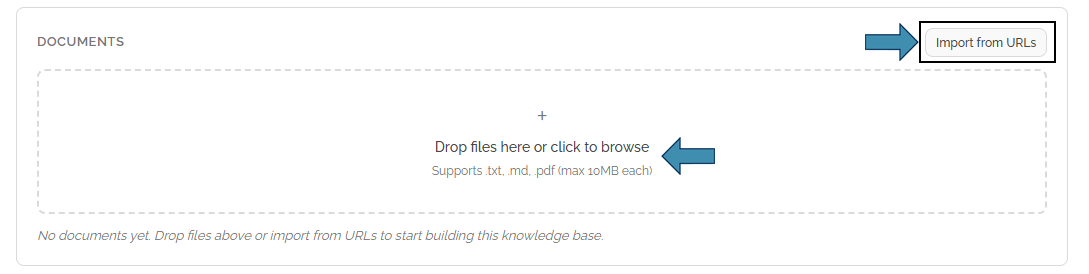
- Use the drop zone: Drop files here or click to browse.
- Pick a file. Supported types: .txt, .md, .pdf, .docx. Up to 10 MB each.
- Wait for processing to finish — the document shows up in the list once it’s indexed.
Import From a Web Page
- Click Import from URLs.
- Paste one web address per line.
- HuLoop retrieves each page, pulls out the text, and adds it like any other document.
What “Chunking” Means
When documents are added, HuLoop automatically divides them into smaller sections, a process called chunking. This allows the agent to retrieve only the most relevant content instead of searching entire files, resulting in faster, more accurate answers. No setup is required.
Attach a Knowledge Base to an Agent
A knowledge base must be linked to an agent to be effective.
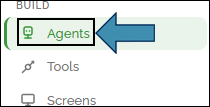
- Go to BUILD → Agents and open your agent.
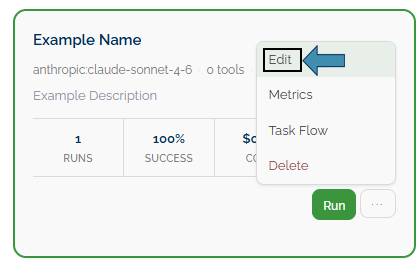
- Open the Edit tab.
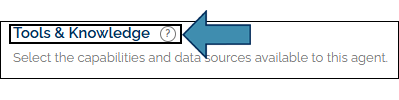
- Find the Tools & Knowledge section.
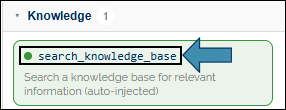
- Pick your knowledge base from the Knowledge Base dropdown.
- Save the agent.
When an agent receives a question, HuLoop searches the connected knowledge base and provides the most relevant content before generating a response. If the knowledge search tool is enabled, the agent can also perform additional KB searches during a task as needed. See Tools & Collaboration.
Check That it’s Working
From the Knowledge page, you can ensure the quality of a knowledge base by asking a question and reviewing the content it returns. Use this to verify that your documents were indexed correctly and that relevant information is retrieved before connecting the knowledge base to an agent.
A Light Note on Search Analytics
Open a knowledge base and scroll to Search Analytics for a simple health check over time:
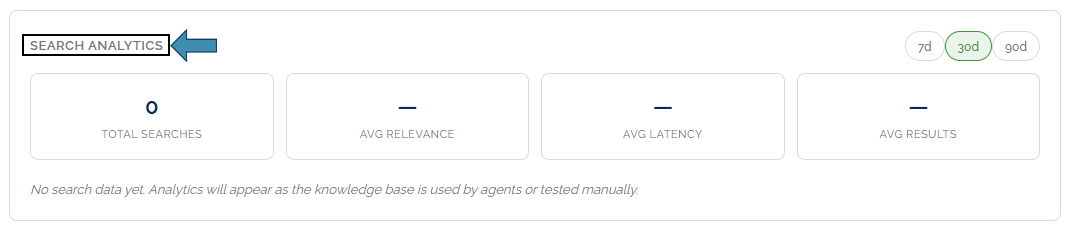
- How often it’s being searched
- Whether the matches look relevant
- How fast lookups are
- The most common questions people ask
Consistently poor search results may indicate a need to add or update documents in the knowledge base.
Try it
Upload one short file — a one-page policy, or a text file with three made-up FAQs. Attach it to an agent on the Edit tab. On the Knowledge page, test a question and verify that relevant content is returned. This confirms the agent can access and use your organization’s information.
