



Tools & Collaboration
Where to find it:
BUILD → Tools shows the full catalog. You tools turn on per agent from the agent’s Edit tab.
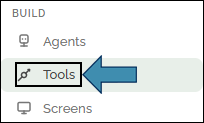
What a Tool Is
Instructions tell your agent what to do. A knowledge base gives it your documents to read. Tools give it abilities — the actions it can take while it works, like searching the web, reading a file, or looking something up in a knowledge base.
Tools transform an agent from a conversational assistant into an active participant that can retrieve information, interact with systems, and complete tasks.
The Built-In Tool Catalog
HuLoop includes a comprehensive set of built-in tools, organized by function. Simply enable the tools your agent requires. The most commonly used categories are:
| Family | Good for |
|---|---|
| Web | Searching the internet and reading web pages. |
| Files | Reading, writing, and searching files in the agent’s private workspace. |
| Knowledge | Searching a connected knowledge base for grounded answers. |
| Data | Reading spreadsheets and CSV/JSON data and creating documents. |
| Documents | Pulling text out of PDFs and Word files and generating new ones. |
| Communication | Sending an email or a notification. |
| Memory | Remembering things from one run to the next. |
| Scheduling | Checking the current date and time or scheduling a later task. |
| Agent control | Handing work to other agents or pausing to ask a person a question. |
HuLoop also includes advanced tool categories for capabilities such as code execution, UI automation, and integrations with business systems. Since these tools may require additional configuration or introduce greater operational risk, enable them only when needed and, in some cases, with administrator assistance.
Tool availability may vary across organizations, as certain categories can be restricted until enabled by an administrator. As a result, your available tools may differ from those of other users.
Turn Tools On for an Agent
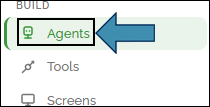
- Go to BUILD → Agents and open your agent.
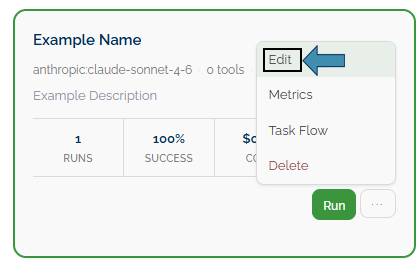
- Open the Edit tab.
- Find the Tools & Knowledge section.
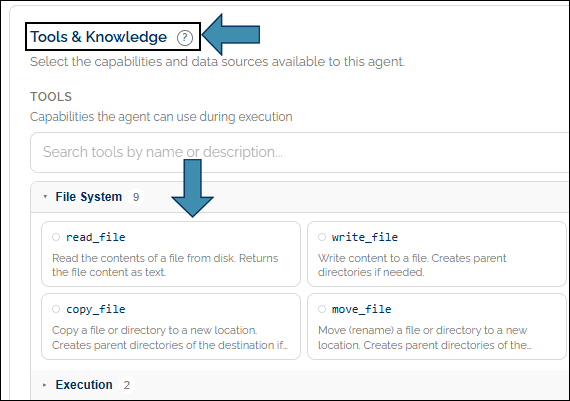
- Switch on only the tools this agent needs.
- Save the agent.
Browse before you pick. From BUILD → Tools, click any tool name to read what it does and even test it with sample input. It’s a good way to understand a tool before you attach it.
Choosing Tools Wisely — Less is More
Enable only the tools required for the agent’s intended purpose. A focused toolset improves reliability, reduces cost, and minimizes operational risk. Each additional tool introduces new capabilities that may affect agent behavior, execution complexity, and resource consumption.
For most question-answering scenarios, Knowledge Search is sufficient. Add additional tools only when a clear business requirement exists.
Exercise particular caution when enabling tools that can interact with external systems, such as email, command execution, or UI automation. These capabilities should be enabled only when necessary and after appropriate review. See Safety & Guardrails.
Working with Multiple Agents
Some workflows are best handled by multiple specialized agents rather than a single agent. HuLoop supports multi-agent collaboration, allowing agents to delegate tasks and work together to complete complex workflows. Several collaboration patterns are available, each designed for different types of work. Understanding the purpose of each pattern is generally more important than understanding its underlying implementation.
| Pattern | What it does | Reach for it when |
|---|---|---|
| Fan-out | Sends the same request to several agents at once and gathers all their answers back. | You want several viewpoints, or need to pull from different specialists at the same time. |
| Debate | Has two agents argue opposite sides across a few rounds, then hands over the full back-and-forth. | You want to stress-test an idea or weigh two sides of a decision. |
| Vote | Runs several agents on the same task, then optionally lets a “judge” agent pick the best answer. | You want a best-of-several result — the strongest draft, the clearest answer. |
For example, a research lead agent could fan out to a web researcher, a data analyst, and a document reviewer, then pull their findings into one report. Or three writer agents could each draft an email and a “brand editor” agent votes for the best one.
You turn these on from the Agent control family on the Edit tab.
Informational Note: Each helper agent is a full run of its own. Fanning out to five agents is five runs. While this capability can be highly effective, it is important to monitor execution budgets and usage limits. See Running and Results and Safety and Guardrails.
Try it: Open an agent’s Edit tab and enable only Knowledge Search. Save the agent, then ask a question your knowledge base can answer. This demonstrates how a focused toolset can deliver effective results. Add additional tools only as requirements emerge.
Going Further (for Administrators and Power Users)
HuLoop includes a comprehensive set of built-in tools, but you can also extend its capabilities with custom integrations. Custom tools can be connected through webhooks or MCP servers. Because these integrations require configuration of endpoints, authentication, and security settings, they are covered in the Admin & Power User Reference:
- Connecting your own webhook tools and their authentication → admin-power-user/webhook-tools-and-auth.md
- Connecting Claude and MCP servers → admin-power-user/connect-claude-and-mcp.md
