



Integrations
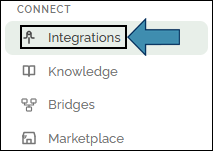
Where to find it: CONNECT → Integrations in the left sidebar.
What an Integration Is
An integration is a configured connection to an external system, such as a database, CRM, email service, file repository, chat platform, or core banking system. Once connected, agents can access data from that system or perform actions within it during a run.
Integrations are configured once and can then be made available to authorized agents as needed.
Integration or Knowledge Base?
| What it holds | Use it for | |
|---|---|---|
| Knowledge base | Your documents (policies, manuals, notes) | Looking things up in text you uploaded |
| Integration | A live connection to a running system | Querying or acting on real, current data |
If the agent needs to read your written policy, that’s a knowledge base. If it needs today’s account balance out of a database, that’s an integration.
Connect a System
- Go to CONNECT → Integrations.
- Browse the catalog by category, or search for the system you want.
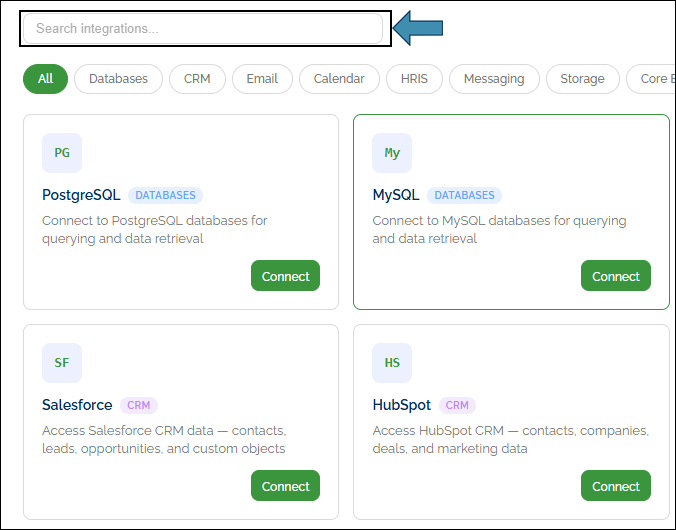
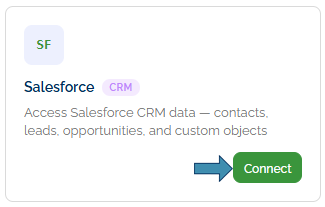
- Click Connect on its card.
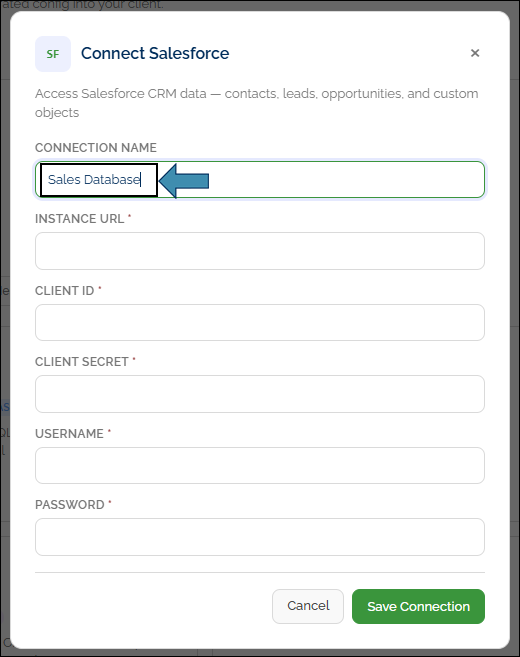
- Give the connection a clear name (for example, Sales Database) and fill in the required fields — usually a host or web address plus sign-in details.
- For a database, click Save & Test first (see below).
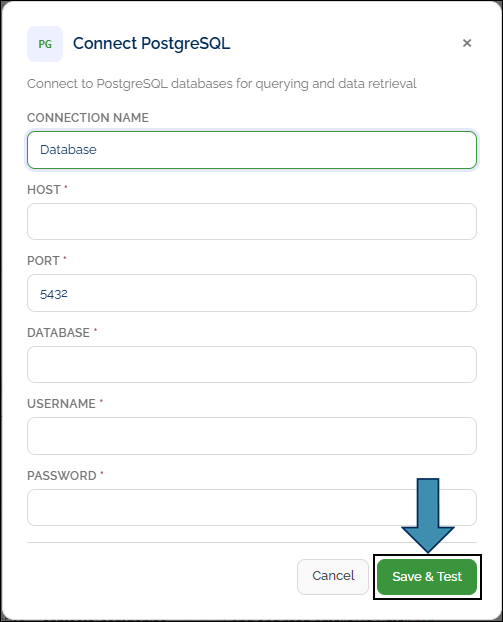
- Click Save Connection. It now appears under Your Integrations.

Try it Open CONNECT → Integrations and browse the catalog. Identify three systems your team uses regularly and confirm they are available. No connections are required at this stage. In shared training environments, do not enter production credentials.
What You Can Connect
The catalog is grouped by category:
| Category | Examples |
|---|---|
| Databases | PostgreSQL, MySQL, Microsoft SQL Server, MongoDB, Redis |
| CRM | Salesforce, HubSpot |
| Gmail, Outlook / Microsoft 365 | |
| Calendar | Google Calendar, Outlook Calendar |
| HR Systems | BambooHR, Workday |
| Messaging | Slack, Microsoft Teams |
| Cloud Storage | Amazon S3, Google Drive |
| Banking Cores | Jack Henry (Symitar, SilverLake), Fiserv (DNA, Premier), FIS Horizon, nCino, Finastra, CSI NuPoint |
Each card lists the exact fields it needs. Databases (PostgreSQL, MySQL, and Microsoft SQL Server) can be queried by an agent’s database tool with read-only lookups (see Tools and Collaboration). Other integrations hand the right sign-in details to the tools that use that system.
Your Credentials Are Kept Safe
Sensitive fields — passwords, API keys, tokens, access keys — are encrypted when you save them. Credentials are stored securely in an encrypted form and are not accessible as plain text.
A couple of things follow from that:
- Only administrators see the secret values. If you’re not an admin and you open an integration, the secret fields show up blank.
- You can safely rename or re-describe a connection even with the secret fields blank — saving keeps the existing encrypted values.
Never put a password or key into an agent’s prompt. Connect it here instead, where it’s protected.
Test a Connection
For database integrations such as PostgreSQL, MySQL, Microsoft SQL Server, Redis, and MongoDB, use Test Connection after entering the connection details. This validates the credentials, confirms connectivity, and reports the response time. Resolve any issues before saving the integration.
Connecting Claude Desktop or Other AI tools
Want to reach HuLoop from Claude Desktop, Cursor, or another AI assistant? See Connect Claude and MCP.
See Also
- Knowledge Bases — for looking things up in your documents.
- Tools and Collaboration — how agents actually use a connected system.
- Connect Claude and MCP — reach HuLoop from Claude Desktop and similar tools.
