



Triggers and Scheduling
Running agents manually is useful for testing. In production, triggers automate execution based on schedules, events, or other workflows. A trigger is the rule that decides when an agent runs.
This chapter is the central guide to scheduling and automation in HuLoop.
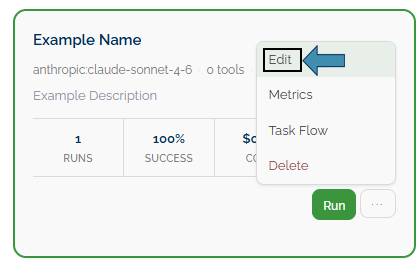
Where to set triggers: Open an agent and go to its Edit tab, then the Triggers section. To see everything scheduled across all agents, open RUN → Scheduled.
The Trigger Types at a Glance
| Trigger | Runs the Agent When… | Good For |
|---|---|---|
| Manual | You click Run or call the API | Testing, ad-hoc jobs |
| Schedule (Cron) | A clock time arrives | Daily digests, weekly reports |
| Webhook | Another system sends a request | “Start when this happens over there” |
| Event | Something changes inside HuLoop | “A new loan application was created” |
| Agent Chain | Another agent finishes | Multi-step pipelines across agents |
Every agent has the Manual trigger already — you never have to set it up. The others are optional and you can add more than one.
Schedule (Cron) Trigger
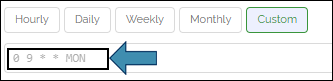
A scheduled trigger runs your agent at set times. HuLoop uses cron — a compact way to describe “when,” written as five fields:
minute hour day-of-month month day-of-weekThe Cron Builder provides Hourly, Daily, Weekly, Monthly, and Custom options with a plain-language preview, while still allowing direct entry of a cron expression when needed.
To add one:
- Open the agent → Edit → Triggers.
- Click Add Trigger → Cron.

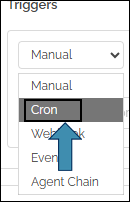
- Pick a mode in the Cron Builder, or type an expression.
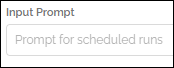
- Optionally set a default prompt to send on each run.
- Save/Update the agent.

Common Examples:
| Expression | Meaning (UTC) |
|---|---|
| 0 9 * * * | Every day at 09:00 |
| 0 9 * * 1 | Every Monday at 09:00 |
| */30 * * * * | Every 30 minutes |
| 0 0 1 * * | Midnight on the first of every month |
Note on time zones: Schedules default to UTC. A specific time zone can be set through advanced/API settings. Currently, the Cron Builder does not provide a time zone selection option. Ask an admin if you need a different zone.
The Schedule Calendar
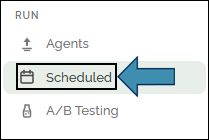
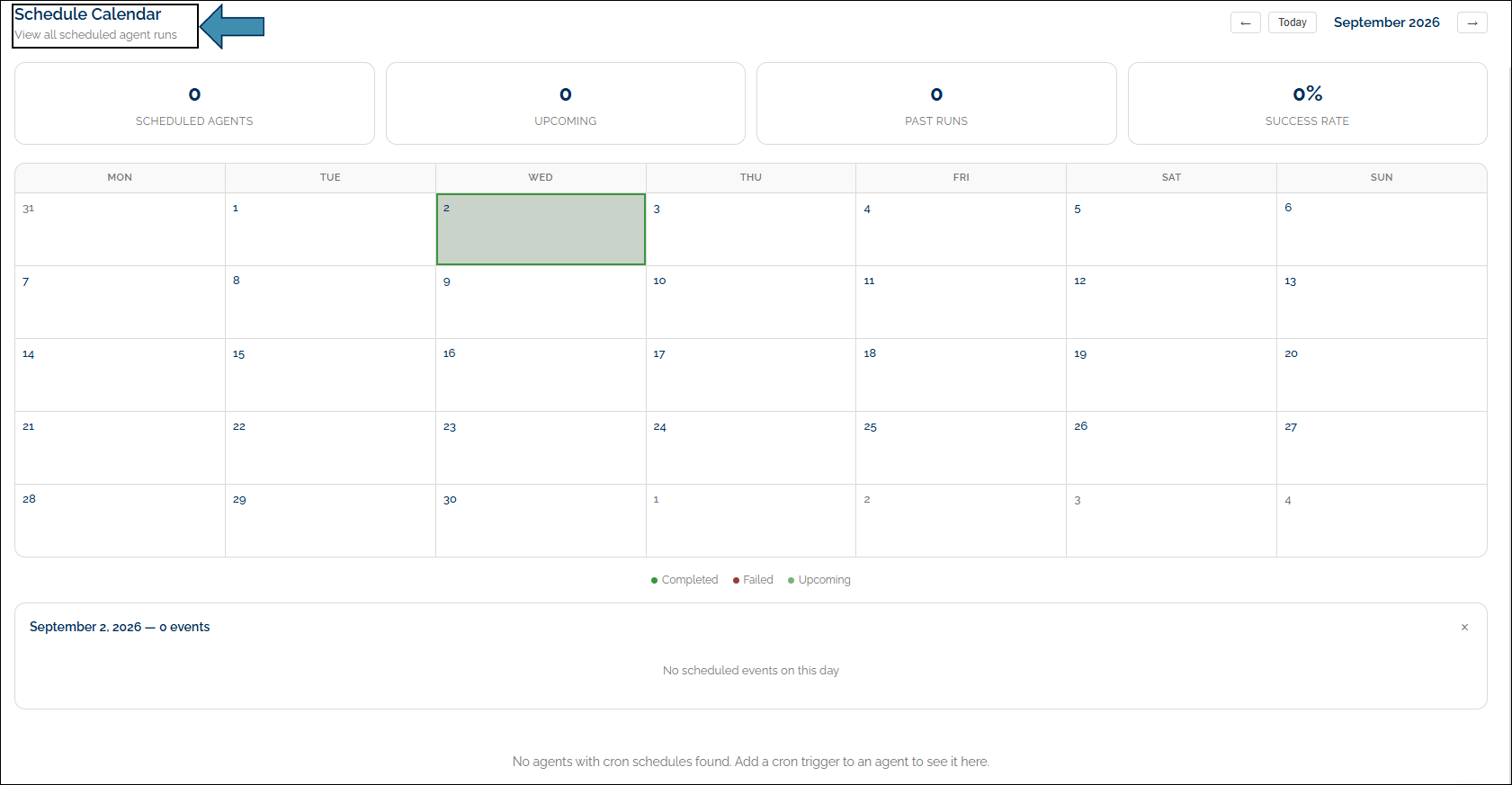
Open RUN → Scheduled to see the Schedule Calendar — a month view of every scheduled run across all your agents, past and upcoming.
- Past runs — hover to see the agent, whether it succeeded, how long it took, and its cost. Click to open the full run.
- Upcoming runs — HuLoop reads each agent’s cron rule and shows when it will fire next.
- Per-agent filter — narrow the view to one agent.
- Stats panel — success rate and total cost per agent for the month, so you can spot an agent that’s quietly failing or burning through budget.
Use it to verify that a new schedule is running as expected, confirm the effect of a cron expression change, or investigate whether a scheduled run was triggered.
When a Scheduled Run Fails
Scheduled runs that fail for a temporary reason — a network disruption, or a brief provider outage — are retried automatically, up to 3 times. HuLoop waits before each retry (a pattern called exponential backoff: roughly 1 second, then longer, up to about 10 minutes, so retries don’t happen all at once).
Each attempt shows up as its own row in the Schedule Calendar, so you can see exactly when each retry happened and whether it finally succeeded.
Webhook Trigger
A webhook lets another system start your agent by sending it an HTTP request.
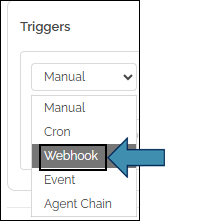
- Click Add Trigger → Webhook.
- When you save, HuLoop generates a unique URL and a secret.
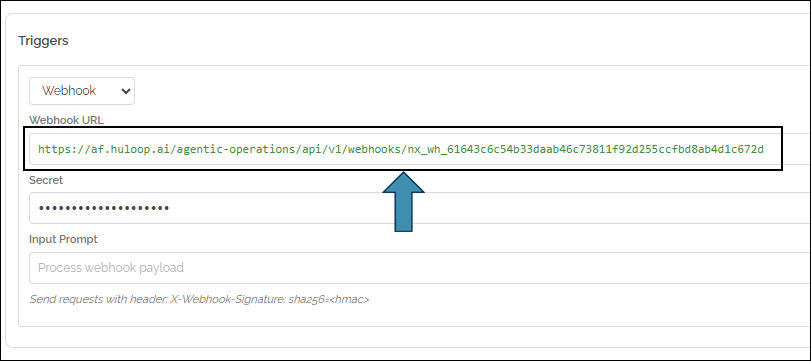
- Copy the URL into the external system that should start the agent.
- What that system sends in the request becomes the agent’s input.
The webhook is protected by a signature check using the auto-generated secret, so only requests carrying the right secret are accepted. Keep the secret secure.
Event Trigger
An event trigger fires when something changes inside HuLoop.
- Click Add Trigger → Event.
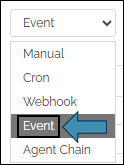
- Set the Entity Type (for example, loan_application or customer).
- Set the Event Type (for example, created, updated, or deleted).
- Optionally add a filter so the agent only runs for matching events.
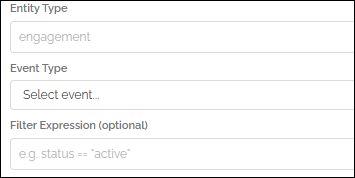
Use this when you want an agent to react to activity in the platform. For example, “Run when a new customer is created.”
Agent Chain Trigger
An Agent Chain trigger runs your agent when another agent finishes. This is how you link agents into a pipeline.
- Click Add Trigger → Agent Chain.
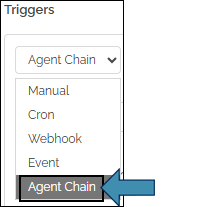
- Choose the Source Agent — the upstream agent whose completion starts this one.
- Choose the Condition:
- On Success — only run when the source agent succeeded.
- On Failure — only run when the source agent failed (handy for cleanup or alerts).
- On Any Completion — run no matter how the source agent ended.
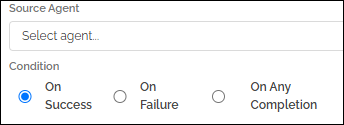
Chain several agents this way and the output of one naturally feeds the next.
Checking Trigger History
The Triggers section on an agent’s Overview or Edit page provides a record of trigger activity, including trigger time, type, status, execution duration, and any associated errors. It should be the primary resource when troubleshooting unexpected automated behavior.
Informational Note: This is different from completion notifications (telling Slack or another system that a run finished). Those are set under Notifications in the Agent Designer.
