



Running and Results
This chapter explains how to run an agent, monitor its progress, stop a run, and access results. Every run is tracked, remains within defined limits, and can be revisited at any time.
The Two Places You Run Agents
There are two spots in the app for different jobs:
| Where | Sidebar path | Use it when |
|---|---|---|
| Run tab | BUILD → Agents → pick an agent → Run | You are building or editing the agent and want to test it. |
| Agent Runner | RUN → Agents | You want to run an agent already set up. |
Agent Runner (RUN → Agents) displays only agents that are ready to run (Active or Paused), so you can’t accidentally modify their configuration. The Run tab is located within each agent, alongside Overview, Edit, Task Flow, and Metrics.
Try it: Go to RUN → Agents, open any agent, and you’re ready to run — no setup needed.
Run an Agent (The Basic Way)
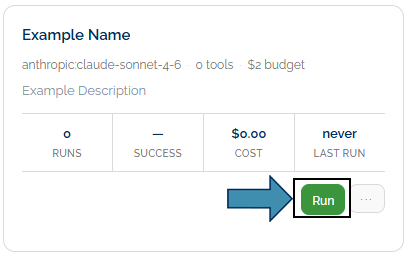
- Open the agent from RUN → Agents (or the Run tab under BUILD → Agents).
- Type your request in plain language. If the agent shows boxes to fill in instead of a text box, fill those in.
- If it asks for a file, attach it (drag-and-drop, or use the upload button). Use this for a one-time document, for example, “Read this invoice.” For reference material the agent should reuse every time, add it to a knowledge base instead — See Knowledge Bases.
- Click Start (or Run).
- Watch the steps appear. When it finishes, your result shows at the bottom.
The agent uses only its configured tools and limits, with every action tracked and recorded.
Other Ways to Run
Dry Run
Click Dry Run to simulate a run without calling the AI, so you can verify inputs and task flow at no cost and with no real actions.

Resume a Run that Failed or was Cancelled
If a run failed or was cancelled partway through, you can often pick up where it left off instead of starting over.
- Find the run in the history list (on the Run tab) or open its detail page.
- Click Resume.
- The agent skips the steps it already finished and re-runs from the failed step.
A few things to know:
| Question | Answer |
|---|---|
| What gets skipped? | Steps that already finished successfully. |
| What re-runs? | The step that failed (and any unfinished repeat/loop steps). |
| How long can I wait? | About 7 days — after that, start a fresh run. |
| It says waiting? | Open the run detail and click Resume now. |
Informational Note: Resume now on a stuck run is different from answering an approval question. If the agent paused to ask you something, reply to it. See When Something Goes Wrong.
Reading the Run Console
While an agent works, the console shows the live progress.
There are two views:

| View | What You See |
|---|---|
| Flow (Default) | A picture of the steps and tool calls as they happen. |
| Log | The text output, streaming in line by line. |
Switch between them anytime using the toggle. Use Flow to see the big picture of what the agent is doing; use Log to read the fine details.
The header across the top keeps a running count of:
- Turns — How many back-and-forth steps the agent has taken
- Cost — How much the run has spent so far
- Elapsed time — How long it’s been running
These metrics show that the run is progressing and staying within its defined limits. Built-in caps on time, cost, and steps prevent any run from exceeding its boundaries. See Safety and Guardrails.
Answer an Agent When It Pauses
Sometimes an agent stops and asks a question or for an approval request — for example, “Approve sending this?” or “Which account should I use?”
- Read what it’s asking.
- Click Approve or Reject, or type your answer in the box.
- The agent picks up right where it paused.
This is intentional. The agent pauses at key points to keep a person in control of important decisions. For help with pauses and other issues, see When Something Goes Wrong.
Stop a Run

- Click Stop on the run.
- The agent stops at its next safe checkpoint and won’t keep working in the background.
Use this to stop a run you no longer need. For automatic stop limits, see Safety and Guardrails.
Find your Results and Download Files
Every run is saved, so you can always return to it.
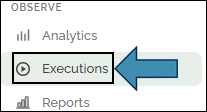
- Go to OBSERVE → Executions. The latest runs are at the top.
- Open the run you want.
- You’ll see:
- The steps the agent took, in order,
- The result it produced,
- Any files it created — click to download them.
On the Run tab, the history list on the side shows past runs for that one agent. Use OBSERVE → Executions to see runs across all of your agents in one place.
If you close the page during a run, you can return to OBSERVE → Executions to view its progress, results, and files.
Where to Go Next
- Want an agent to run on a schedule? See Triggers and Scheduling.
- Need charts, trends, or detailed run history? See Analytics and Monitoring.
