


Saving and Publishing Your Workflow
Once you’ve added all the required components to your workflow, you can choose to either save your progress as a draft or publish it to make it available for execution.
Save as Draft: If you’re still working on your workflow and want to continue later, you can save it as a draft.
- Click the Save Draft button.
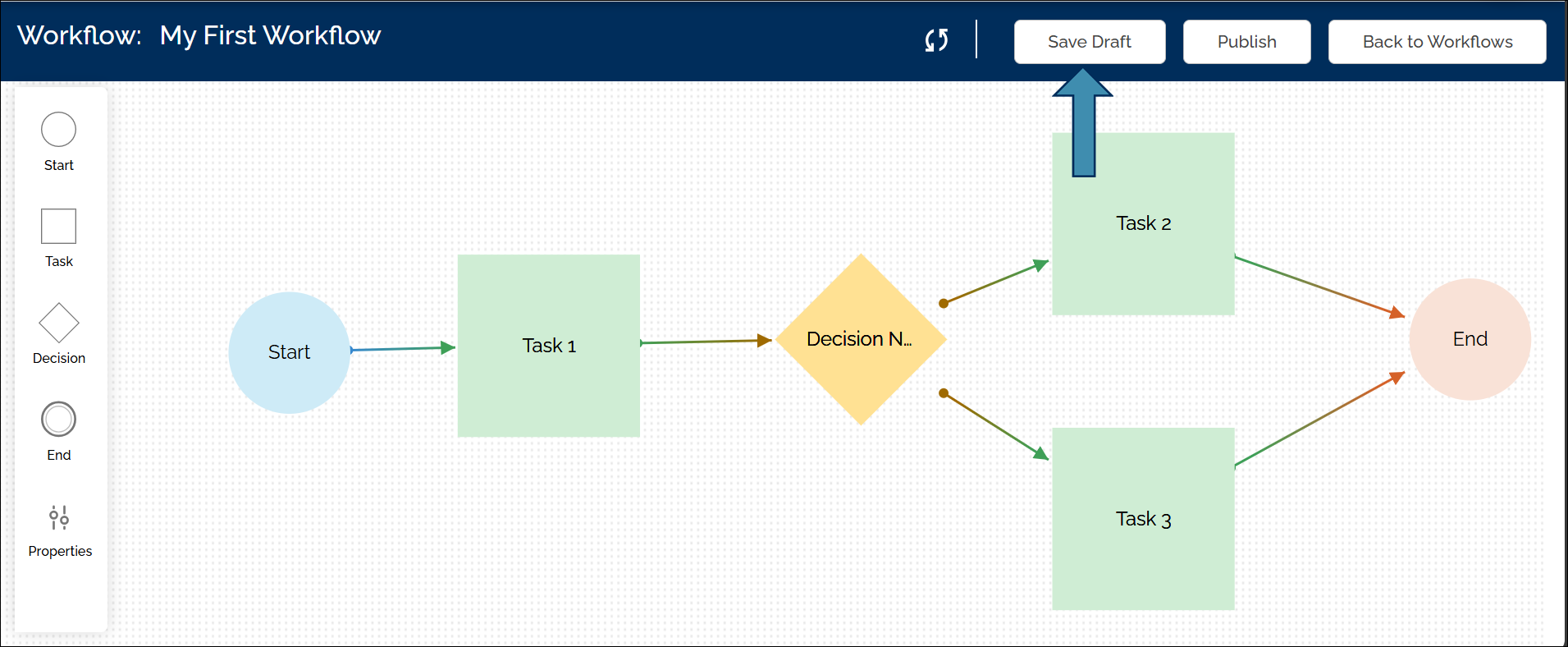
- Then click Back to Workflows to return to the Workflows page.
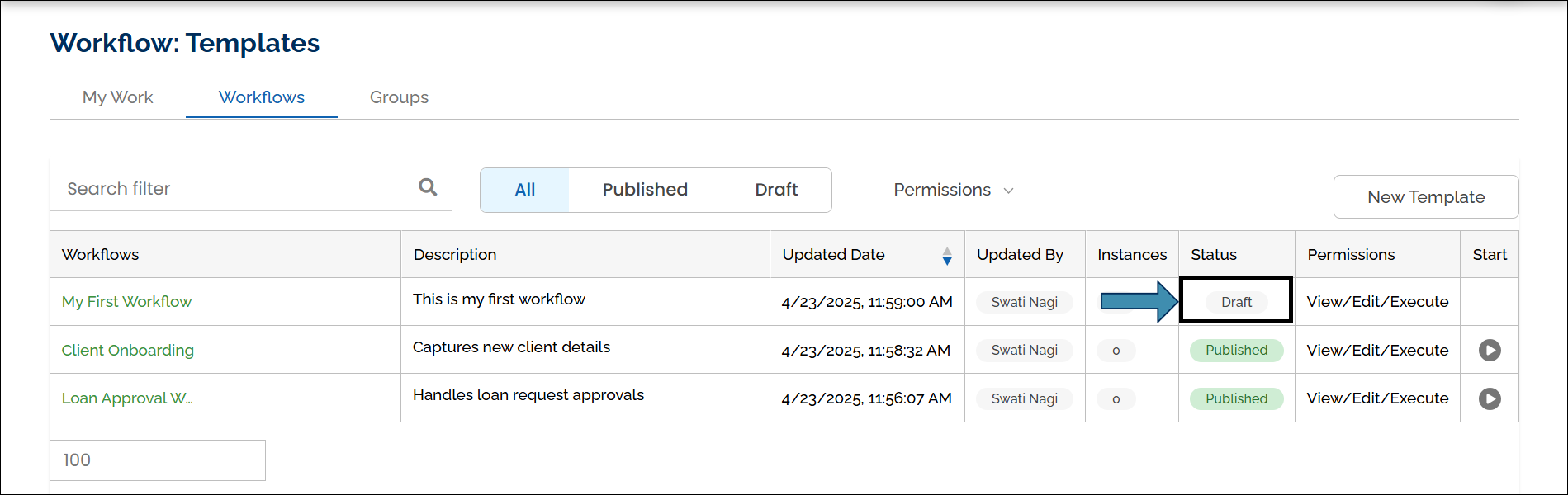
- The workflow will appear in the list with a Draft status.
Draft workflows can be edited and published at any time.
Publish the Workflow: When your workflow is complete and ready to be used:
- Click the Publish button to make it live.
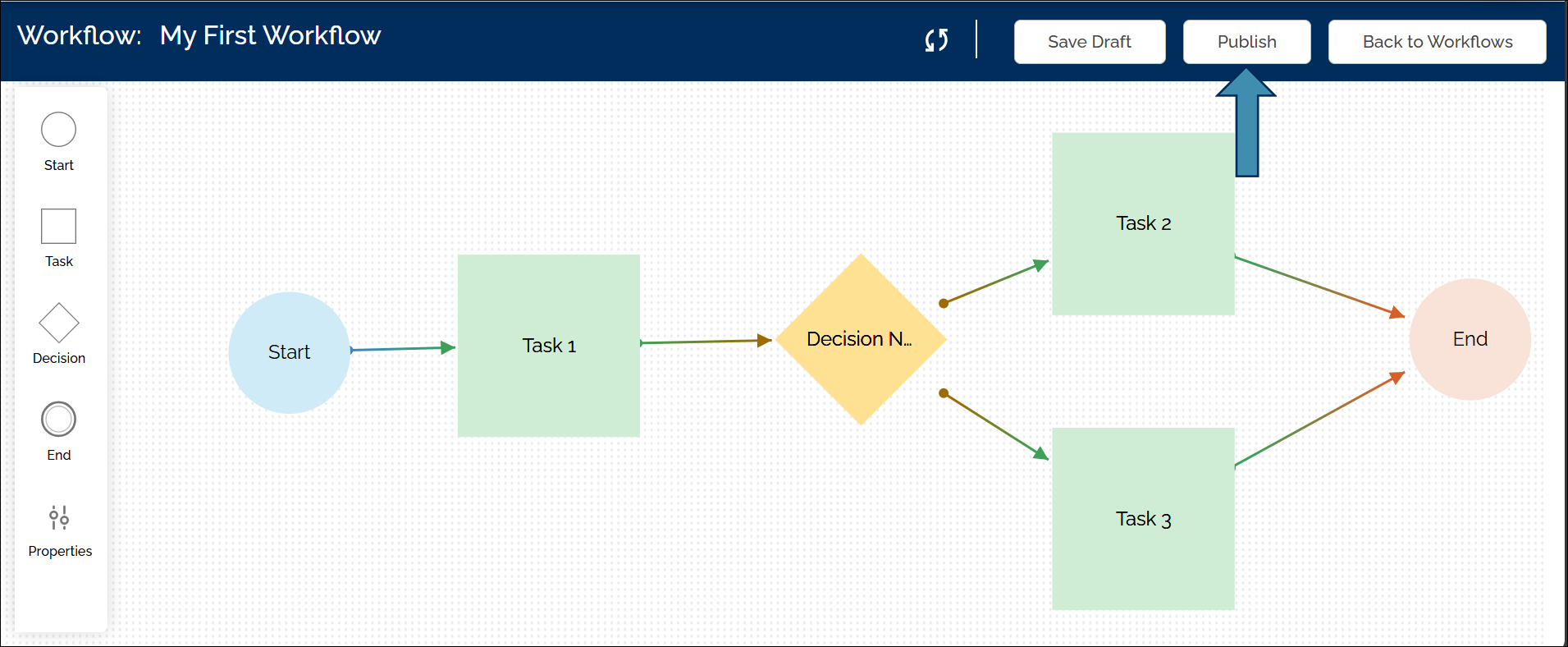
- Then click Back to Workflows to return to the Workflows page.
- The workflow will appear with a Published status and can now be executed.
Note: A workflow must be published at least once before it can be started or assigned. If a workflow is run while in Draft mode, the last published version of the workflow is executed.
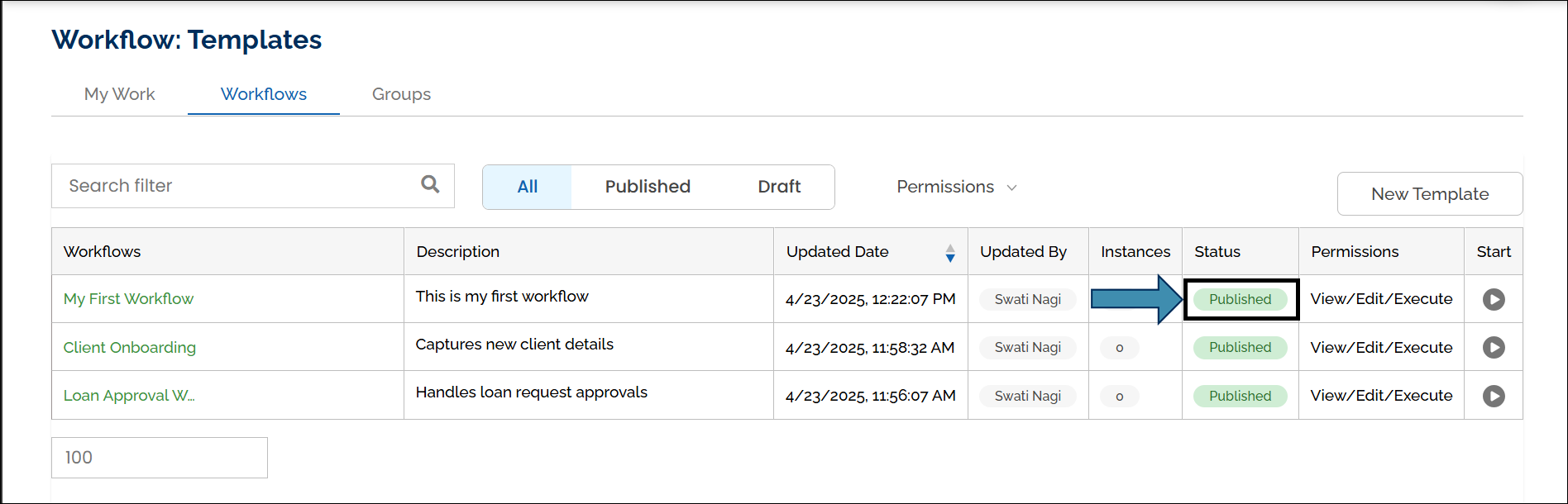
On the Workflows page, you can easily manage and locate workflows using the following tools:
- Search filter: Search workflows by name.
- Status filters: View workflows by status: All, Published, or Drafts.
- Permissions filter: See if you can workflow permissions.
- Pagination controls: Choose how many workflows to display per page (10, 20, 25, 50, or 100).
